How to add a cover page
Introduction: In this tutorial, we will show you how to add and customize a cover page for your documents, proposals, or contracts in Agiled Docs. Cover pages c
Updated 2 min read
Introduction:
In this tutorial, we will show you how to add and customize a cover page for your documents, proposals, or contracts in Agiled Docs. Cover pages can help you create a professional and visually appealing first impression for your clients.
Adding Cover Page in Docs
Step 1: Add a Cover Page
To add a cover page to your document, follow these simple steps:
1. Click on the plus (+) button in your document's left sidebar.
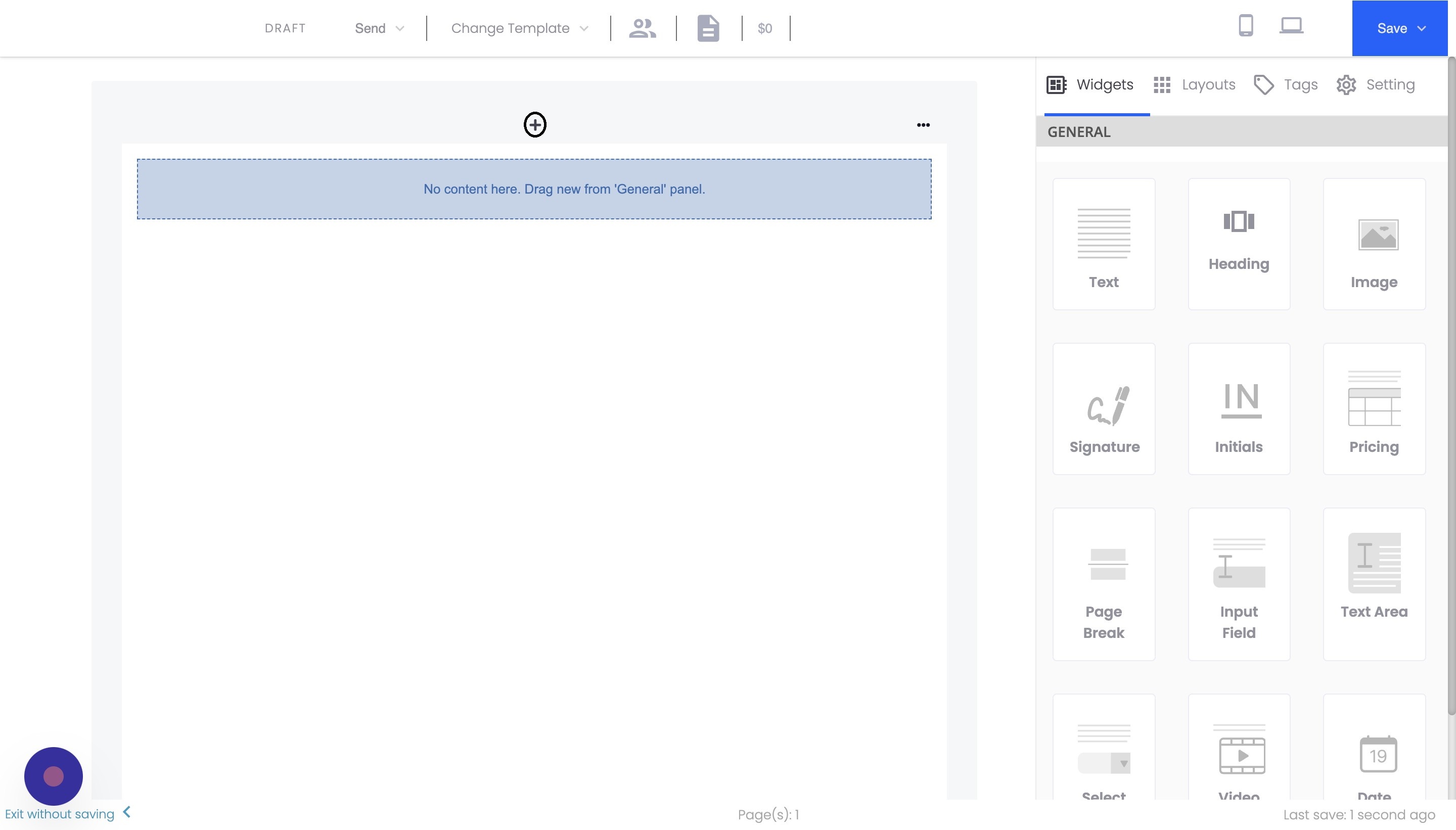
2. Click on "Cover Page."
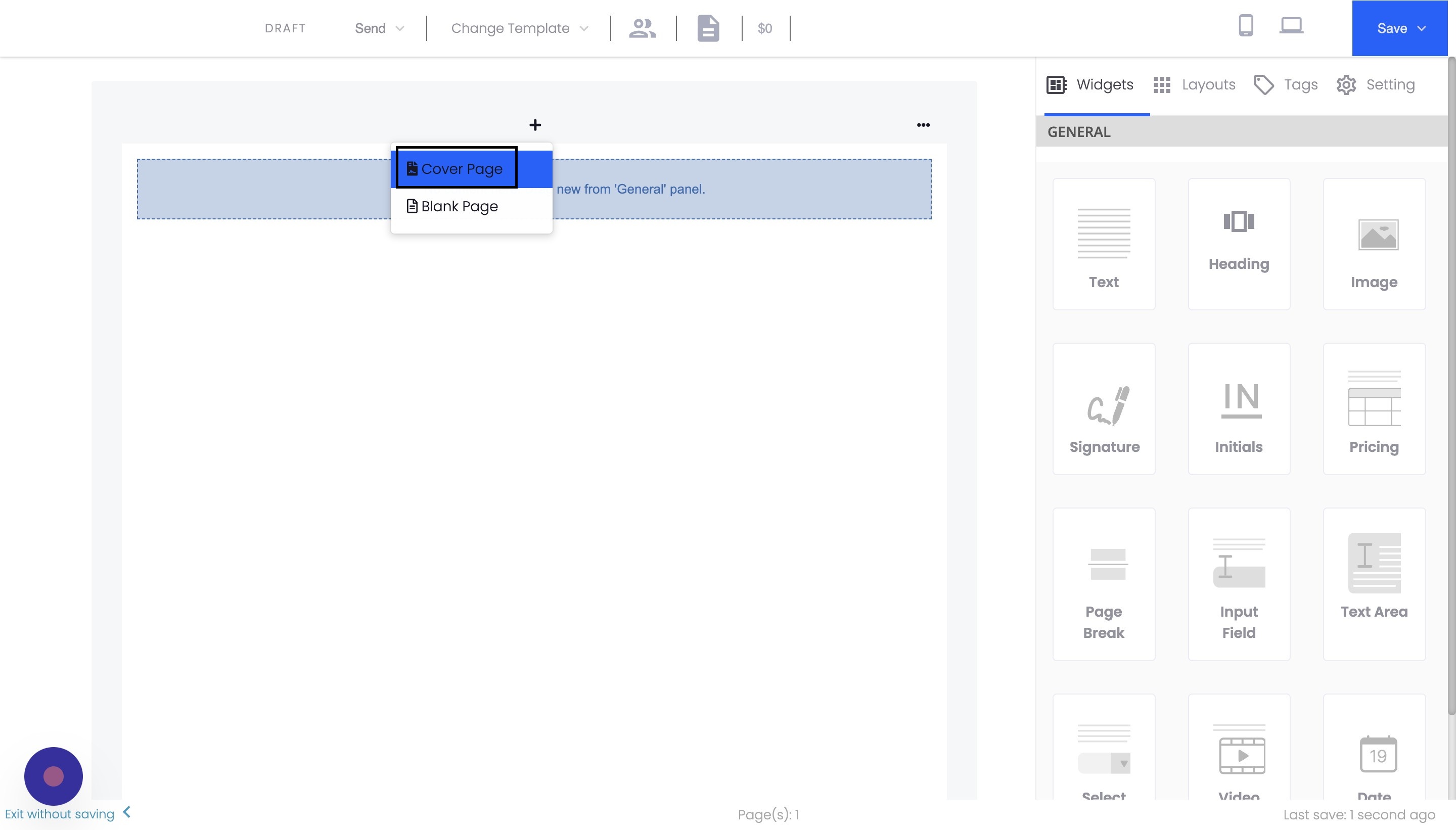
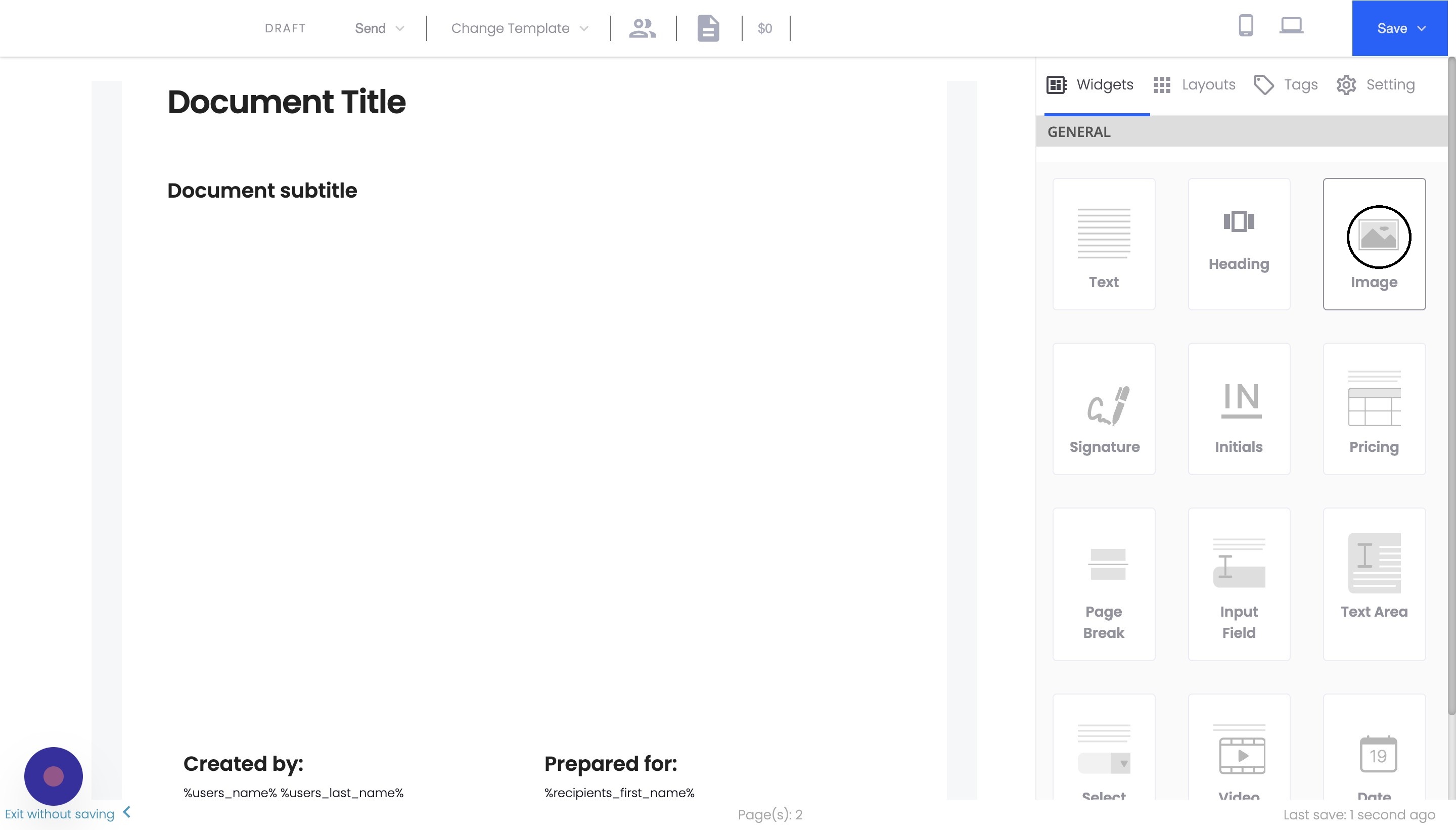
3. This will add a default cover page template to your document.
Step 2: Customize the Cover Page
To customize your cover page, you can use the following techniques:
1. Drag and drop widgets from the left-hand sidebar onto the cover page to add text, images, or other content.
2. Select the page block and change the background color by clicking the color picker.
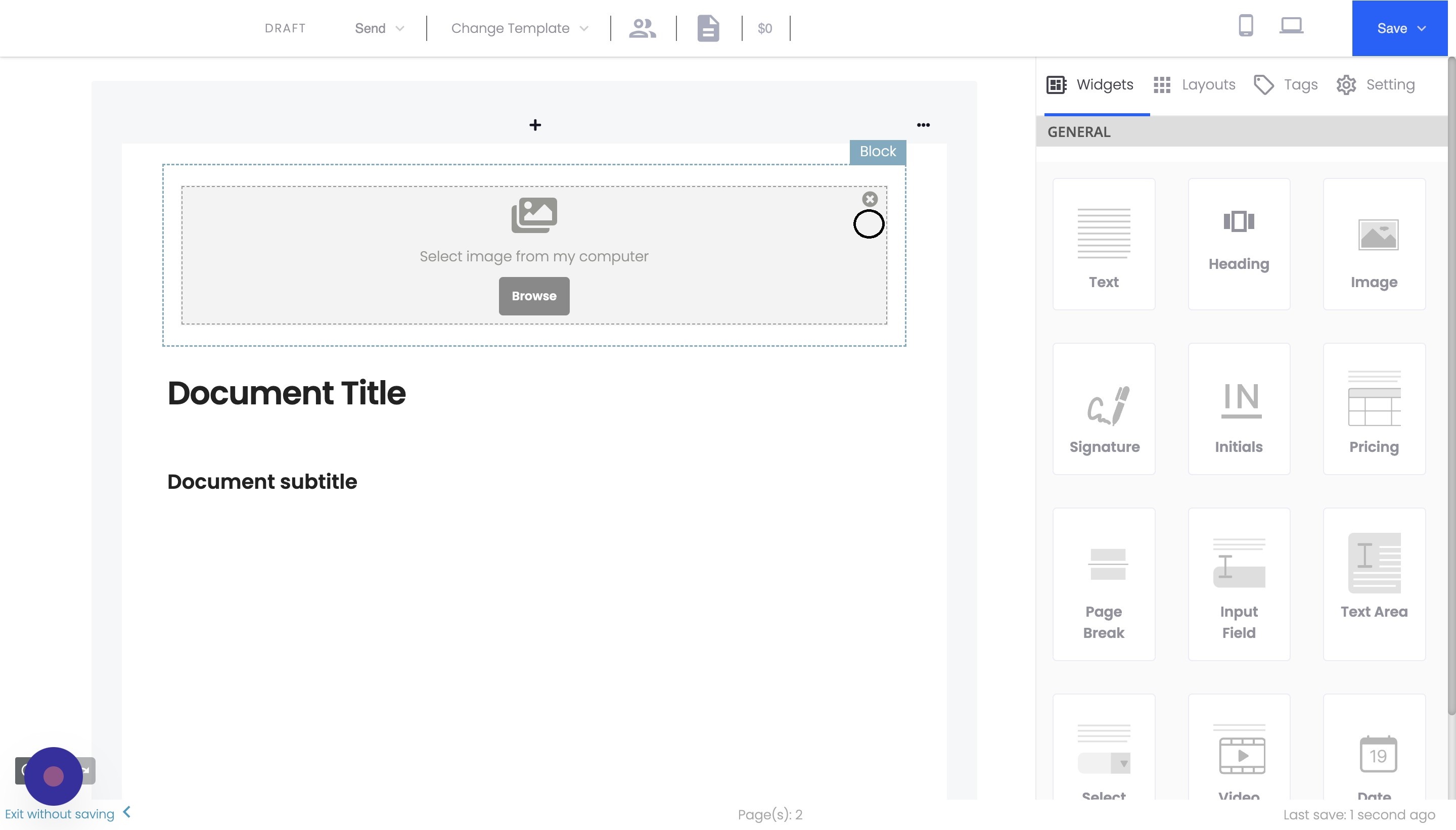
3. Add an image as the background by dragging an image widget onto the page and adjusting the size and position.
Step 3: Adjust Text and Image Settings
You can further refine the appearance of your cover page by modifying the text color and adjusting the background image settings:
1. Change the text color by selecting the text and choosing a new color from the color picker.
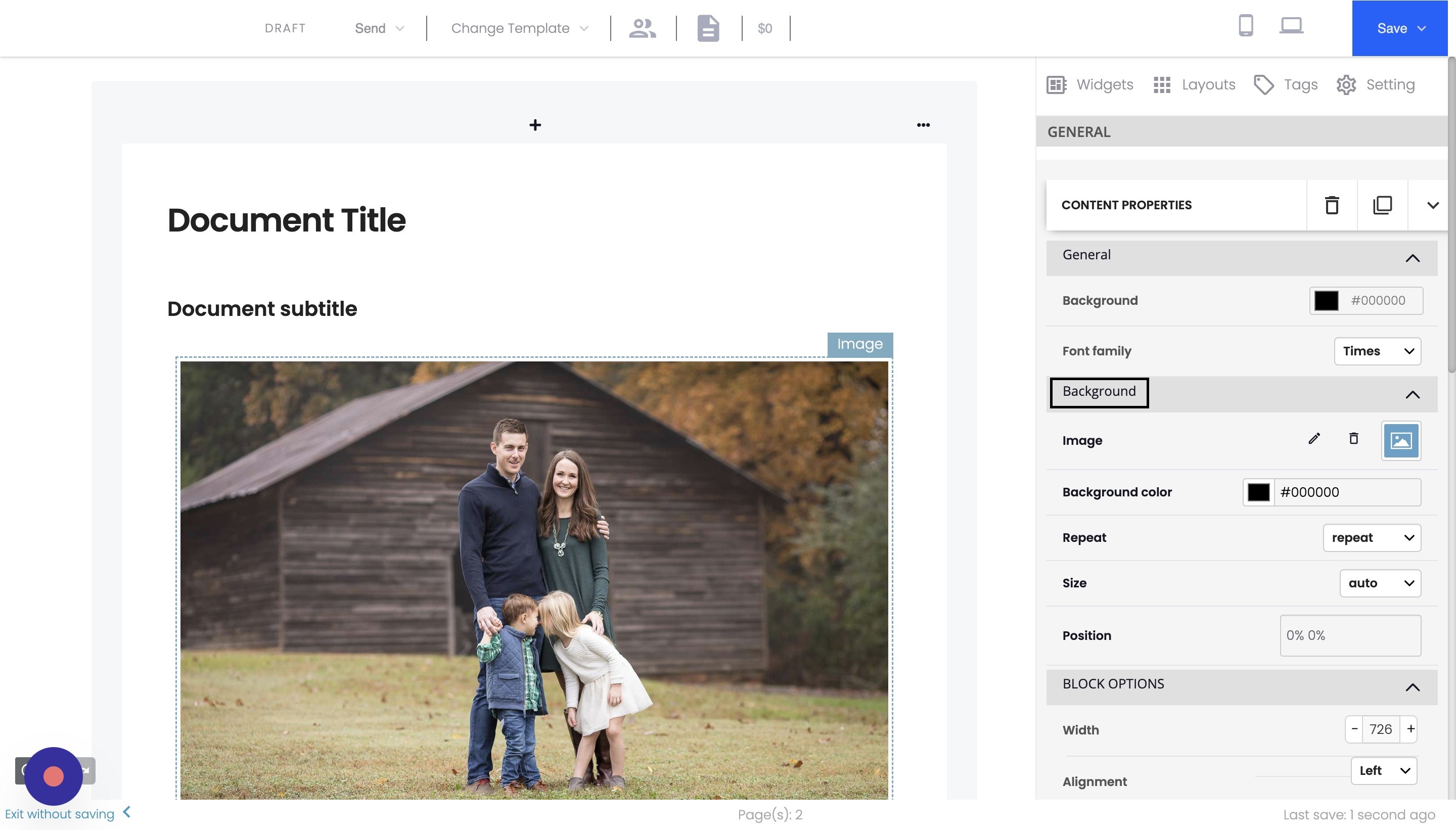
2. Go to the page settings and adjust the size and display settings for the background image. You can choose from options like "Cover," "Contain," or "Auto," and decide whether to repeat the image or not.
Conclusion
Adding and customizing a cover page in Agiled Docs is a simple yet effective way to create a professional and visually appealing presentation for your documents, proposals, or contracts. By following these steps, you can enhance the overall appearance of your documents and impress your clients with a polished final product.
FAQs
Can I save my custom cover page as a template for future use?
Agiled Docs does not currently support saving custom cover pages as templates. However, you can duplicate an existing document with your custom cover page and use it as a starting point for future documents.
Can I add a cover page to an existing document?
Yes, you can add a cover page to an existing document by following the steps outlined in this tutorial. The cover page will be added at the beginning of the document, and you can customize it as needed.
Can I change the order of pages in my document, including the cover page?
Yes, you can rearrange the pages in your document by clicking and dragging them within the left-hand sidebar. This allows you to move the cover page or other pages to different positions within the document.
Was this article helpful?
More in Docs
- Agiled Docs Overview : Creating Contracts & Proposals in AgiledAgiled has introduced a comprehensive and improved Docs experience based on user feedback and suggestions. This enhanced feature includes a wide range of improv
- How Clients Can Sign Documents in AgiledIntroduction: In this tutorial, we will guide you through how your clients can sign the documents you sent them using Agiled. Signing documents in Agiled is a s
- How to use Merge Tags in Agiled DocsIntroduction In this tutorial, we'll show you how to use merge tags in Agiled Docs to personalize your contracts or proposals with client data from the CRM. Mer
- How clients can sign the docIntroduction: In this tutorial, we will guide you through how your clients can sign the documents you sent them using Agiled. Signing documents in Agiled is a s
Questions about this? Agiled Assist answers from these articles.