Layout options in Agiled Docs
Introduction Agiled Docs offers a variety of layout options to help you create professional and visually appealing documents. In this tutorial, we'll explore th
Updated 2 min read
Introduction
Agiled Docs offers a variety of layout options to help you create professional and visually appealing documents. In this tutorial, we'll explore the different layout options available in Agiled Docs and how to use them to customize your contracts and proposals.
Layout Options in Agiled Docs
- Open the document builder in Agiled.
- To access the layout options, look for the "Layout" section in the builder's toolbar.
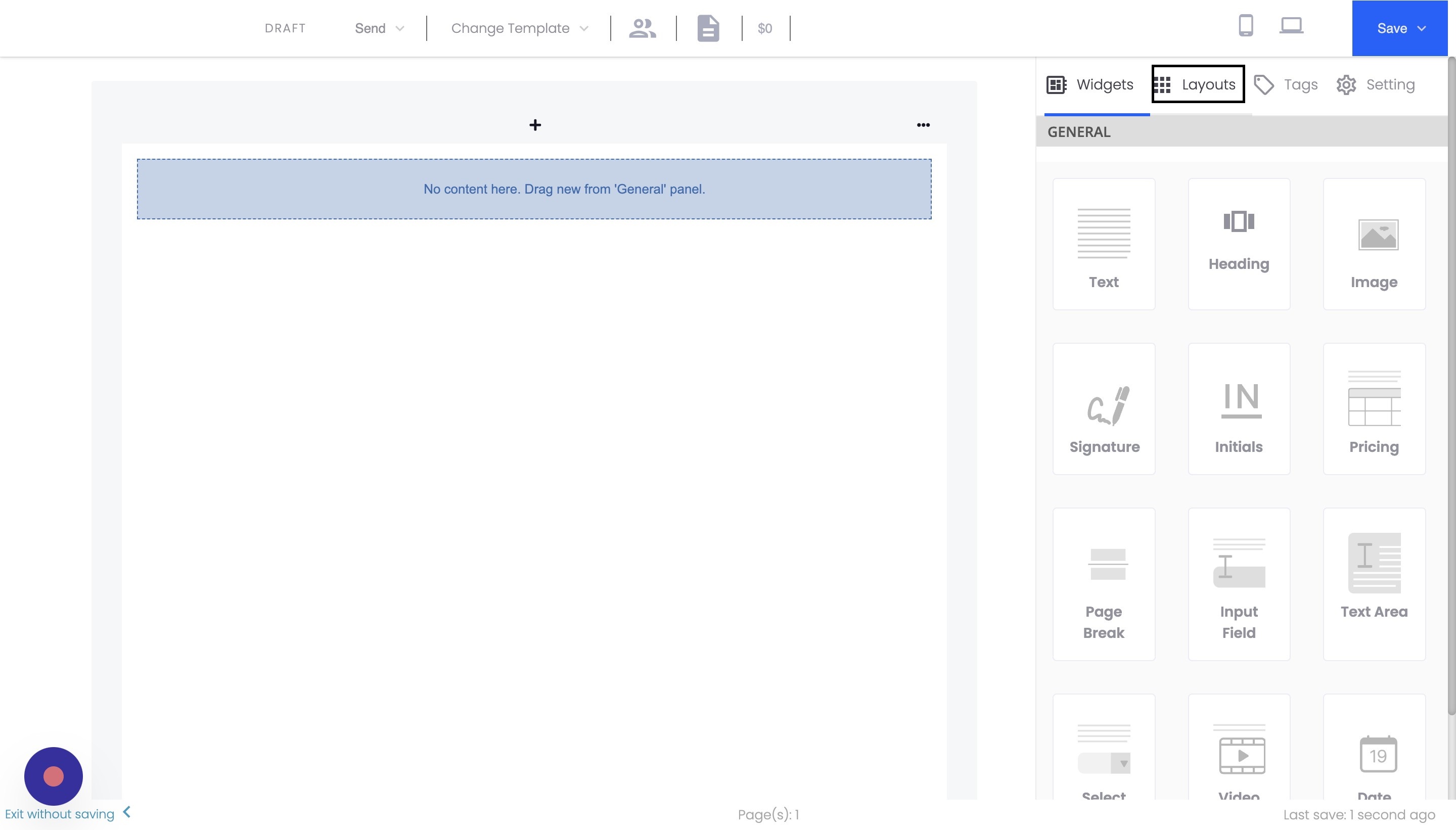
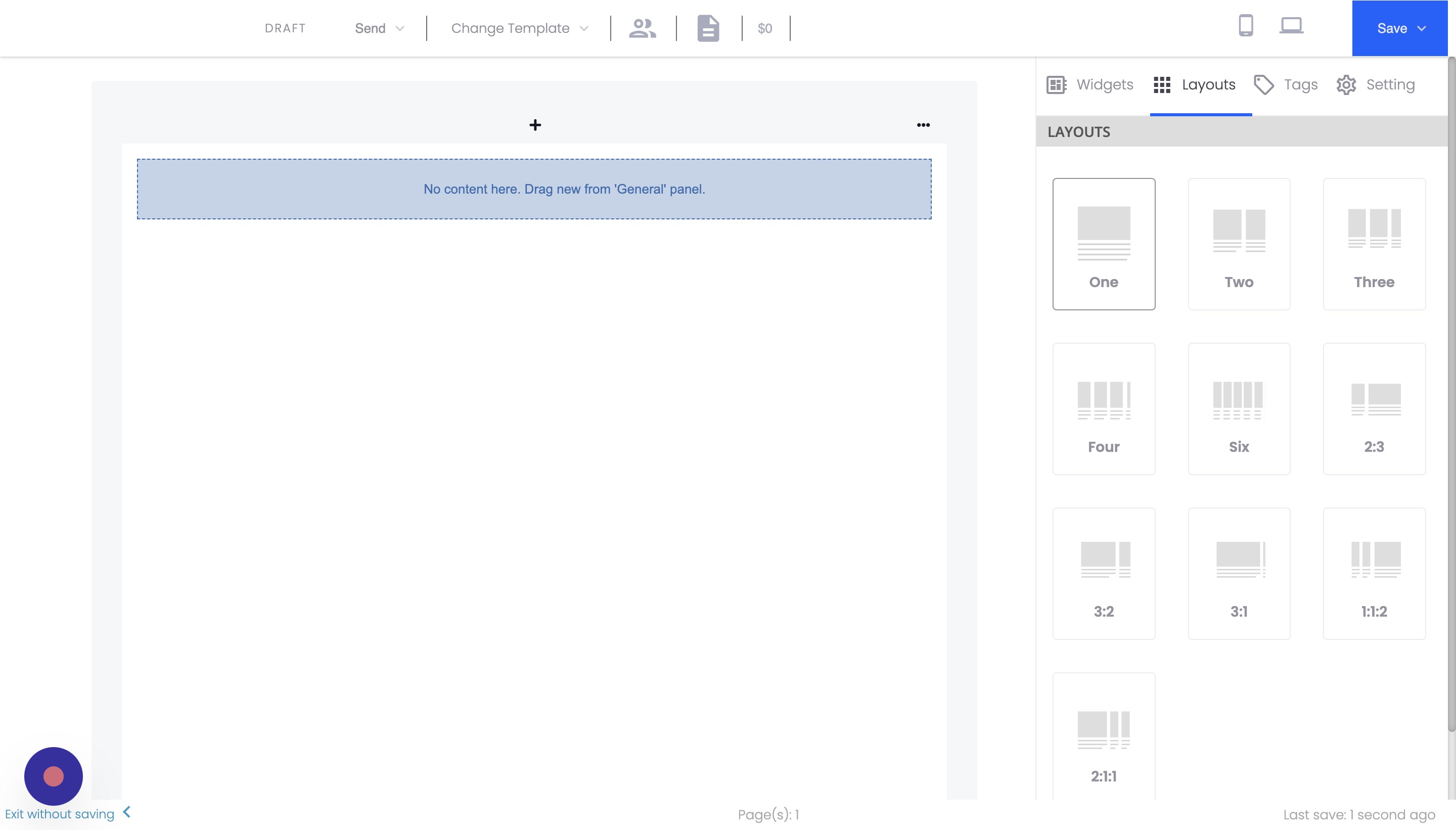
- Choose from the available layout options, including:
- One column
- Two columns
- Three columns
- Four columns
- Six columns
- Two by three columns
- And more
- Drag and drop the desired layout onto your document.
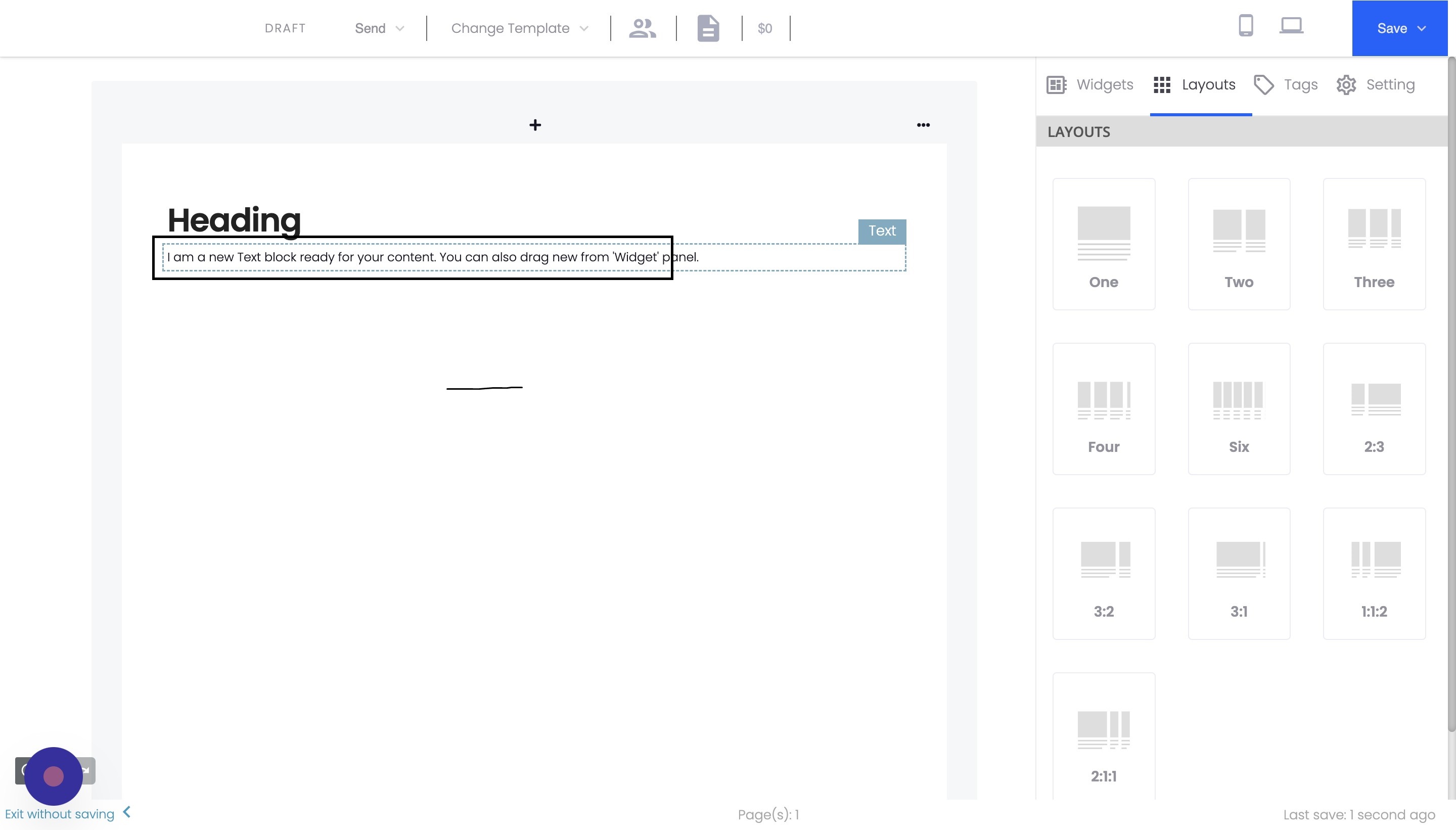
Customizing Layouts
- After adding a layout to your document, you can customize the columns by nesting them, changing their widths, or rearranging their order.
- To add content to the columns, simply drag and drop widgets (such as text, images, or headings) into the desired column.
Example of Using Layout Options
- Add a two-column layout to your document.
- In the left column, add a heading and some text.
- In the right column, insert an image related to the document's content.
- Adjust the width of the columns as needed to create a visually balanced layout.
Conclusion
With Agiled Docs' flexible layout options, you can create various document designs for your proposals and contracts. You can just experiment with different column configurations and content arrangements to find the perfect layout for your needs. Thank you for using Agiled!
Frequently Asked Questions
Can I combine different layout options in a single document?
You can use multiple layout options within a single document to create a more dynamic and engaging design. Drag and drop different layouts onto your document and customize them as needed.
Can I adjust the width of the columns in my layout?
Yes, you can adjust the width of the columns in your layout by clicking and dragging the column divider. This allows you to create a balanced and visually appealing design.
Is it possible to create nested columns within a layout?
Yes, you can create nested columns in your layout by adding a new layout inside an existing one. This allows for more complex and versatile designs in your Agiled documents.
Was this article helpful?
More in Docs
- Agiled Docs Overview : Creating Contracts & Proposals in AgiledAgiled has introduced a comprehensive and improved Docs experience based on user feedback and suggestions. This enhanced feature includes a wide range of improv
- How to add a cover pageIntroduction: In this tutorial, we will show you how to add and customize a cover page for your documents, proposals, or contracts in Agiled Docs. Cover pages c
- How Clients Can Sign Documents in AgiledIntroduction: In this tutorial, we will guide you through how your clients can sign the documents you sent them using Agiled. Signing documents in Agiled is a s
- How to use Merge Tags in Agiled DocsIntroduction In this tutorial, we'll show you how to use merge tags in Agiled Docs to personalize your contracts or proposals with client data from the CRM. Mer
Questions about this? Agiled Assist answers from these articles.