How to use Input fields in Agiled Docs
Introduction In this tutorial, we will demonstrate how to use input fields in Agiled docs. Input fields can collect information from your recipients, such as th
Updated 1 min read
Introduction
In this tutorial, we will demonstrate how to use input fields in Agiled docs. Input fields can collect information from your recipients, such as their names or other relevant details.
Step-by-Step Guide
- Access the Document Builder: Open the document you want to edit or create a new one in Agiled's document builder.
- Add an Input Field: Locate the input field widget in the builder and drag it to the desired location within the document.
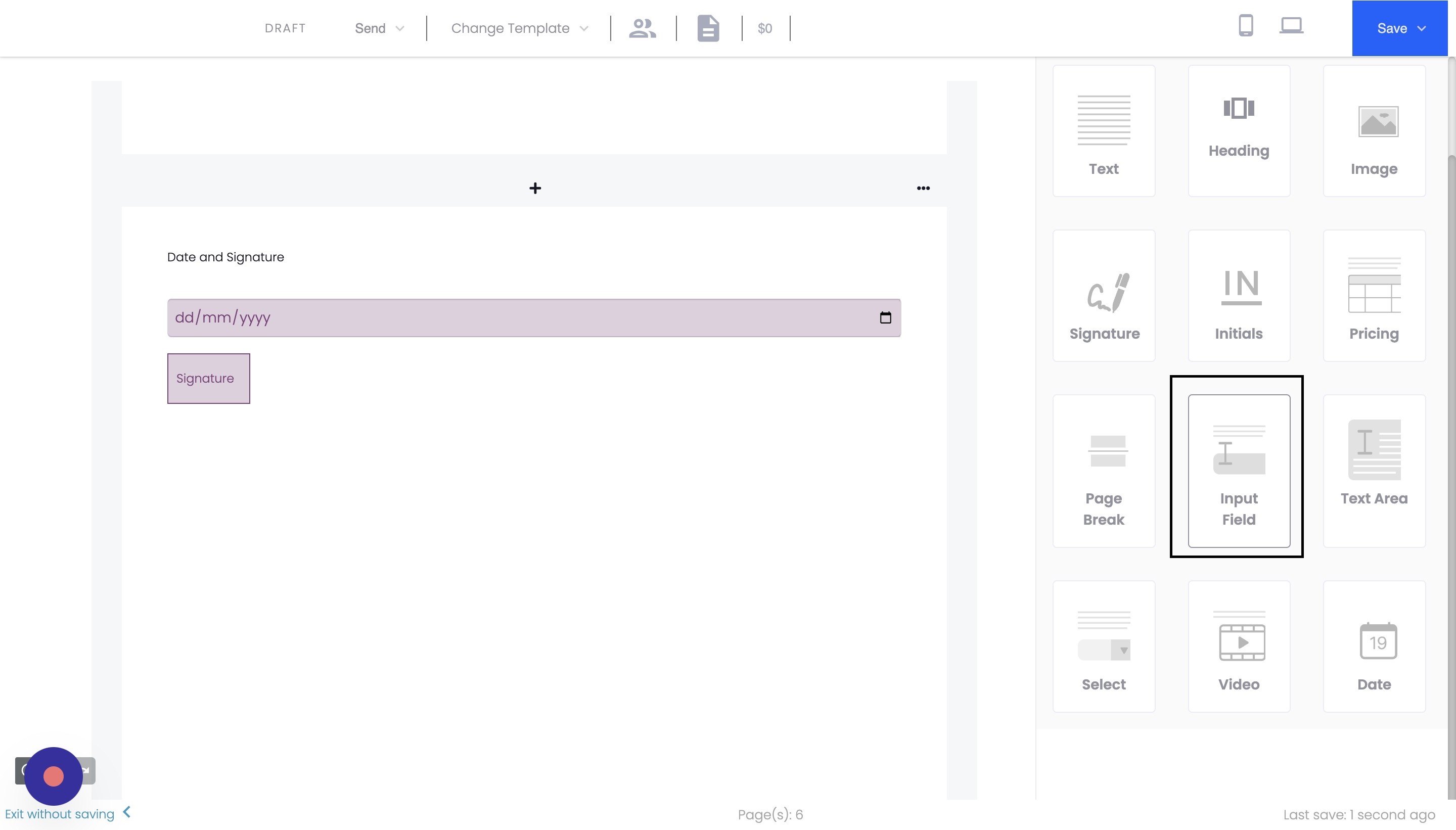
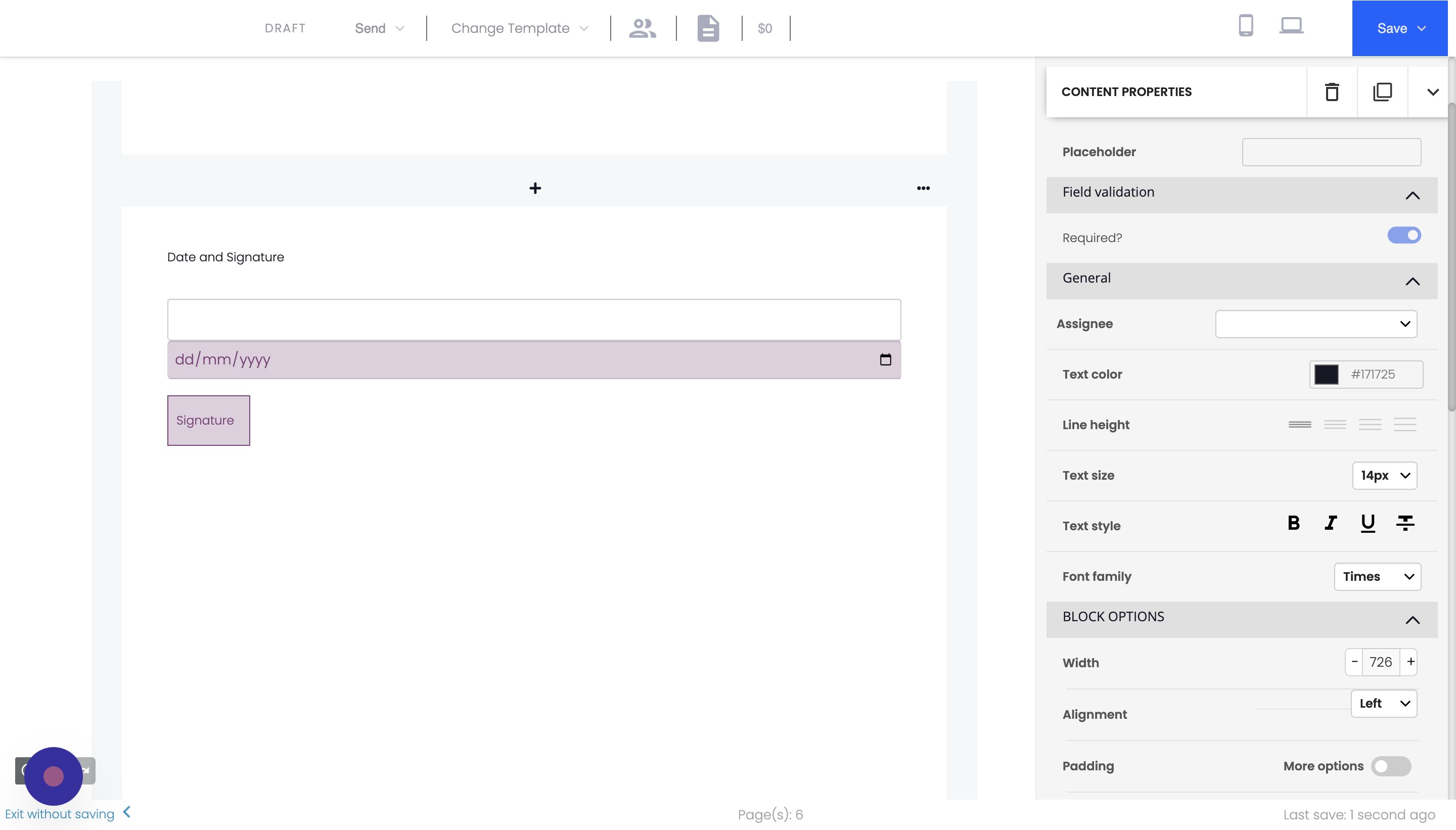
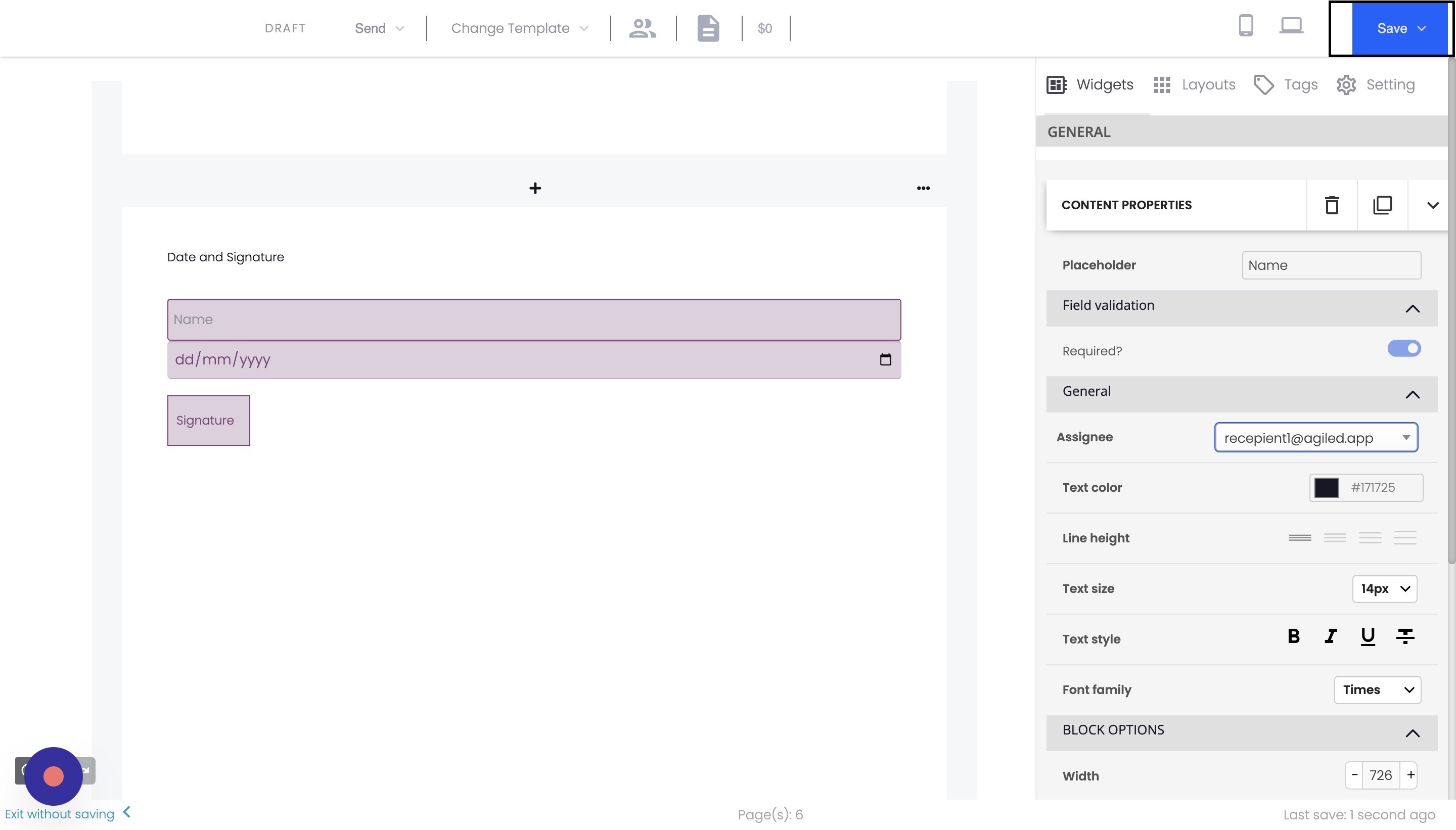
- Customize the Input Field: Click on the input field to customize it. You can make the field required, add a placeholder text, and assign it to a recipient.
- Save and Send: Once you have added and customized the input field, save your document and send it to your recipients.
After your recipients receive the document, they can provide their input in the specified fields.
Frequently Asked Questions
Can I add multiple input fields in a single document?
Yes, you can add multiple input fields within a single document to collect various information from your recipients.
Can I add input fields for multiple recipients?
Yes, you can assign input fields to multiple recipients. Each recipient will have the ability to fill in their assigned input fields.
Can I set a character limit for input fields?
Agiled's document builder does not currently support setting character limits for input fields. However, you can provide instructions in the placeholder text or document content to guide your recipients on the desired length of their input.
Can I modify the input fields after sending the document?
You cannot modify the input fields after sending the document to your recipients. Make sure to finalize all input fields and their settings before sending the document.
How can I view the information collected from input fields?
Once your recipient has filled in the input fields and signed the document, you can view the collected information in the final signed document available in your Agiled account.
Was this article helpful?
More in Docs
- Agiled Docs Overview : Creating Contracts & Proposals in AgiledAgiled has introduced a comprehensive and improved Docs experience based on user feedback and suggestions. This enhanced feature includes a wide range of improv
- How to add a cover pageIntroduction: In this tutorial, we will show you how to add and customize a cover page for your documents, proposals, or contracts in Agiled Docs. Cover pages c
- How Clients Can Sign Documents in AgiledIntroduction: In this tutorial, we will guide you through how your clients can sign the documents you sent them using Agiled. Signing documents in Agiled is a s
- How to use Merge Tags in Agiled DocsIntroduction In this tutorial, we'll show you how to use merge tags in Agiled Docs to personalize your contracts or proposals with client data from the CRM. Mer
Questions about this? Agiled Assist answers from these articles.