How to manage recipients in Agiled Docs
Introduction: This tutorial will show you how to manage recipients in Agiled Docs. You are not limited to just one recipient for your contracts or proposals. Th
Updated 2 min read
Introduction:
This tutorial will show you how to manage recipients in Agiled Docs. You are not limited to just one recipient for your contracts or proposals. This tutorial will cover adding, editing, and deleting recipients in Agiled Docs.
Managing Recipients
Step 1: Access the Manage Recipients feature
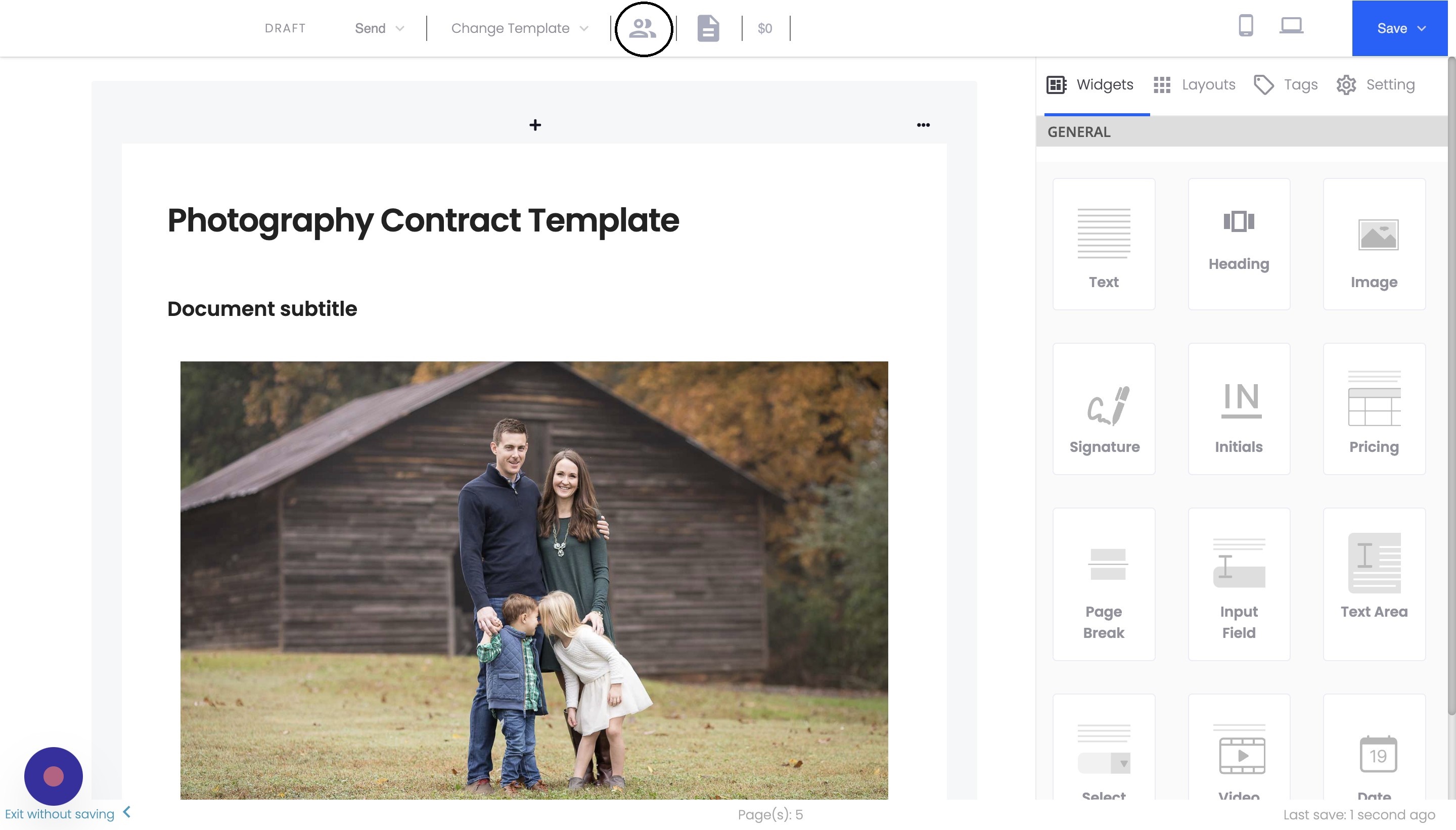
To manage the recipients of a document, click on the "Manage Recipients" button within your contract or proposal.
Step 2: Add recipients to your document
There are two ways to add recipients in Agiled Docs:
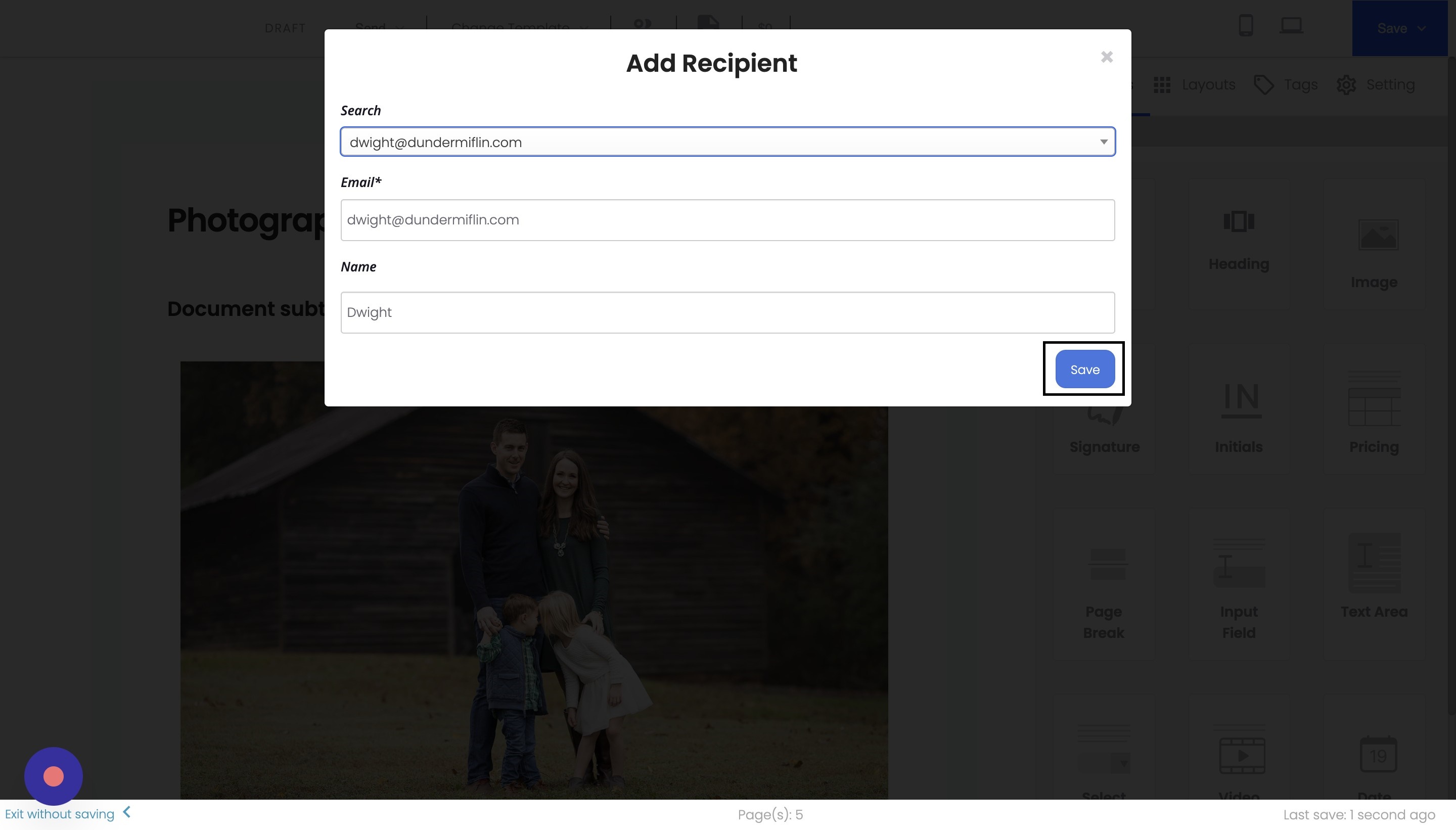
Add a recipient from your existing contacts in Agiled:
a. Click on the "Search" button.
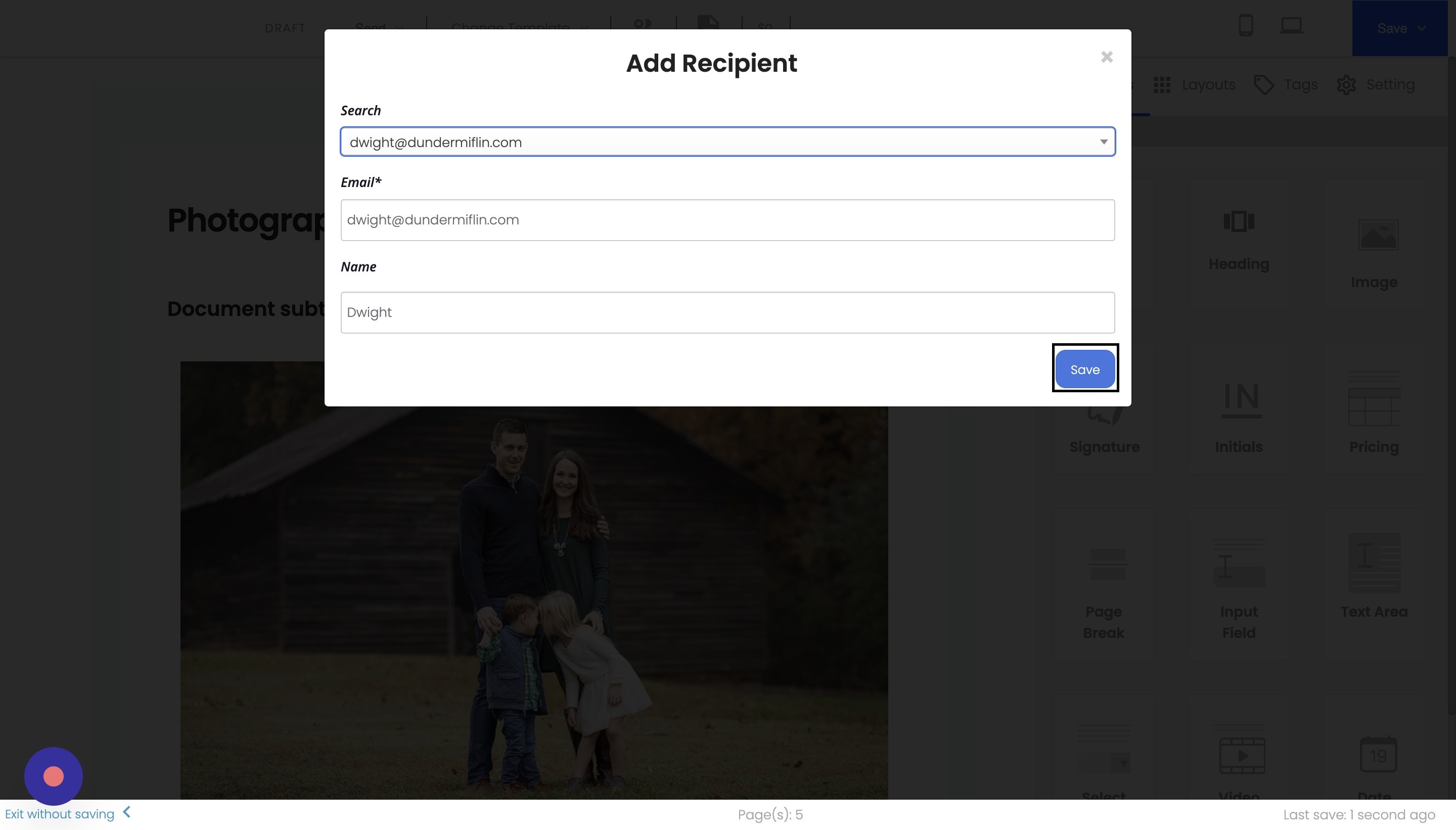
b. Select a contact from your Agiled CRM.
c. Click on "Save" to add the contact as a recipient.
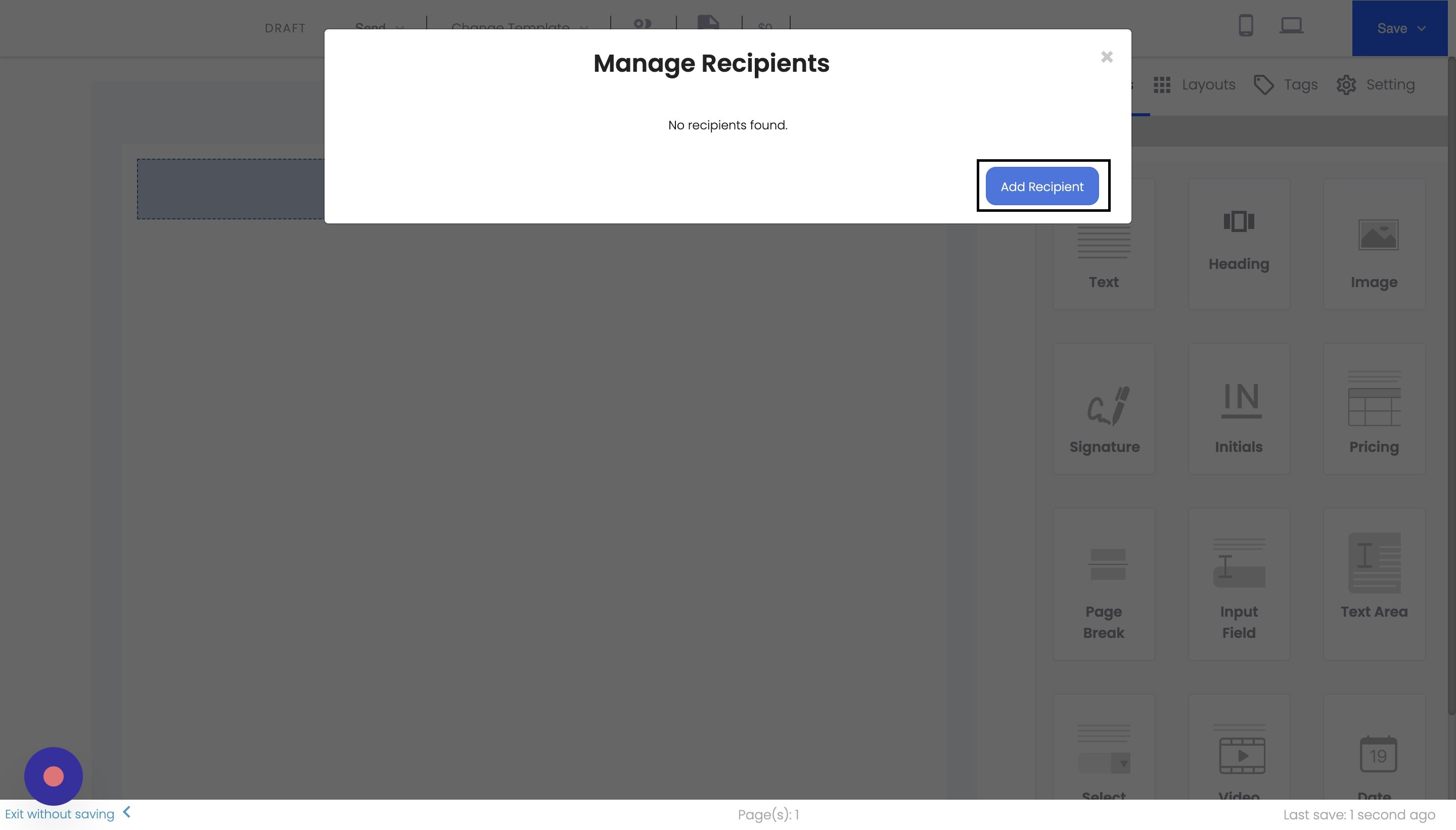
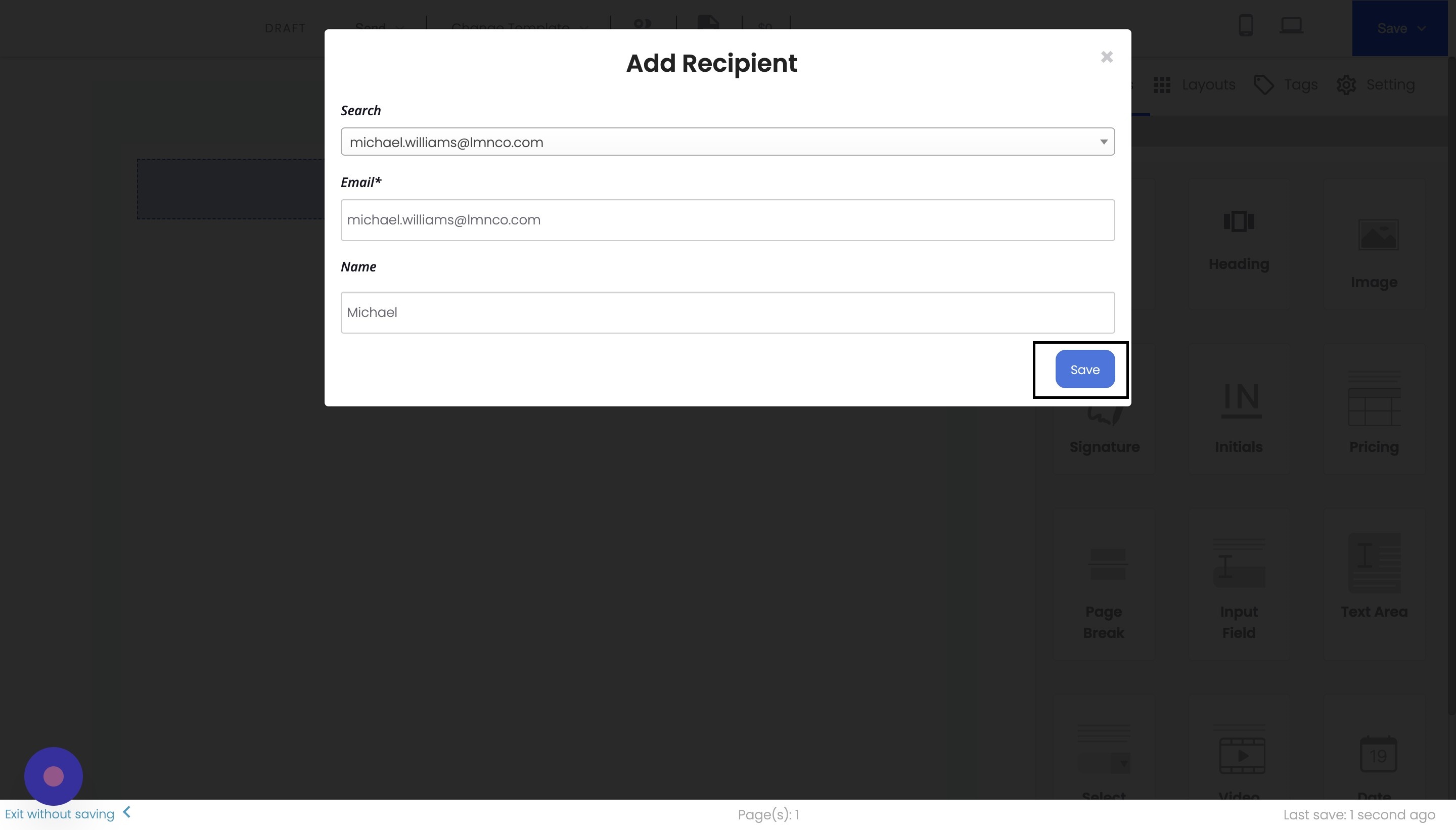
Add a new recipient by entering their name and email:
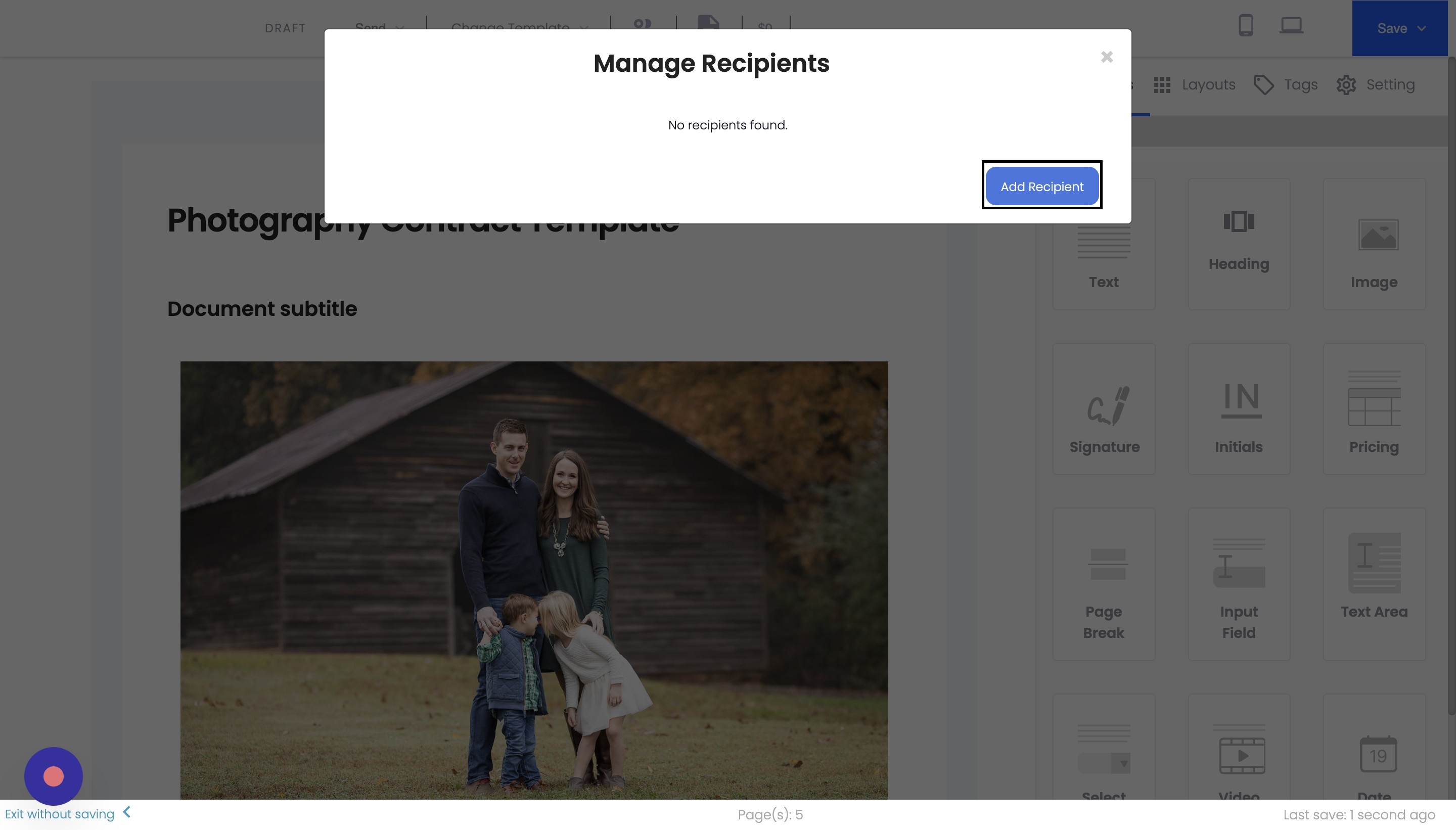
a. Click on "Add Recipient".
b. Enter the recipient's name and email address.
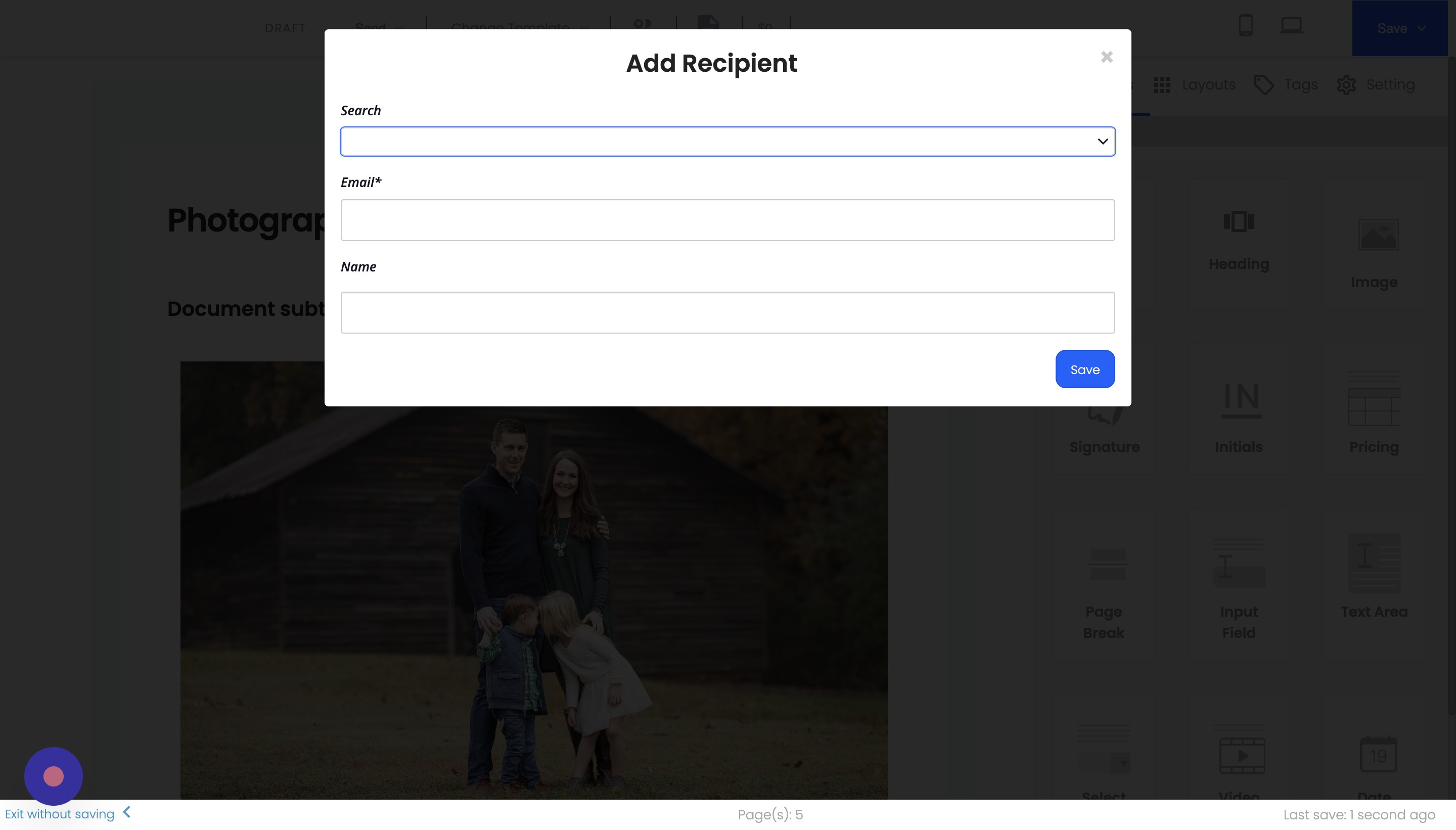
c. Click on "Save" to add the new recipient to your document.
Step 3: Edit or delete recipients
To edit or delete a recipient, go to the "Manage Recipients" screen:
To edit a recipient, click on their name and make the necessary changes. Click on "Save" to update the recipient's information.
To delete a recipient, click the "Delete" button next to their name.
Conclusion
Managing recipients in Agiled Docs is simple and efficient. By following these steps, you can easily add multiple recipients to your contracts and proposals, ensuring that all relevant parties are included in your document.
FAQs
Is there a limit to the number of recipients I can add to a document in Agiled Docs?
There is no specific limit to the number of recipients you can add to a document in Agiled Docs. You can add as many recipients as necessary for your contracts or proposals.
Can I customize the email sent to each recipient?
You can customize the default email sent to recipients in Agiled Docs. This can be done through the email templates in your settings.
Can I track the status of each recipient's interaction with the document?
A3: Yes, you can track the status of each recipient's interaction with the document, such as whether they have viewed, signed, or downloaded it. This information can be found in the document's activity log.
Was this article helpful?
More in Docs
- Agiled Docs Overview : Creating Contracts & Proposals in AgiledAgiled has introduced a comprehensive and improved Docs experience based on user feedback and suggestions. This enhanced feature includes a wide range of improv
- How to add a cover pageIntroduction: In this tutorial, we will show you how to add and customize a cover page for your documents, proposals, or contracts in Agiled Docs. Cover pages c
- How Clients Can Sign Documents in AgiledIntroduction: In this tutorial, we will guide you through how your clients can sign the documents you sent them using Agiled. Signing documents in Agiled is a s
- How to use Merge Tags in Agiled DocsIntroduction In this tutorial, we'll show you how to use merge tags in Agiled Docs to personalize your contracts or proposals with client data from the CRM. Mer
Questions about this? Agiled Assist answers from these articles.