How to create a contract
Introduction Agiled is a versatile platform that allows you to create and manage contracts, proposals, and other documents. This guide will walk you through cre
Updated 6 min read
Introduction
Agiled is a versatile platform that allows you to create and manage contracts, proposals, and other documents. This guide will walk you through creating a contract in Agiled, customizing it using Doc Builder, and sending it to your clients for e-signatures.
Creating a Contract
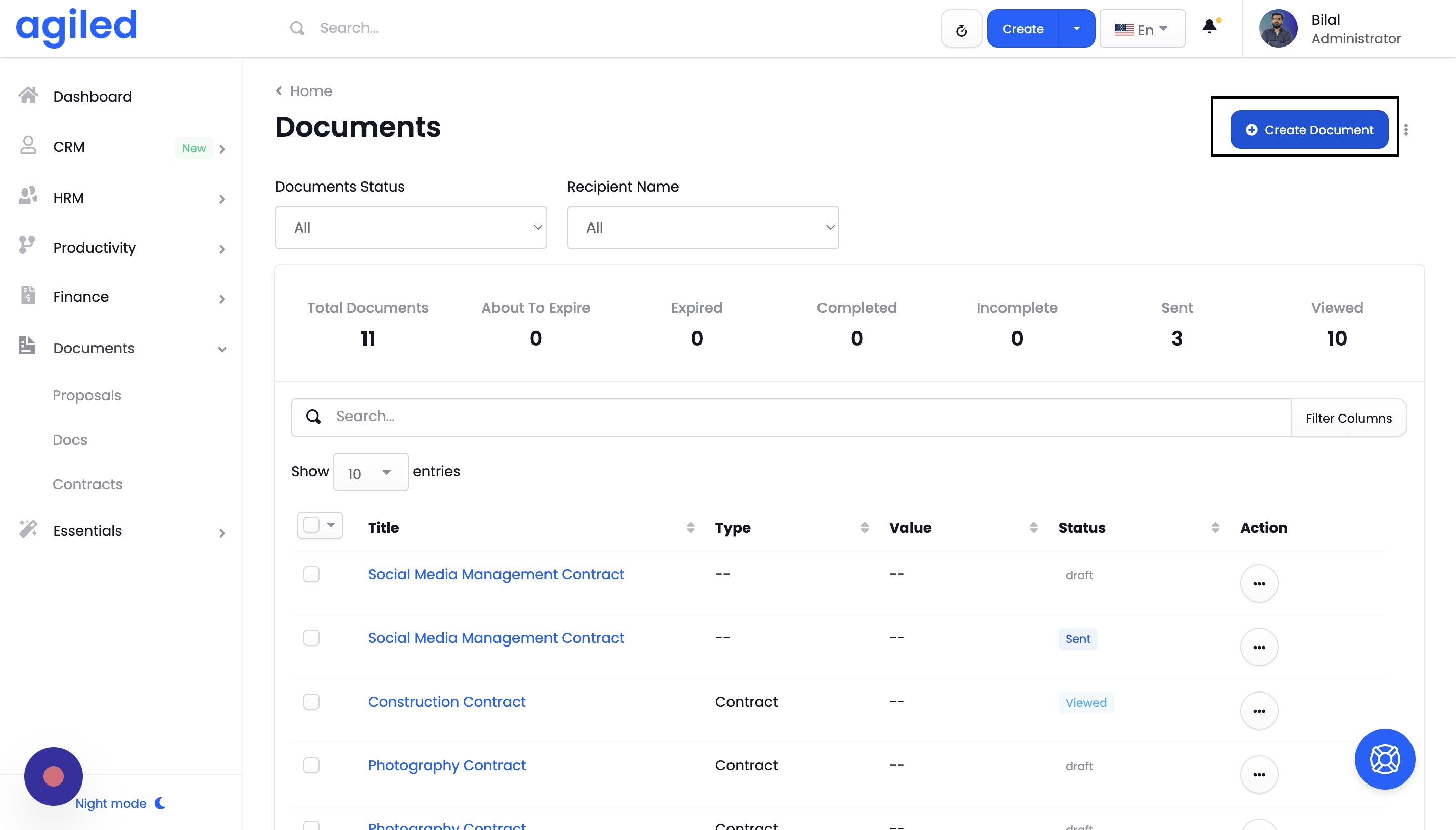
- Navigate to the "Documents" section in Agiled and click "Docs."
- Click on the "Create Document" button.
- Choose "Contract" from the available options.
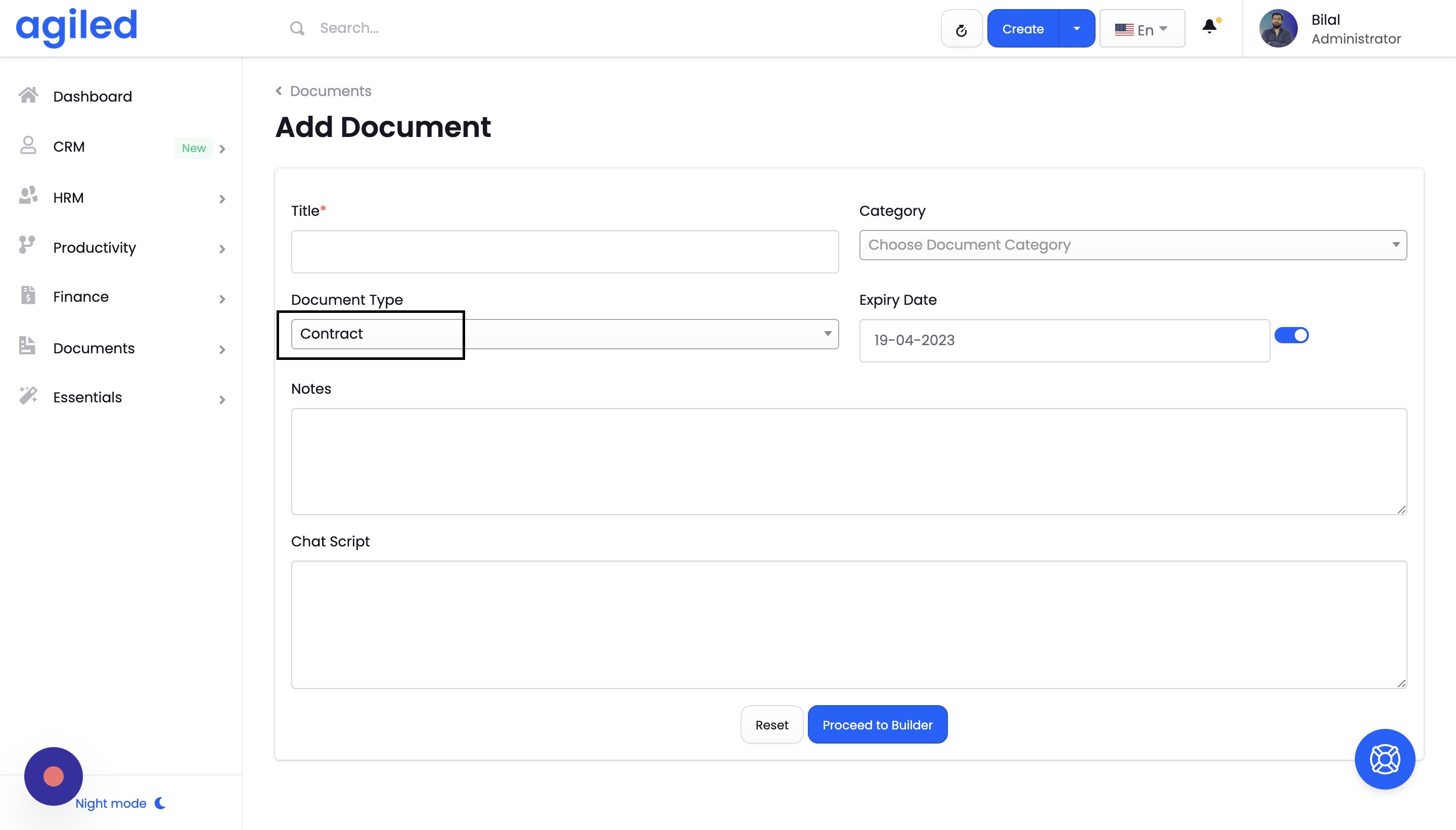
You'll be prompted to provide basic information about the contract, such as its title, category, and any additional notes. You can also set an expiry date for the contract or add a chat script to show a chat widget on your document. Once you've entered the required information, click "Proceed to Builder" to start customizing the contract.
Doc Builder Overview
The Doc Builder allows you to create and edit contracts using a drag-and-drop interface. The builder offers various tools and widgets to customize your contract, including:
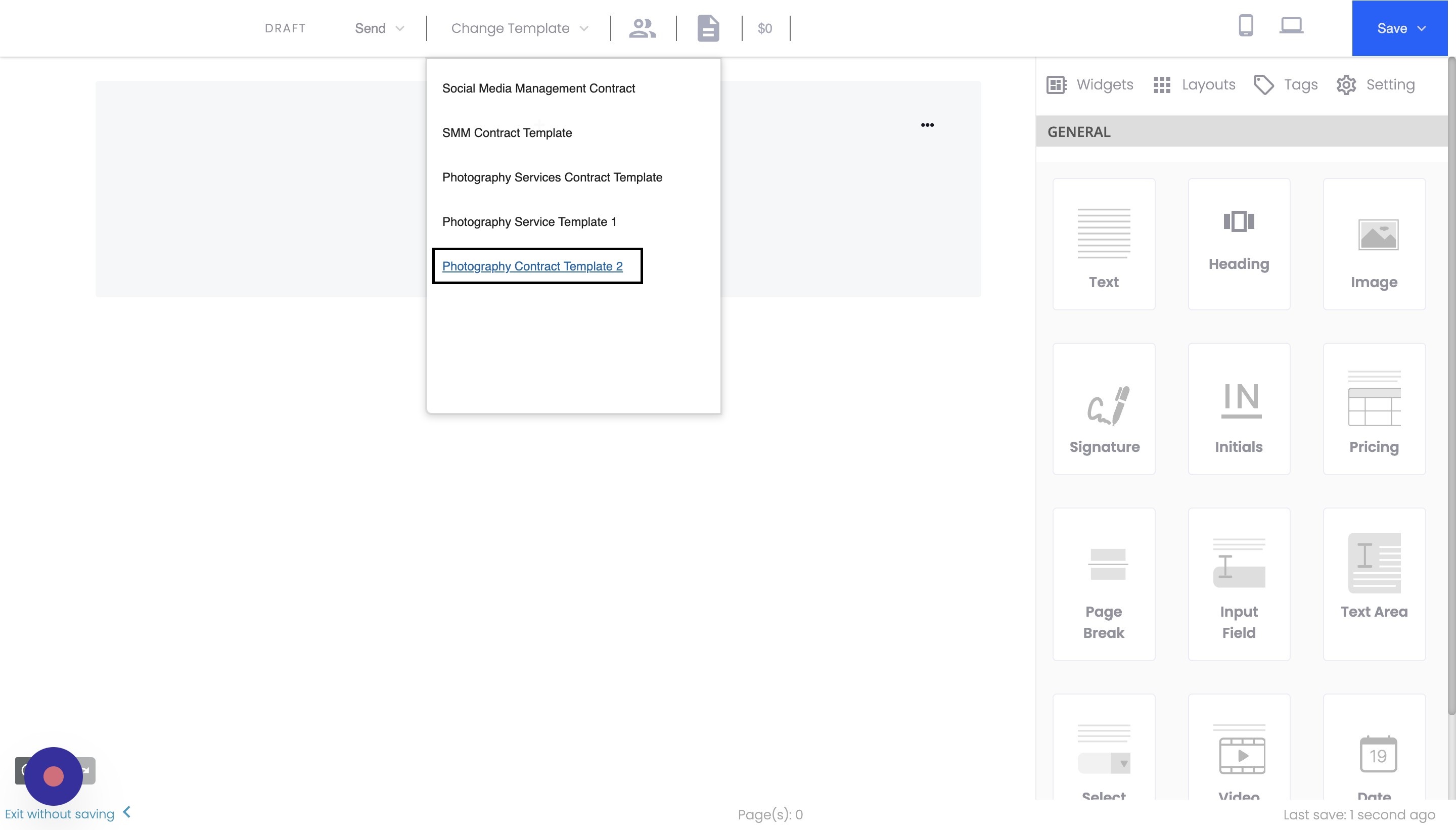
- Templates: Choose from a library of pre-built templates or create your own.
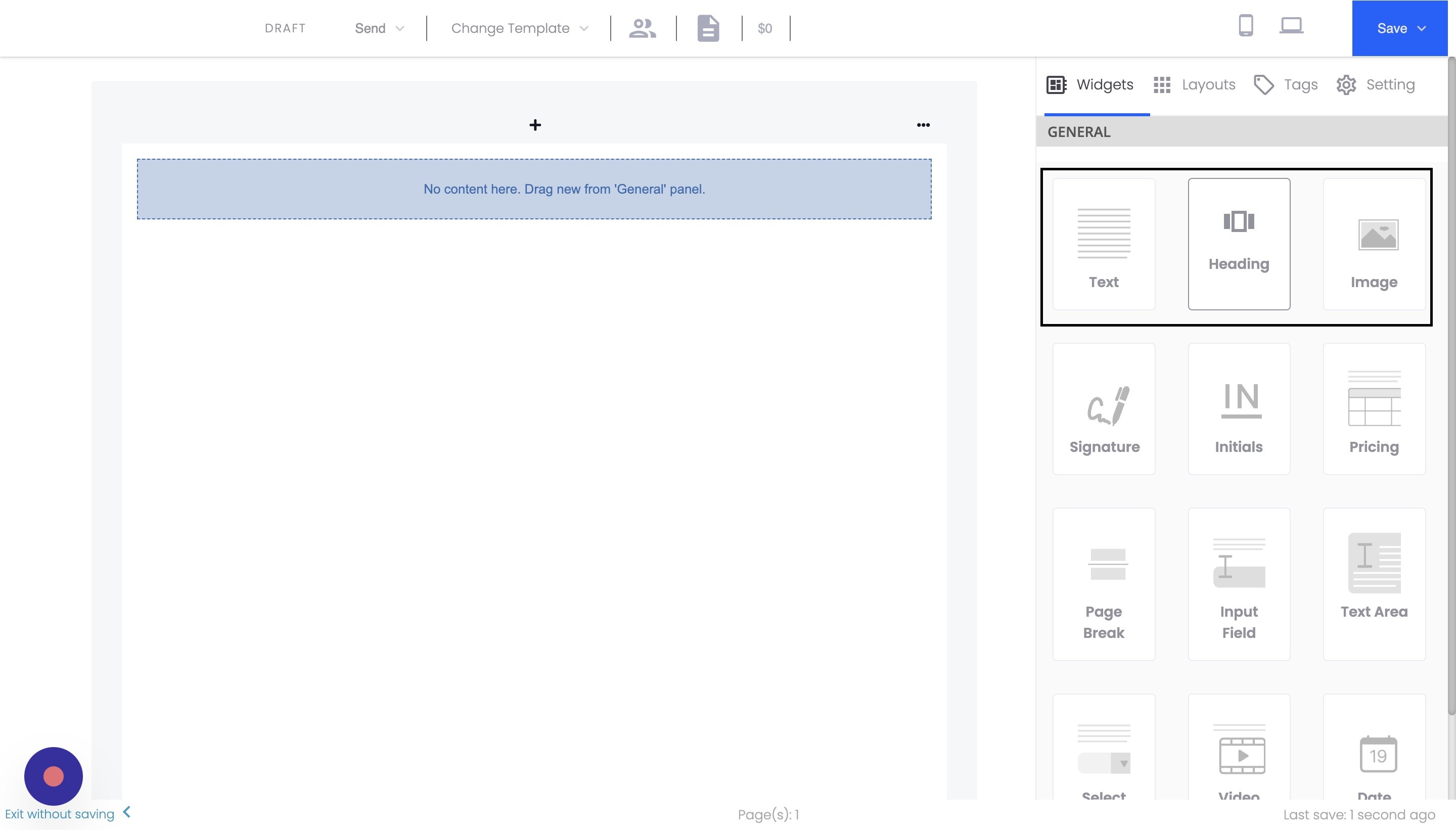
- Widgets: Add elements like headings, text, images, signatures, and pricing tables to your contract.
- Layouts: Organize your content using different layouts and formatting options.
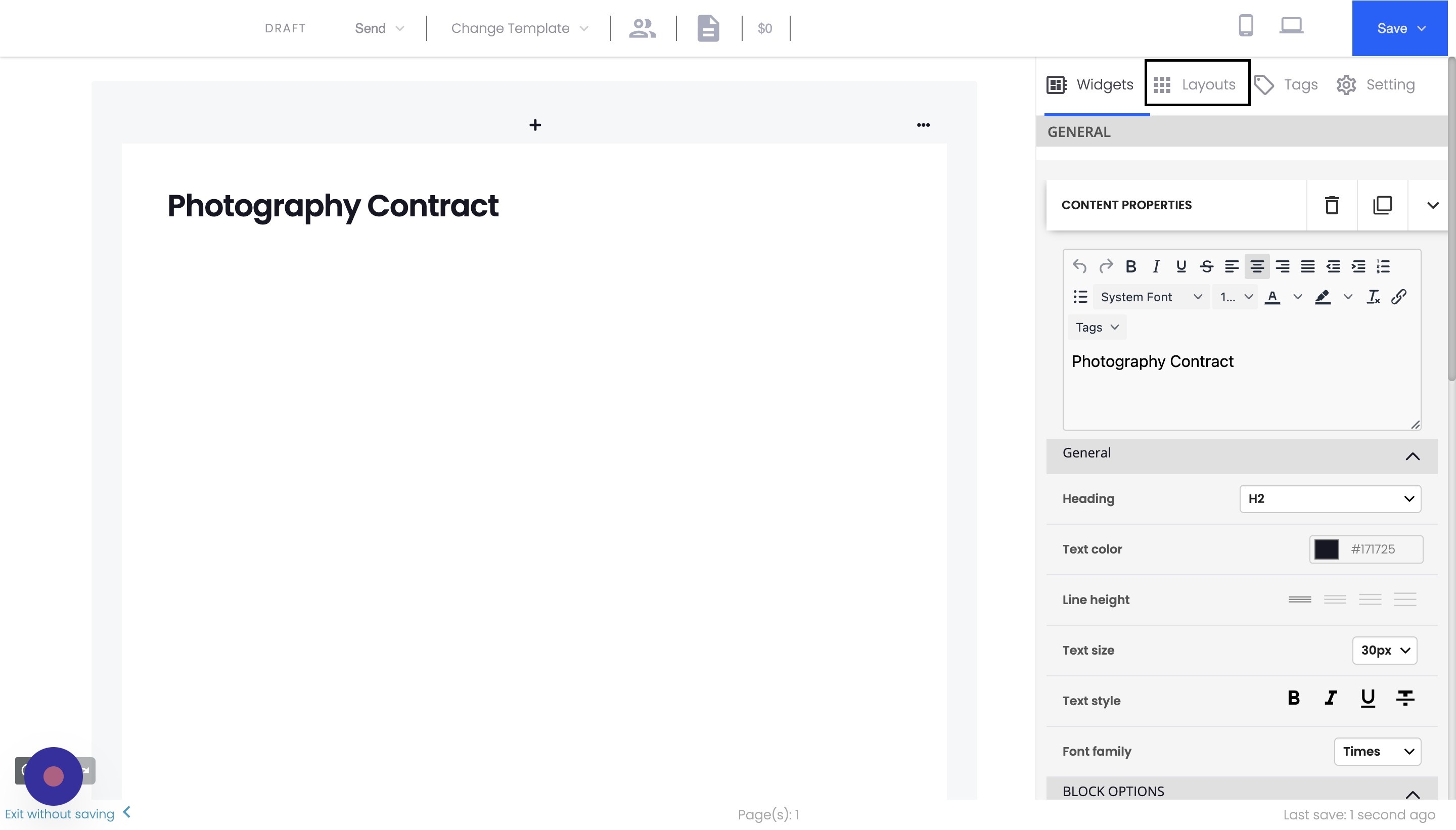
You can also manage recipients, add merge tags for personalization, and save your contracts as templates for future use.
Managing Recipients
- Click on the "Manage Recipients" button in the Doc Builder.
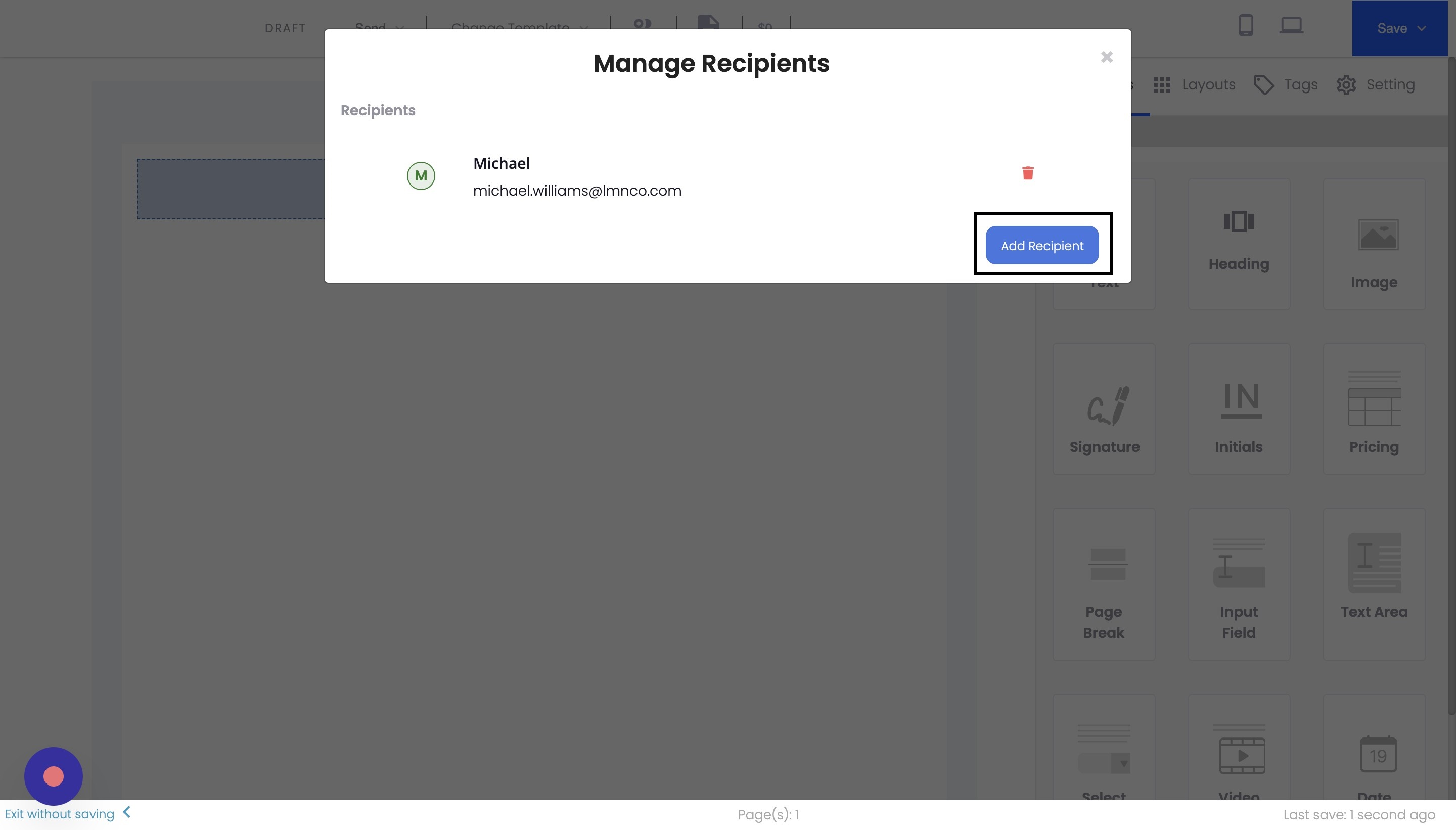
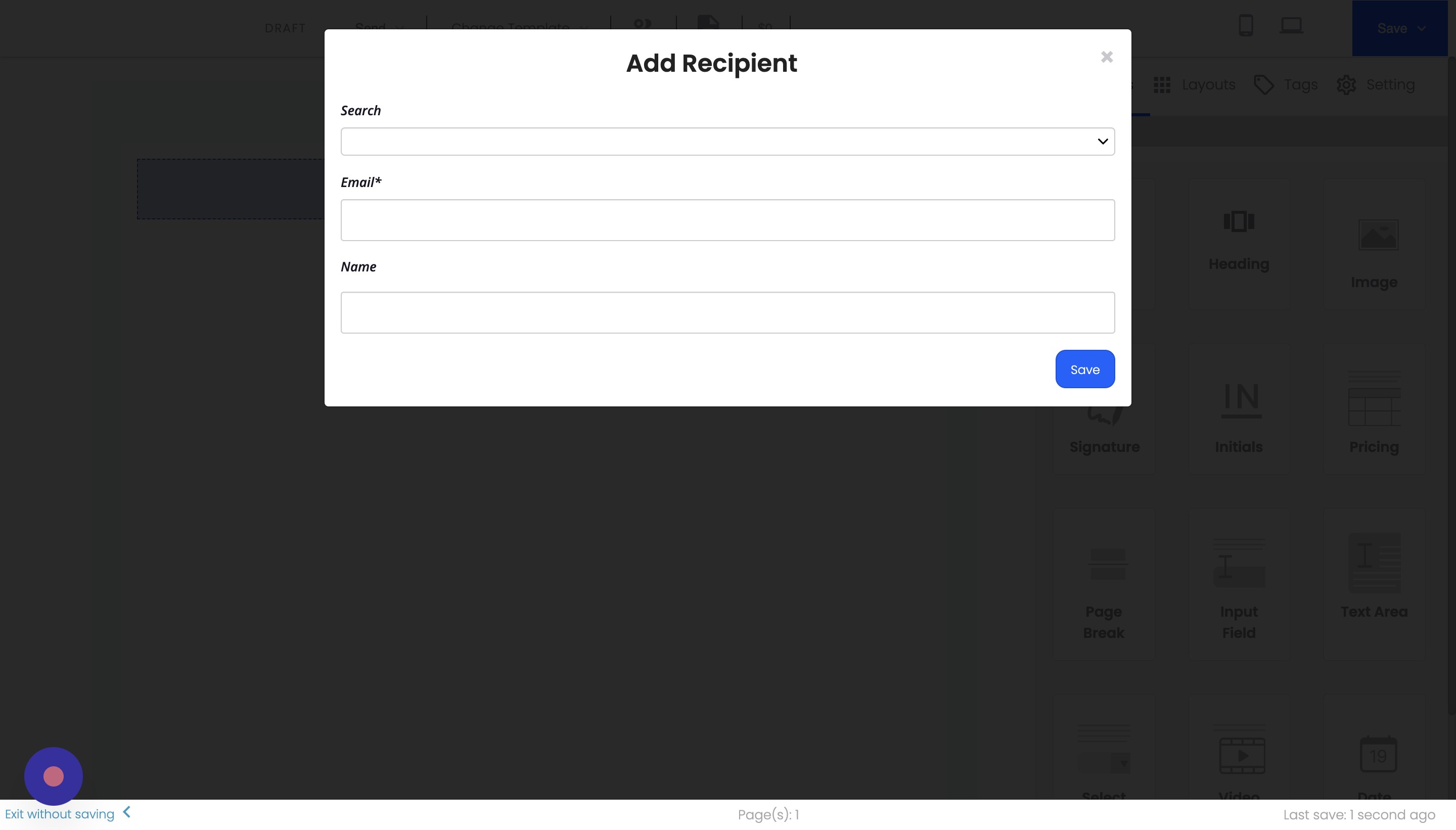
2. Add recipients by selecting existing contacts or teammates, or enter their name and email manually.
Customizing Your Contract
- To use a pre-built template, click the "Templates" button and select a template from the list.
- You can edit the template by dragging and dropping widgets onto the page.
- Please make sure to customize the appearance of your contract by changing the colors, fonts, and images using the available styling options.
- Add a cover page by clicking the "Cover" button and customizing its content and appearance.
Adding Merge Tags and Signatures
- Add merge tags to personalize your contract that will replace the recipients' information when they view the document. To do this, select the desired merge tag from the toolbar and insert it into your contract.
- Add signature fields for you and your recipients by dragging the "Signature" widget onto the page. Assign each signature field to the appropriate recipient.
- Add fields for initials, dates, or custom text if necessary, and assign them to the appropriate recipients.
Adding a Pricing Table
- Drag the "Pricing Table" widget onto the page.
- Import products and services from your saved list by clicking on the "Product Name" field and selecting the desired item.
- Please make sure to customize the appearance and content of the pricing table using the available options.
Sending the Contract
Once you've finished customizing your contract, you can send it to your recipients using one of the following methods:
- Send via Email: Click on the "Send via Email" button, review the list of recipients, and click "Send Email." The email content can be customized under "Email Template Settings."
- Send via Link: Click the "Send via Link" button and "Generate Links." Unique links will be generated for each recipient, which you can copy and send to them manually.
After sending the contract, you can track its status and manage e-signatures through the Agiled platform.
FAQs
How can I create a contract in Agiled?
To create a contract in Agiled, navigate to the "Documents" section, click on "Docs," and then click on the "Create Document" button. Choose "Contract" and provide the necessary information, such as the title, category, and additional notes. Click "Proceed to Builder" to start customizing the contract using Doc Builder.
How can I add recipients to a contract?
In the Doc Builder, click on the "Manage Recipients" button. You can add recipients by manually selecting existing contacts or teammates or entering their names and email. Agiled allows you to add multiple recipients to a single contract.
Can I use pre-built templates for my contract?
You can choose from a library of pre-built templates in Doc Builder. You can also create and save your own templates for future use.
How do I add signature fields for my recipients?
Drag the "Signature" widget onto the page in the Doc Builder, then assign each signature field to the appropriate recipient. You can also add fields for initials, dates, or custom text and assign them to the appropriate recipients.
How do I send a contract to my recipients?
You can send the contract to your recipients via email or by generating unique links for each recipient. To send via email, click on the "Send via Email" button, review the list of recipients, and click "Send Email." To send via link, click on the "Send via Link" button, click "Generate Links," and then copy and send the unique links to your recipients manually.
How can I track the status of a sent contract?
After sending a contract, you can monitor its status and manage e-signatures through the Agiled platform. This allows you to track which recipients have signed the contract and any pending signatures.
Can I edit the contract after sending it to the recipients?
No, you cannot edit a contract after sending it to the recipients. You would need to create a new version of the contract and send it again if you need to make changes.
How can I save a contract as a template for future use?
Click the "Save" button in the Doc Builder, then choose "Save as Template." Enter a name for the template and click "Save." The template will be available for you to use in future contracts.
Can I add a cover page to my contract?
Yes, you can add a cover page to your contract in Agiled. You can customize the cover page with your own text, colors, and images.
How do I add an expiry date to my contract?
You can set an expiry date in the contract details section when creating a contract. You can disable the expiry date option if you don't want the contract to expire.
Can I import my existing contracts or templates into Agiled?
You can create custom contract templates in Agiled by recreating your existing contracts using the Doc Builder. Once you have designed your contract, you can save it as a template for future use. Although Agiled doesn't have a direct import feature for contracts, you can easily recreate and customize them within the platform.
How can I use merge tags to personalize contracts for each recipient?
Merge tags can be added to your contract by clicking the "Tag" button in the Doc Builder. You can choose from tags such as the recipient's first name, last name, or company address. The recipient's actual information will replace these merge tags when they view the contract.
How do I set an expiry date for my contracts?
While creating a contract, you can set an expiry date. If you enable this feature, you can choose a specific date on which the contract will expire. This ensures that your contract remains valid only within the specified timeframe.
Can I add a pricing table or list of services to my contract?
Yes, you can add a pricing table to your contract by dragging the "Pricing Table" widget into the Doc Builder. This allows you to display your products and services, along with their prices, in an organized manner. You can import your saved products from your Agiled account or add new items.
Is it possible to co-sign a contract with multiple recipients in Agiled?
Yes, Agiled allows you to add multiple recipients to a contract and assign signature fields to each. You can also add fields for initials, dates, or custom text and assign them to the appropriate recipients. This feature enables you to create contracts that require co-signing by multiple parties.
Conclusion
Agiled offers a comprehensive solution for creating, customizing, and sending contracts to your clients. With its user-friendly Doc Builder and various customization options, you can create professional contracts tailored to your needs. Following this guide, you can efficiently manage your contracts and monitor their progress through the Agiled platform.
Was this article helpful?
More in Docs
- Agiled Docs Overview : Creating Contracts & Proposals in AgiledAgiled has introduced a comprehensive and improved Docs experience based on user feedback and suggestions. This enhanced feature includes a wide range of improv
- How to add a cover pageIntroduction: In this tutorial, we will show you how to add and customize a cover page for your documents, proposals, or contracts in Agiled Docs. Cover pages c
- How Clients Can Sign Documents in AgiledIntroduction: In this tutorial, we will guide you through how your clients can sign the documents you sent them using Agiled. Signing documents in Agiled is a s
- How to use Merge Tags in Agiled DocsIntroduction In this tutorial, we'll show you how to use merge tags in Agiled Docs to personalize your contracts or proposals with client data from the CRM. Mer
Questions about this? Agiled Assist answers from these articles.