How to send thank you email on invoice payment using Automation
Introduction Automations in Agiled can significantly simplify and streamline your workflow by automatically triggering actions based on specific events. Whether
Updated 1 min read
Introduction
Automations in Agiled can significantly simplify and streamline your workflow by automatically triggering actions based on specific events. Whether you want to send an email after a form submission, send a scheduling link when an invoice is paid, or create an invoice on form submission, Automations can make it happen. Let's see how to set this up.
Creating an Automation
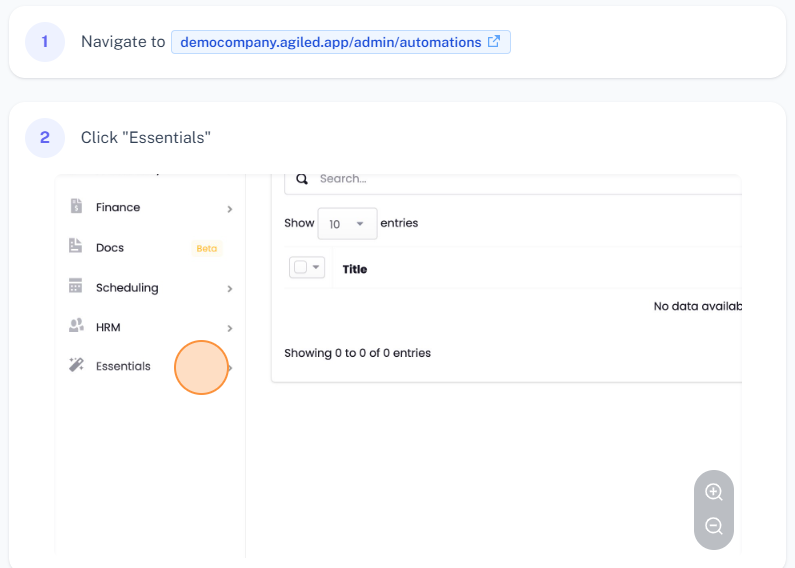
1. **Navigate to Automations**: In your Agiled dashboard, go to "Essentials" and click on "Automate".
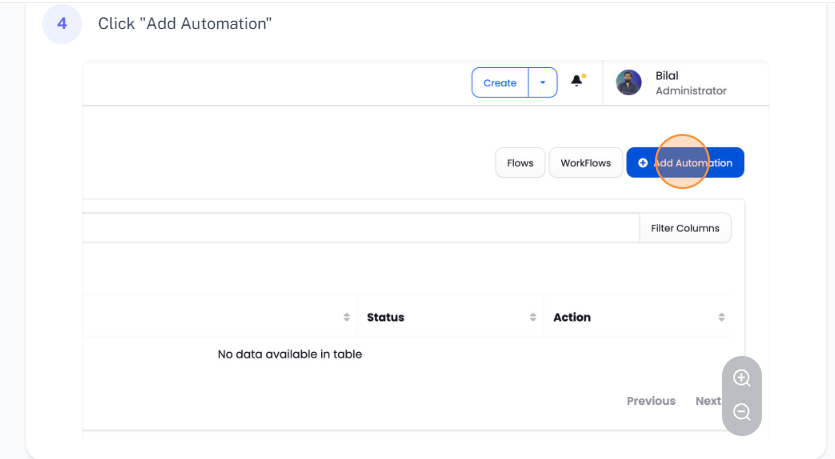
2. **Add a New Automation**: Click on the "Add Automation" button. Enter a title for your new automation, and then click on "Configure Actions".
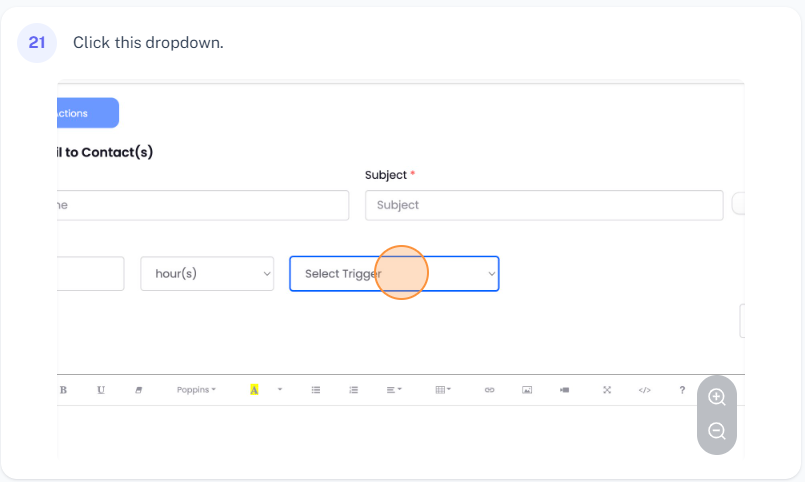
3. **Configure Actions and Triggers**: Here you can set up the action and trigger for your automation. For example, if you want to send an email when an invoice is paid in full, choose "Send Email" as the action and "After Invoice is Paid in Full" as the trigger.
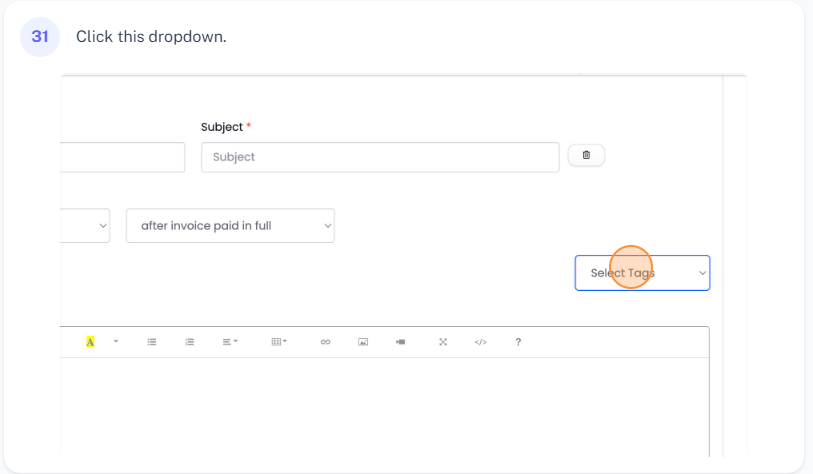
4. **Customize Your Email**: Add a subject and content for your email. You can also add dynamic fields to your email by selecting tags.
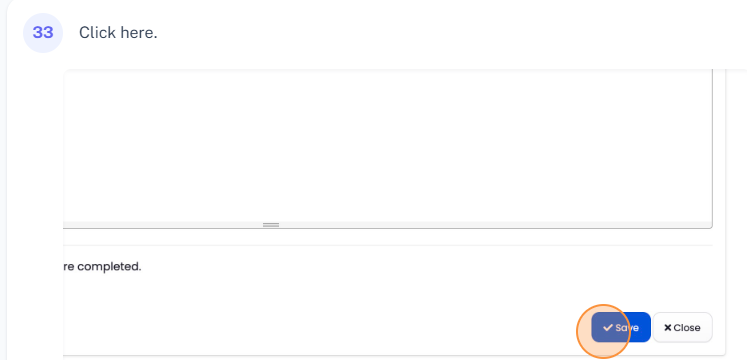
5. **Save Your Automation**: Once you've configured your automation, click the "Save" button. Now, whenever the trigger event occurs (in this case, an invoice is paid in full), the action (sending an email) will be automatically executed.
Note
Automations apply to your entire Agiled account. If you need to create project-specific automations, you should use workflows instead.
Conclusion
With Automations in Agiled, you can automate a wide variety of actions based on specific triggers, making your work more efficient. Explore different combinations of triggers and actions to find the best Automations for your needs. We look forward to seeing what you create with Agiled Automations. Thank you for following this guide.
Was this article helpful?
More in Docs
- Agiled Docs Overview : Creating Contracts & Proposals in AgiledAgiled has introduced a comprehensive and improved Docs experience based on user feedback and suggestions. This enhanced feature includes a wide range of improv
- How to add a cover pageIntroduction: In this tutorial, we will show you how to add and customize a cover page for your documents, proposals, or contracts in Agiled Docs. Cover pages c
- How Clients Can Sign Documents in AgiledIntroduction: In this tutorial, we will guide you through how your clients can sign the documents you sent them using Agiled. Signing documents in Agiled is a s
- How to use Merge Tags in Agiled DocsIntroduction In this tutorial, we'll show you how to use merge tags in Agiled Docs to personalize your contracts or proposals with client data from the CRM. Mer
Questions about this? Agiled Assist answers from these articles.