How to delete a page
Introduction: In this tutorial, we will guide you through deleting unwanted pages from your documents in Agiled Docs. This can help you keep your contracts, pro
Updated 1 min read
Introduction:
In this tutorial, we will guide you through deleting unwanted pages from your documents in Agiled Docs. This can help you keep your contracts, proposals, or other documents organized without clutter.
Deleting a page.
Step 1: Open the document in Agiled Docs
First, you can open the document containing the page you want to delete within Agiled Docs.
Step 2: Locate the page you want to delete
You can find the page you'd like to remove from your document.
Step 3: Delete the page
To delete a page, follow these simple steps:
Click on the three dots located in the top-right corner of the page.

Click on the "Delete" button.
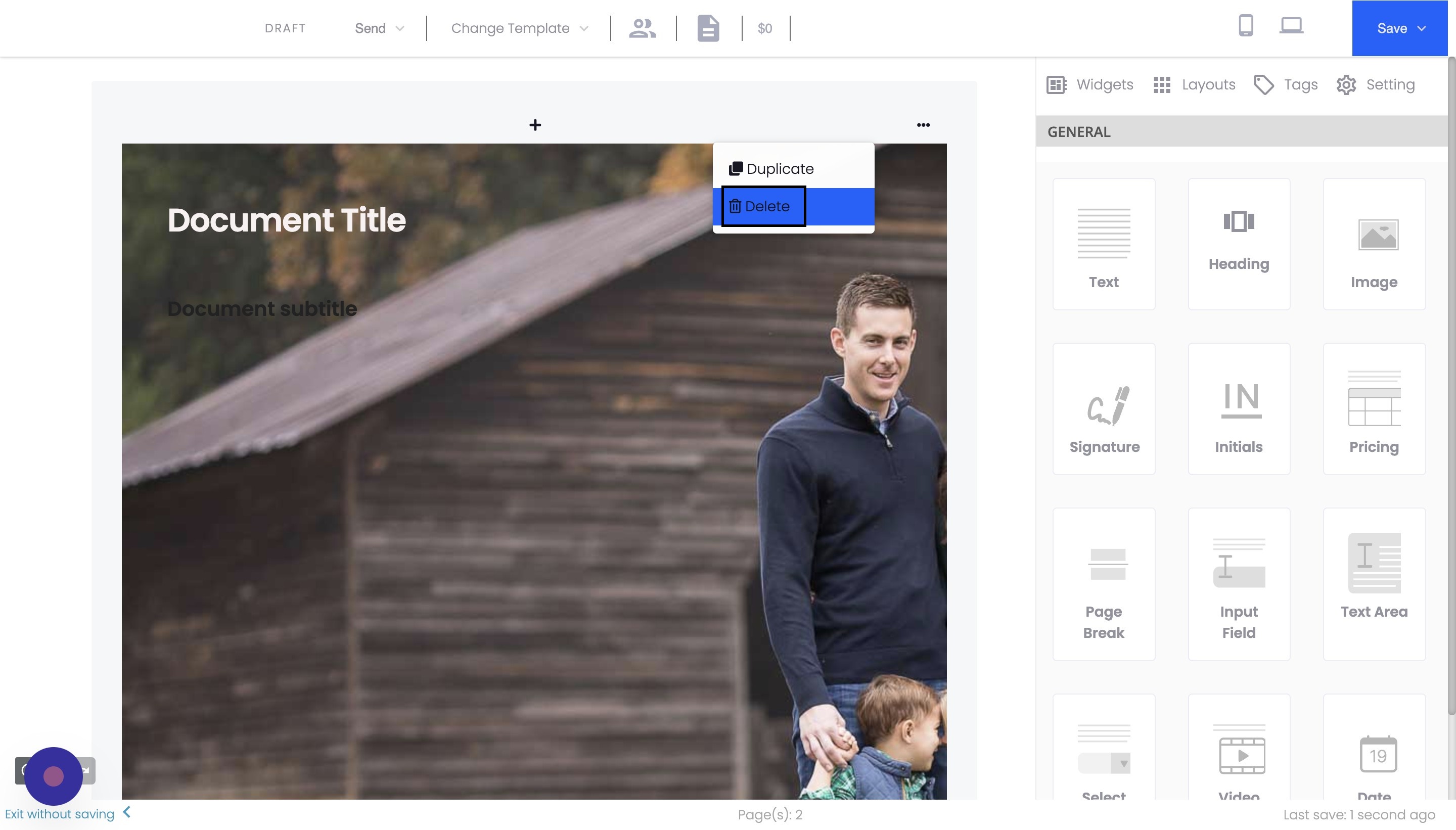
The page will be removed from your document.
Conclusion
Deleting a page in Agiled Docs is quick and straightforward. Following these steps, you can efficiently remove unwanted pages from your documents, helping you maintain a clean and organized workspace.
FAQs
Is there a way to recover a deleted page in Agiled Docs?
Unfortunately, once a page is deleted in Agiled Docs, there is no built-in way to recover it. It's essential to delete a page before confirming the action.
Do you think I can delete multiple pages at once in Agiled Docs?
Agiled Docs only allow you to delete one page at a time. However, you can quickly delete multiple pages by repeating the process for each page you want to remove.
Will deleting a page affect the other pages in my document?
Deleting a page will not affect the content or formatting of the other pages in your document. However, the page numbers may change after deleting a page, so review your document after removing any pages to ensure that everything remains organized and properly formatted.
Was this article helpful?
More in Docs
- Agiled Docs Overview : Creating Contracts & Proposals in AgiledAgiled has introduced a comprehensive and improved Docs experience based on user feedback and suggestions. This enhanced feature includes a wide range of improv
- How to add a cover pageIntroduction: In this tutorial, we will show you how to add and customize a cover page for your documents, proposals, or contracts in Agiled Docs. Cover pages c
- How Clients Can Sign Documents in AgiledIntroduction: In this tutorial, we will guide you through how your clients can sign the documents you sent them using Agiled. Signing documents in Agiled is a s
- How to use Merge Tags in Agiled DocsIntroduction In this tutorial, we'll show you how to use merge tags in Agiled Docs to personalize your contracts or proposals with client data from the CRM. Mer
Questions about this? Agiled Assist answers from these articles.