How to share forms with your audience.
Introduction Sharing your forms with your audience is a crucial step in data collection in Agiled. There are two methods you can use to share your forms - direc
Updated 2 min read
Introduction
Sharing your forms with your audience is a crucial step in data collection in Agiled. There are two methods you can use to share your forms - directly through a link or by embedding the form on your website. This guide explains both methods, enabling you to choose the one that best fits your needs.
Sharing Your Form Via Link
1. Navigate to the form you want to share.

2. Look for the 'Share' button located at the top of the form builder.
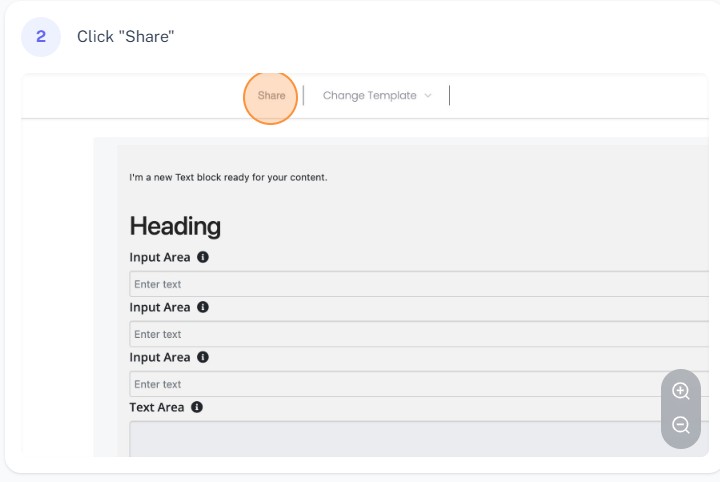
3. Click on the 'Share' button. This will reveal a public link for your form.
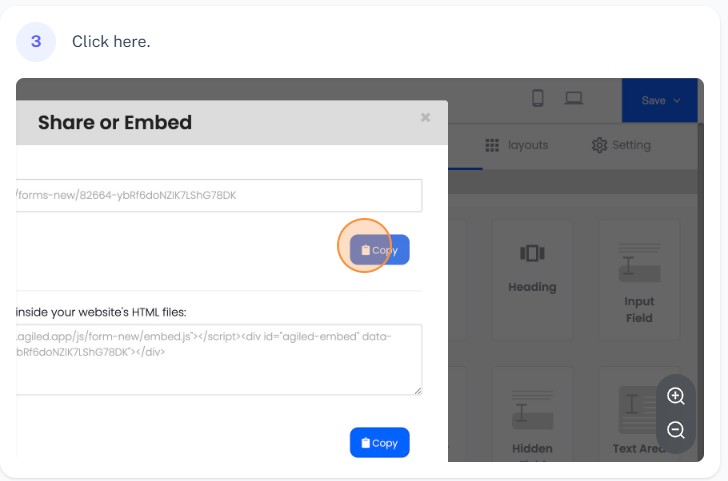
4. Click the 'Copy' button to copy the link to your clipboard.
5. Now, you can share this link with your audience through email, social media, or any other communication channel. Your audience will be able to access and complete the form directly via the link.
Sharing Your Form by Embedding It on Your Website
1. Navigate to the form you wish to share.
2. Click the 'Share' button.
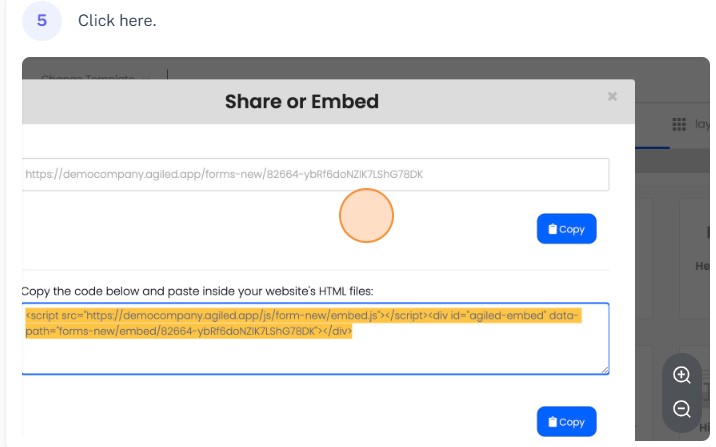
3. You will see an 'Embed Code'. Copy this code.
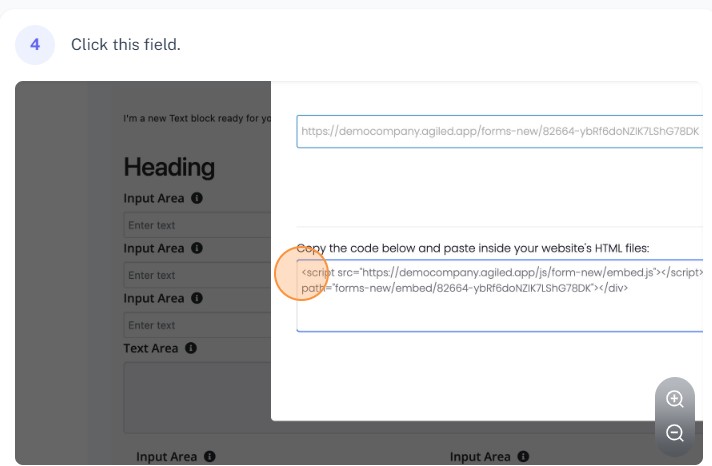
4. Paste the embed code anywhere on your website where you want the form to appear. Visitors to your website will now be able to fill out the form directly on your site.
FAQs
How do I share my form with my audience in Agiled?
There are two ways to share your form in Agiled. You can either share the form directly through a link or embed it on your website. Both options can be accessed by clicking the 'Share' button at the top of the form builder.
Can I share my form directly from the 'All Forms' page in Agiled?
Yes, you can. To do this, navigate to the 'All Forms' page, click on 'Actions' next to the form you want to share, and then click on 'View Public Form'. This will take you to the public link of the form, which you can then share with your audience.
How can I embed my form on my website?
To embed your form on your website, navigate to the form you want to share, click the 'Share' button, and copy the 'Embed Code'. You can then paste this code anywhere on your website where you want the form to appear.
Was this article helpful?
More in CRM
- How to add a new Client.You can add clients in Agiled to send them invoices, estimates, proposals, contracts, and to collaborate with them on projects. You can also invite them to the
- How to whitelist Agiled.app in G suite Admin panel?Owing to some API policy changes from Google you need whitelist Agiled by signing into your Google Admin console using an administrator account. If you don’t kn
- How to delete an account in CRMIt is very simple to delete an account in CRM. Follow the steps given below: 1. Click on 'CRM' and go to 'Accounts' on the toolbar. 2. You will find a list of a
- How to add notes for Account?Video tutorial on how to add notes for an Account. In Agiled you can add notes for Accounts to keep track of important things about Account in the CRM. You can
Questions about this? Agiled Assist answers from these articles.