How to whitelist Agiled.app in G suite Admin panel?
Owing to some API policy changes from Google you need whitelist Agiled by signing into your Google Admin console using an administrator account. If you don’t kn
Updated 1 min read
Owing to some API policy changes from Google you need whitelist Agiled by signing into your Google Admin console using an administrator account.
If you don’t know who your administrator is, this article can help you.
What is Whitelisting?
Whitelisting is a security practice of explicitly allowing only the trusted entities access to particular privileges. It keeps your systems safe from malware, spam, ransomware, and other threats.
In the case of G suite apps, whitelisting helps keep your data safe by letting administrators specifically select which third-party apps are allowed to access users’ G Suite data. Once an app is part of a whitelist, users can choose to grant authorized access to their G Suite apps data. This prevents malicious apps from tricking users into accidentally granting access to their corporate data.
Source: Manage access to third-party apps with new G Suite security controls
How to whitelist Agiled in Google Admin console?
Note: Whitelisting user apps in the Google Admin console requires administrator access. If you don’t have it, please send this article to your GSuite administrator:
Step-0: Ensure that you are the G Suite Admin, if not, send this list to your G Suite admin.
Step-1: Go to admin.google.com
Step-2: Click on the hamburger menu on the top-left corner of your screen.
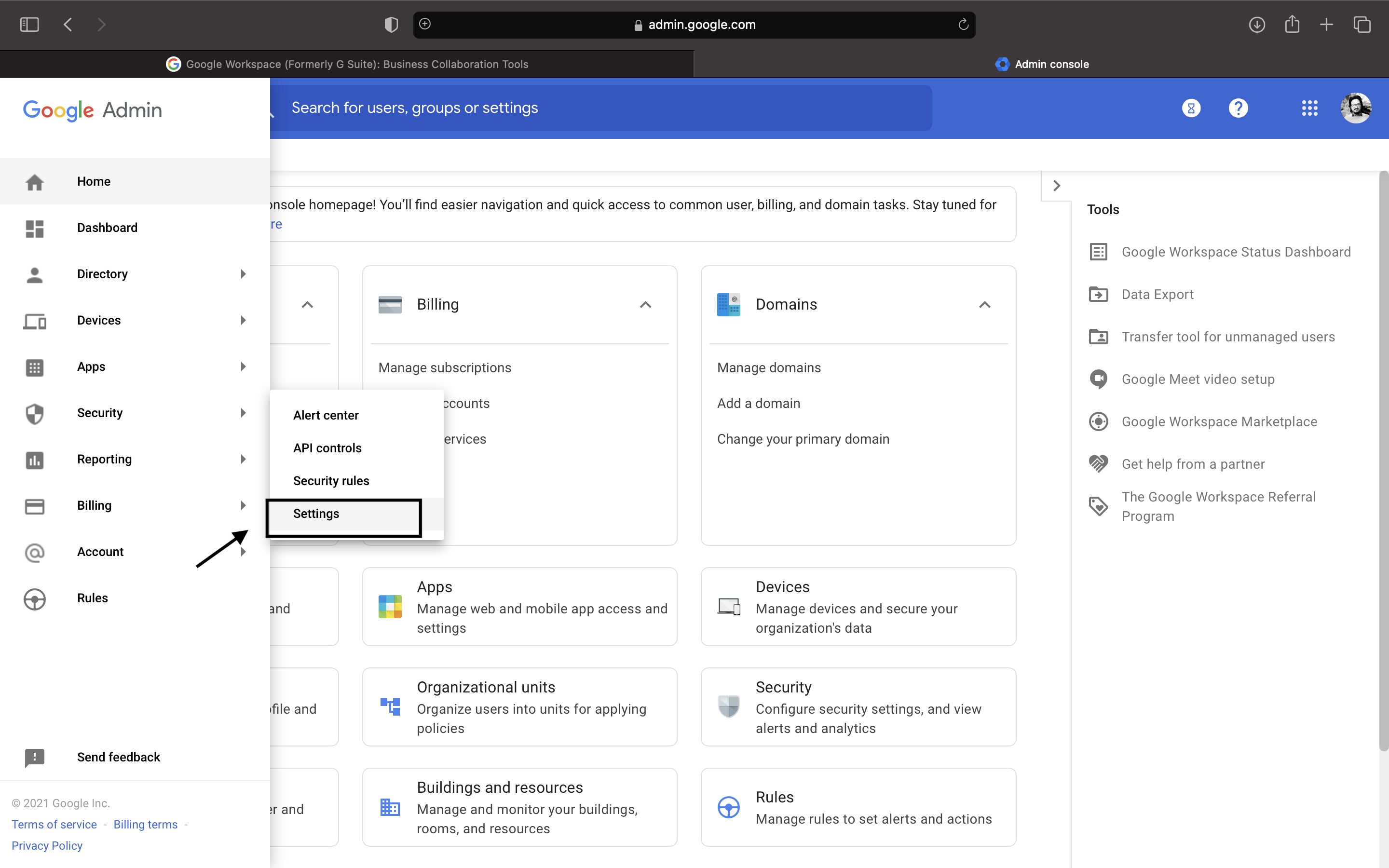
Step-3: Hover over ‘Security’ and click on ‘Settings’ in the sub-menu.
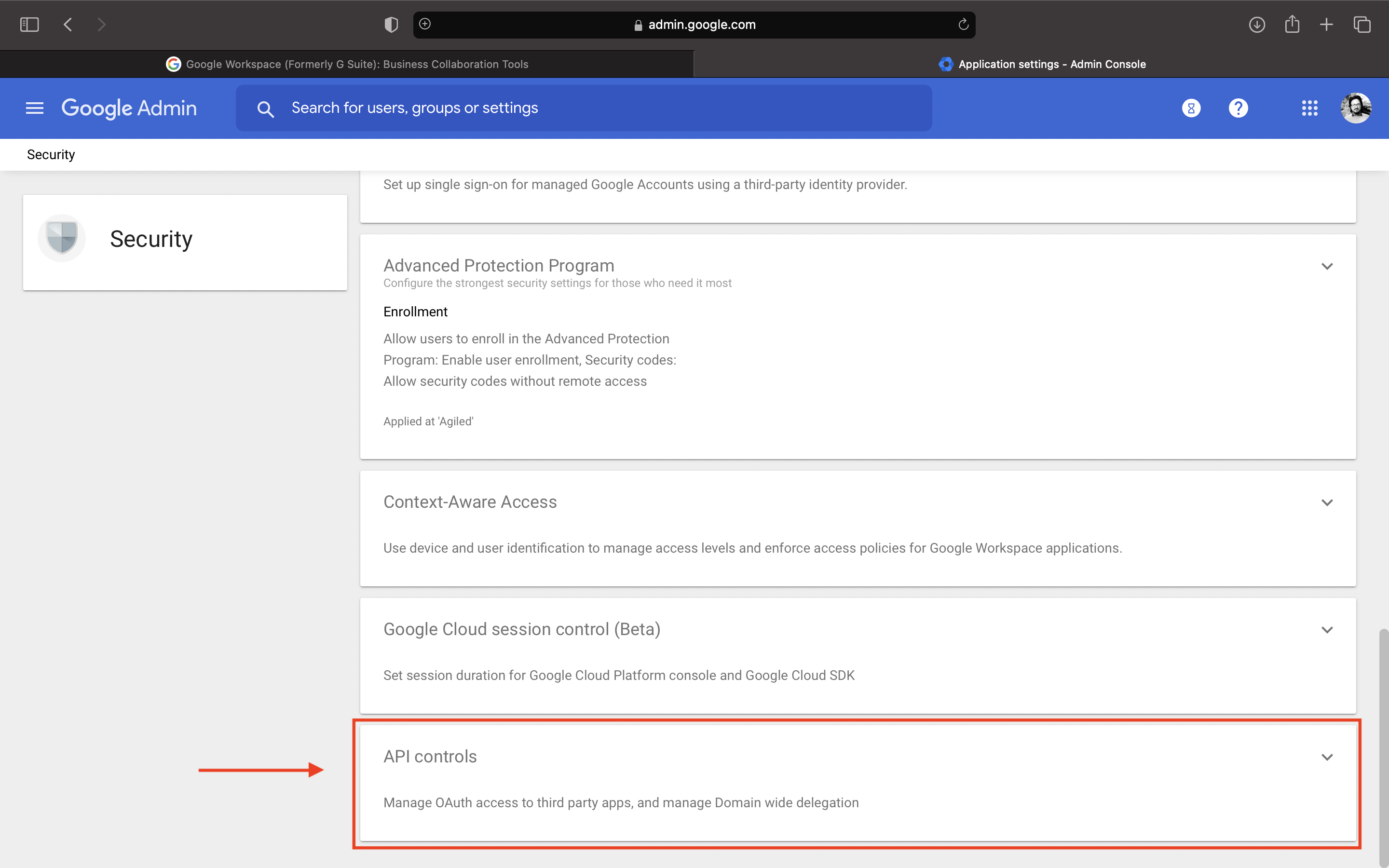
Step-4: Scroll down to the bottom of the screen and click ‘API Controls'.
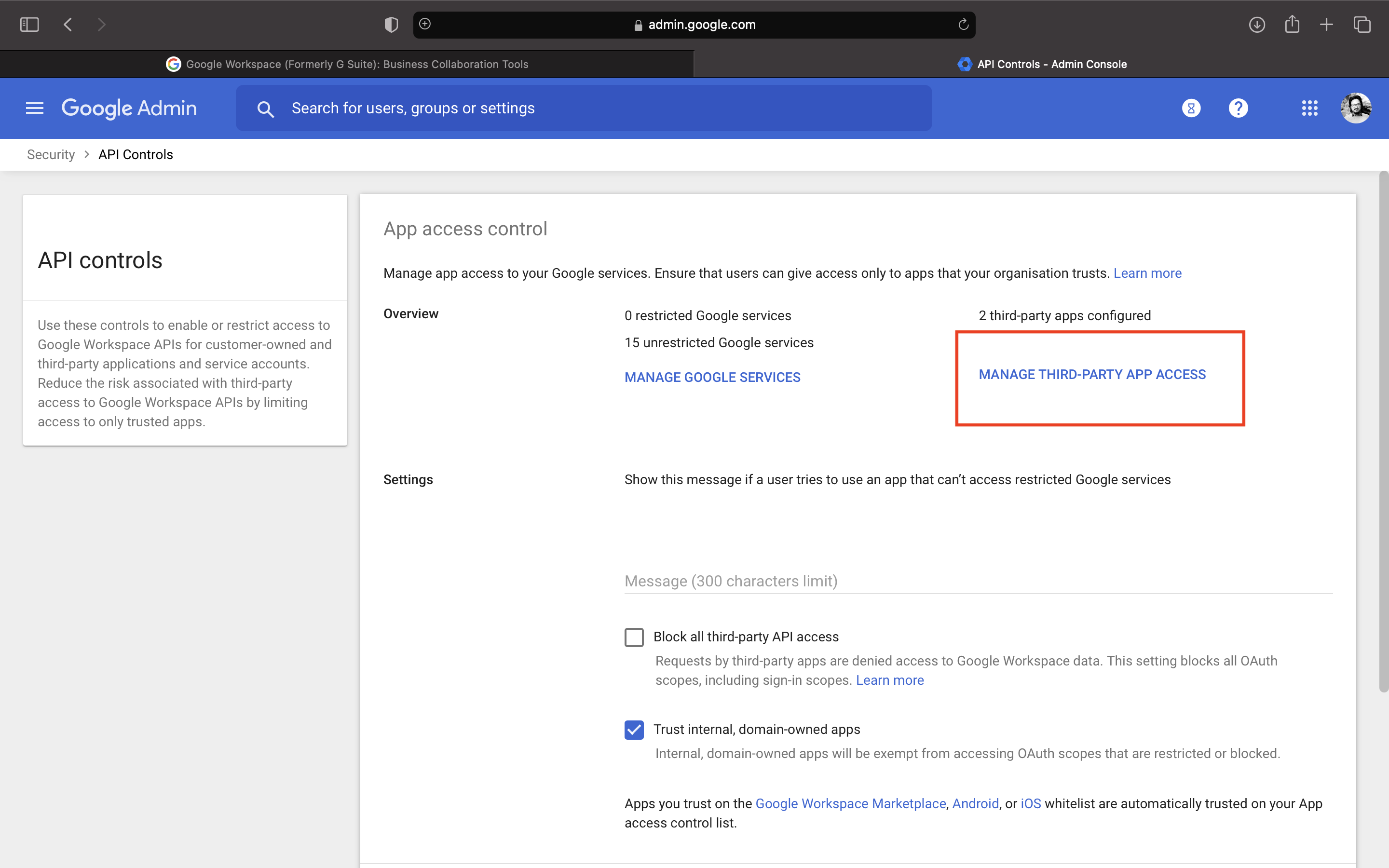
Step-5: From API Control Screen click on 'Manage Third Party App Access'.
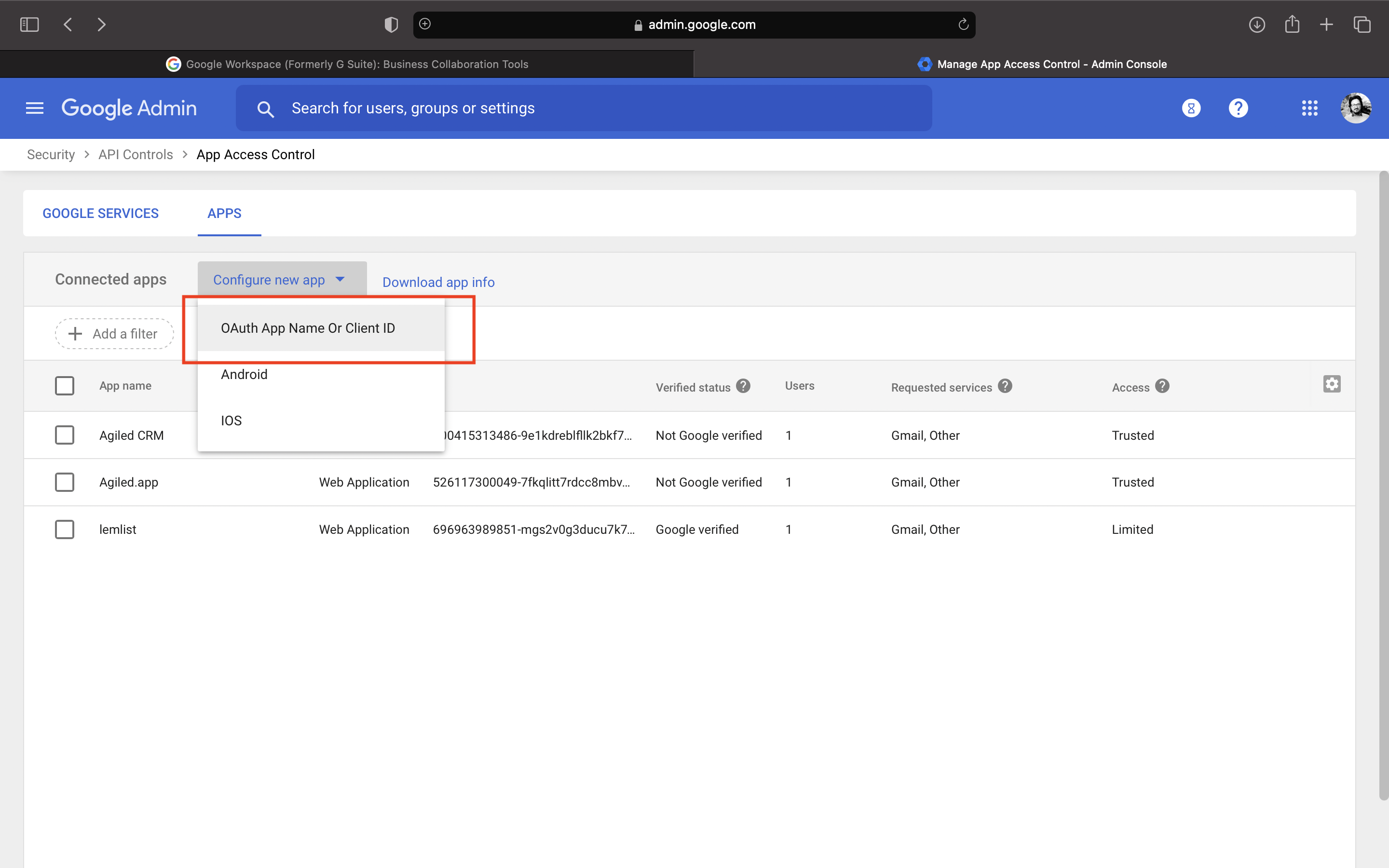
Step-6: Next, Click on Apps and click on "Configure New App" and choose "OAuth App Name or Client ID"
Step-7: Copy and paste the below client id and click on 'Search'
680641183079-e83hr7lbcm4frpl1avq044vpkti6n5he.apps.googleusercontent.com
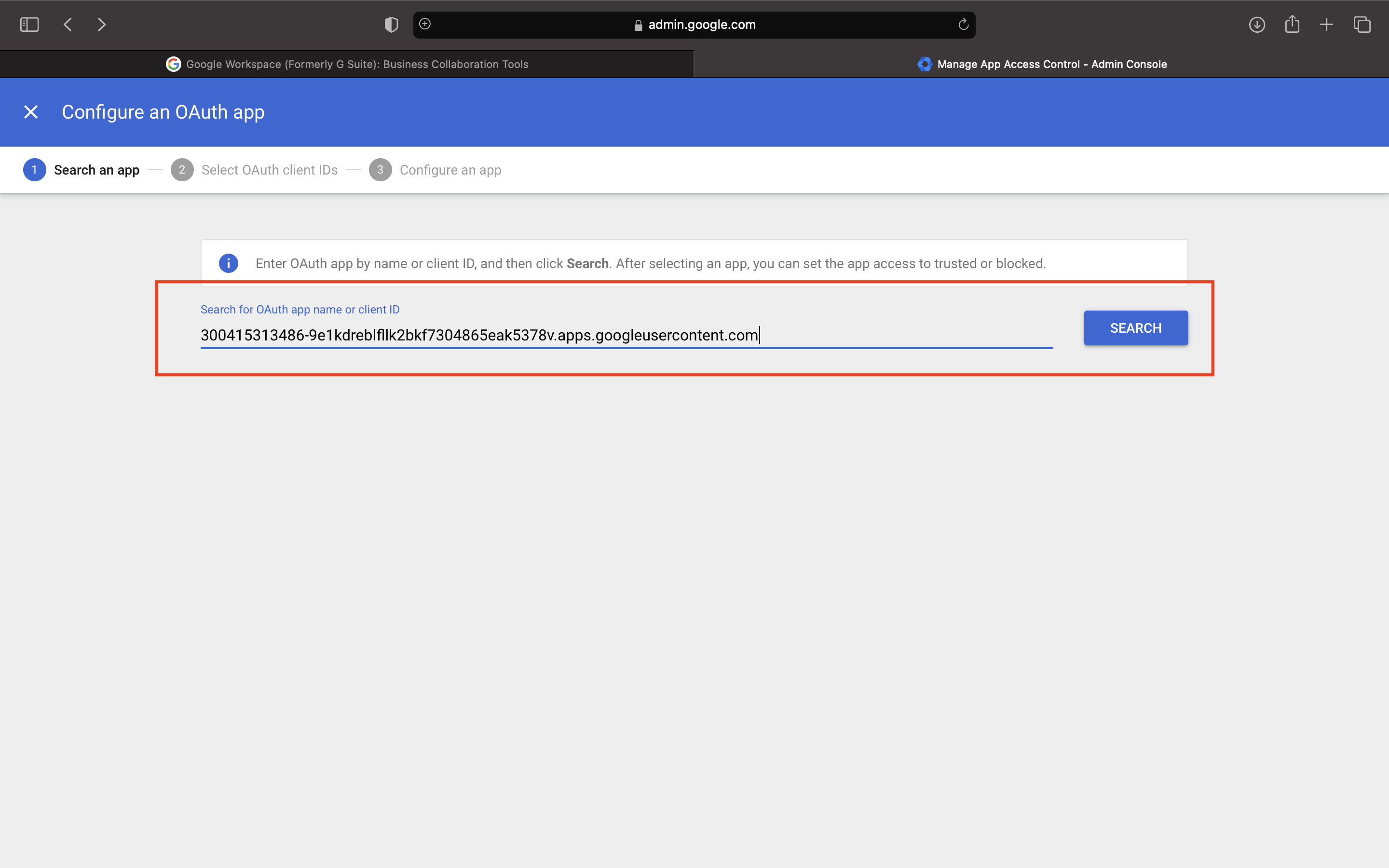
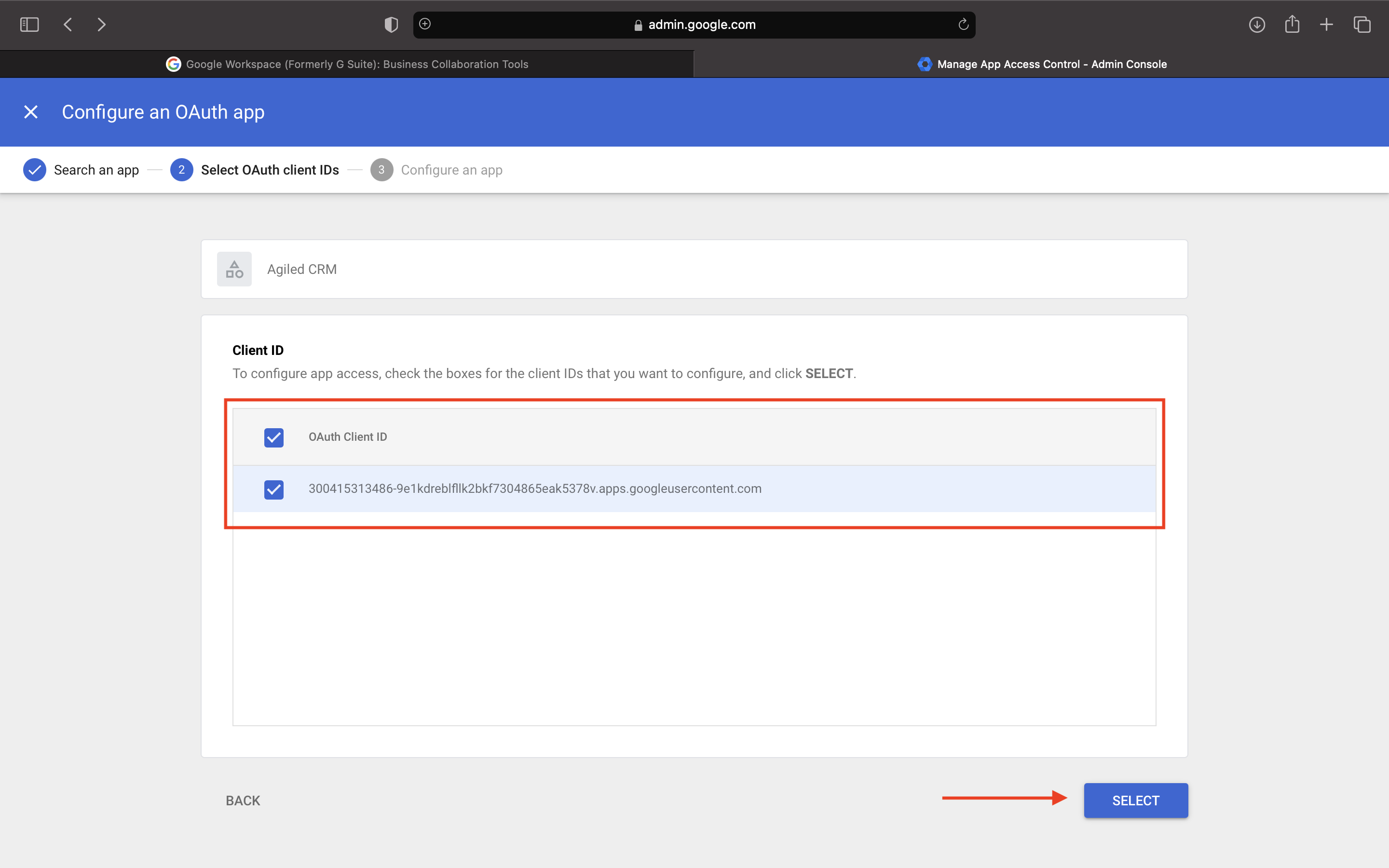
Step-8: Select Agiled and choose the options as shown in the image below.
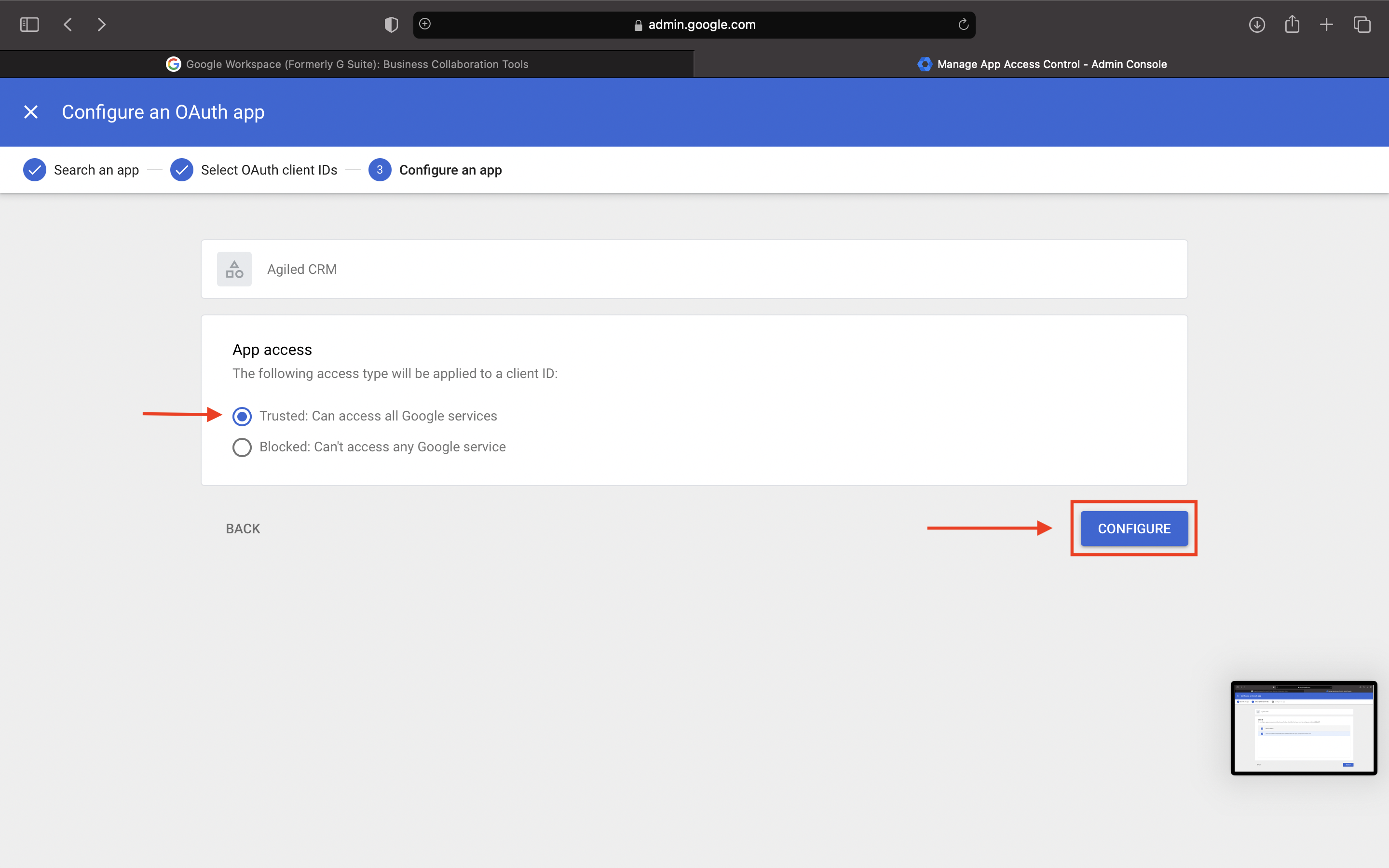
Step-9: In the App Access select "Trusted:Can access all Google services" and click Configure.
Agiled has been whitelisted in your Gsuite workspace and you can start using it in the CRM.
Was this article helpful?
More in CRM
- How to add a new Client.You can add clients in Agiled to send them invoices, estimates, proposals, contracts, and to collaborate with them on projects. You can also invite them to the
- How to delete an account in CRMIt is very simple to delete an account in CRM. Follow the steps given below: 1. Click on 'CRM' and go to 'Accounts' on the toolbar. 2. You will find a list of a
- How to add notes for Account?Video tutorial on how to add notes for an Account. In Agiled you can add notes for Accounts to keep track of important things about Account in the CRM. You can
- How to add new account in CRMVideo Tutorial on how to add a new Account in CRM Accounts are companies or departments within a company with which you have business dealings. In Agiled CRM, s
Questions about this? Agiled Assist answers from these articles.