How to convert a contact to a client
Video tutorial on how to convert a contact to a client In Agiled, you can convert your contacts into clients to send them invoices, estimates, collaborate with
Updated 1 min read
Video tutorial on how to convert a contact to a client
In Agiled, you can convert your contacts into clients to send them invoices, estimates, collaborate with them on projects, and invite them to the client portal.
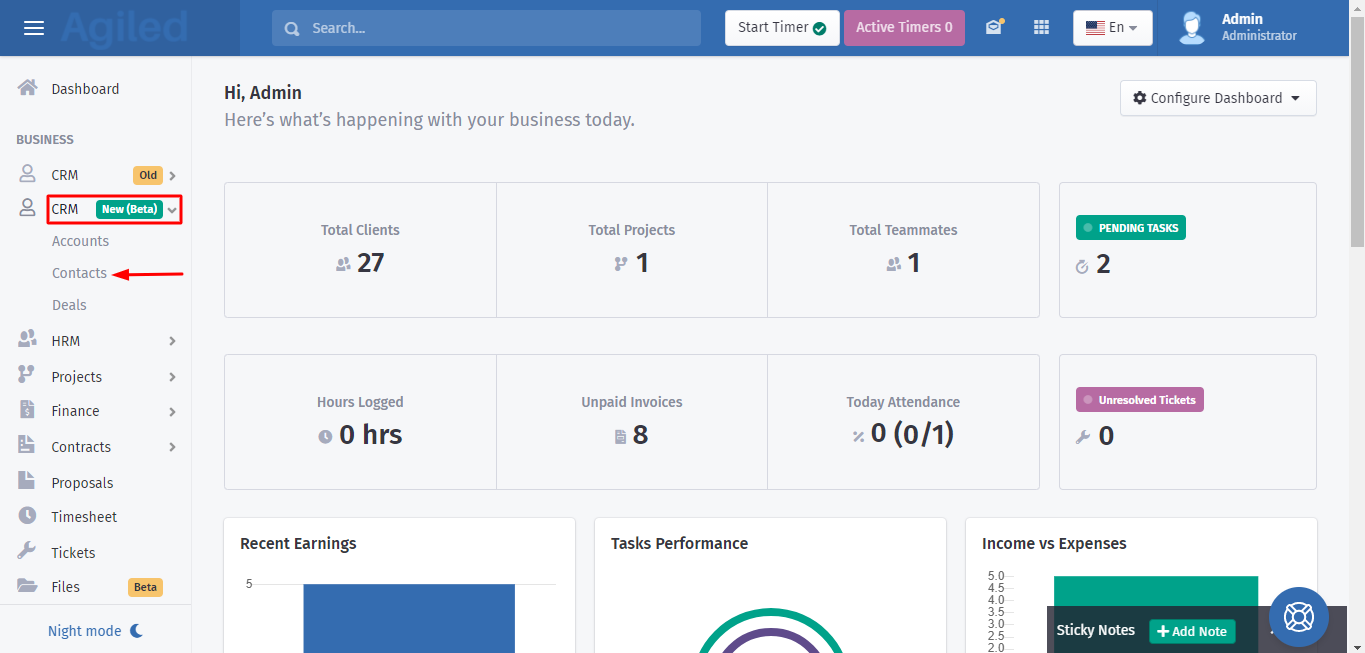
1. To convert an existing contact to a client. Go to CRM and click on Contacts.
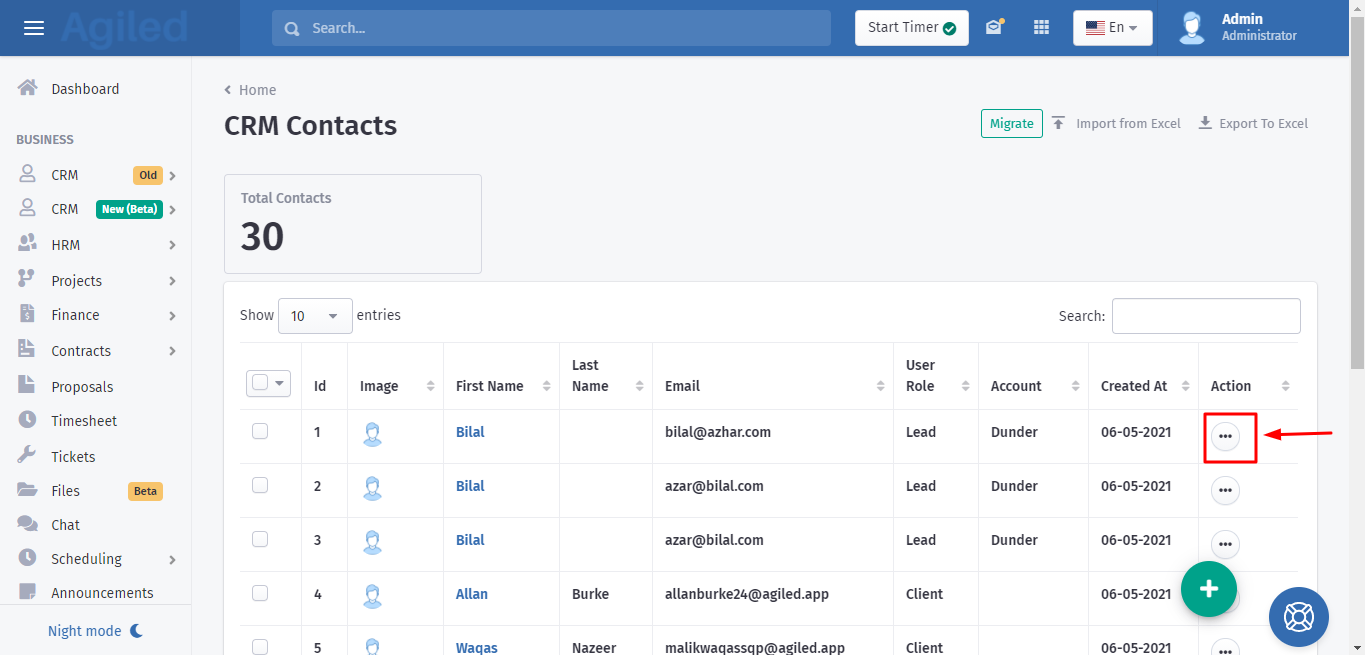
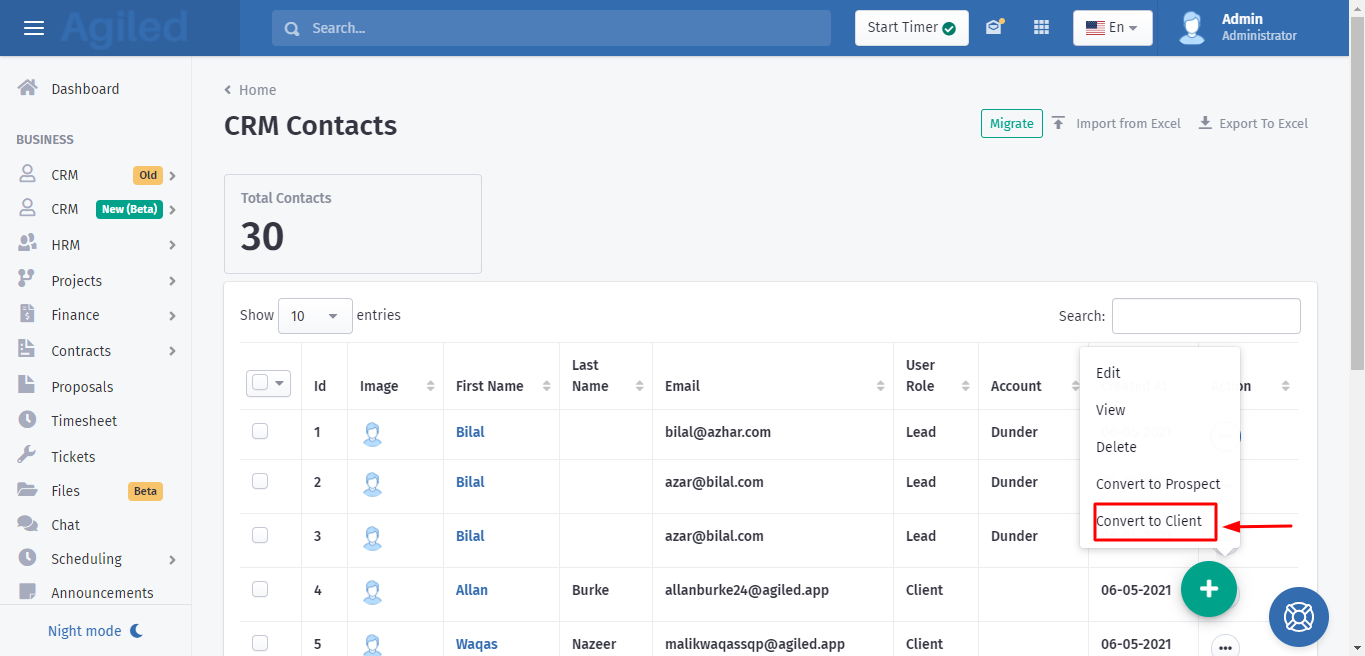
2. On the contacts screen, click on the three dots in your desired contact’s row and click on convert to client.
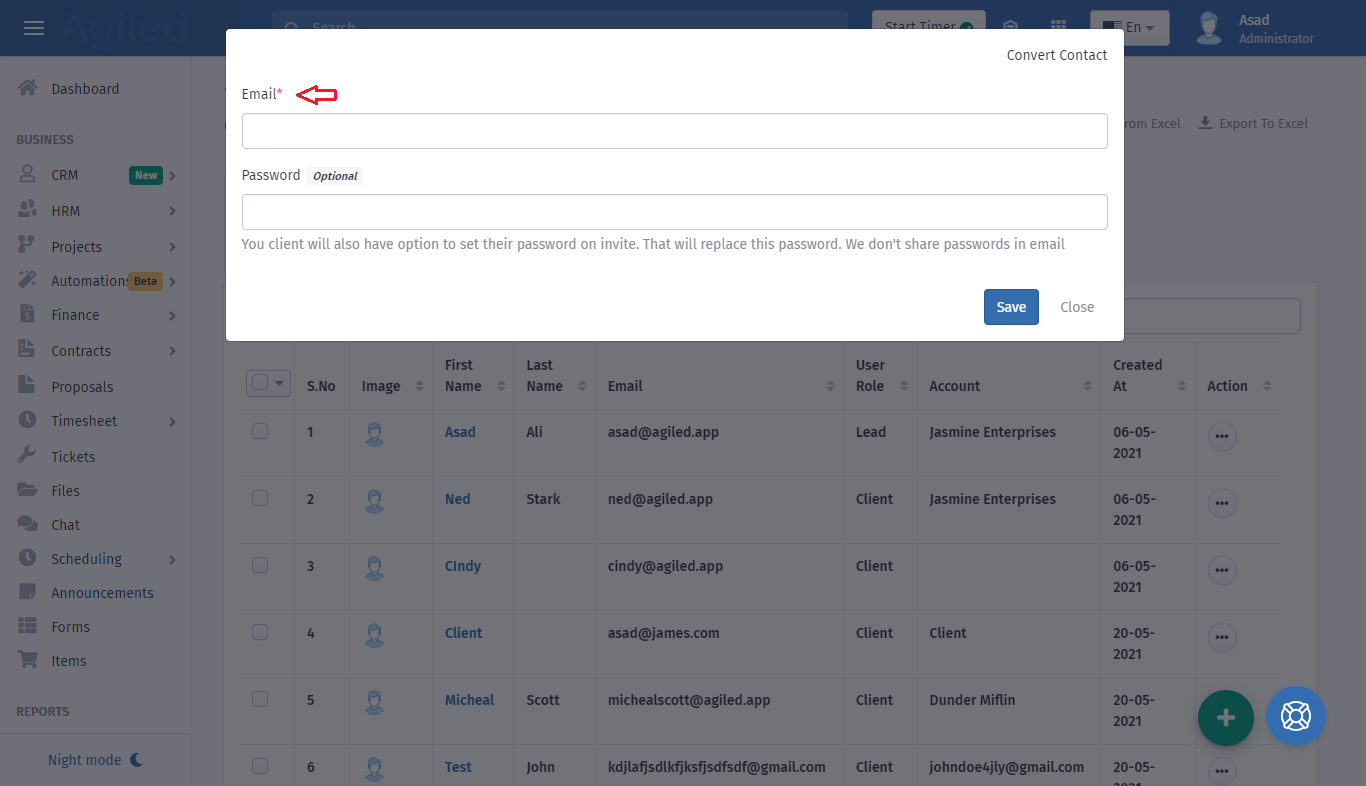
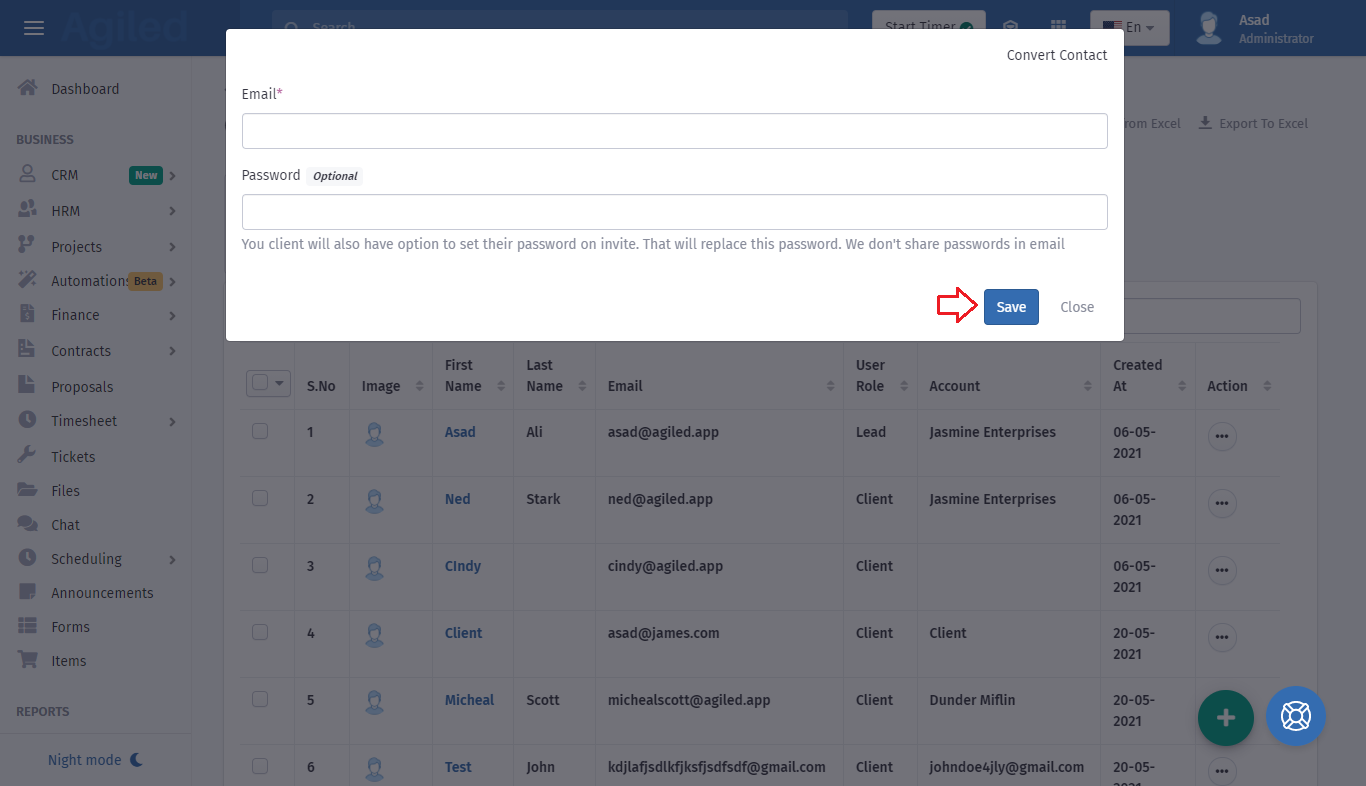
3. A popup will appear.
4. If you have not already added an email for the contact, add the email as it is required to create a client. You can also add the password for the client, but this is optional. This password will be used by your client to log in to the client portal. You can leave this field empty if you want.
5. Click on save, your contact will be converted to a client.
6. To invite this client to the client portal, click on the three dots again and click on Invite.
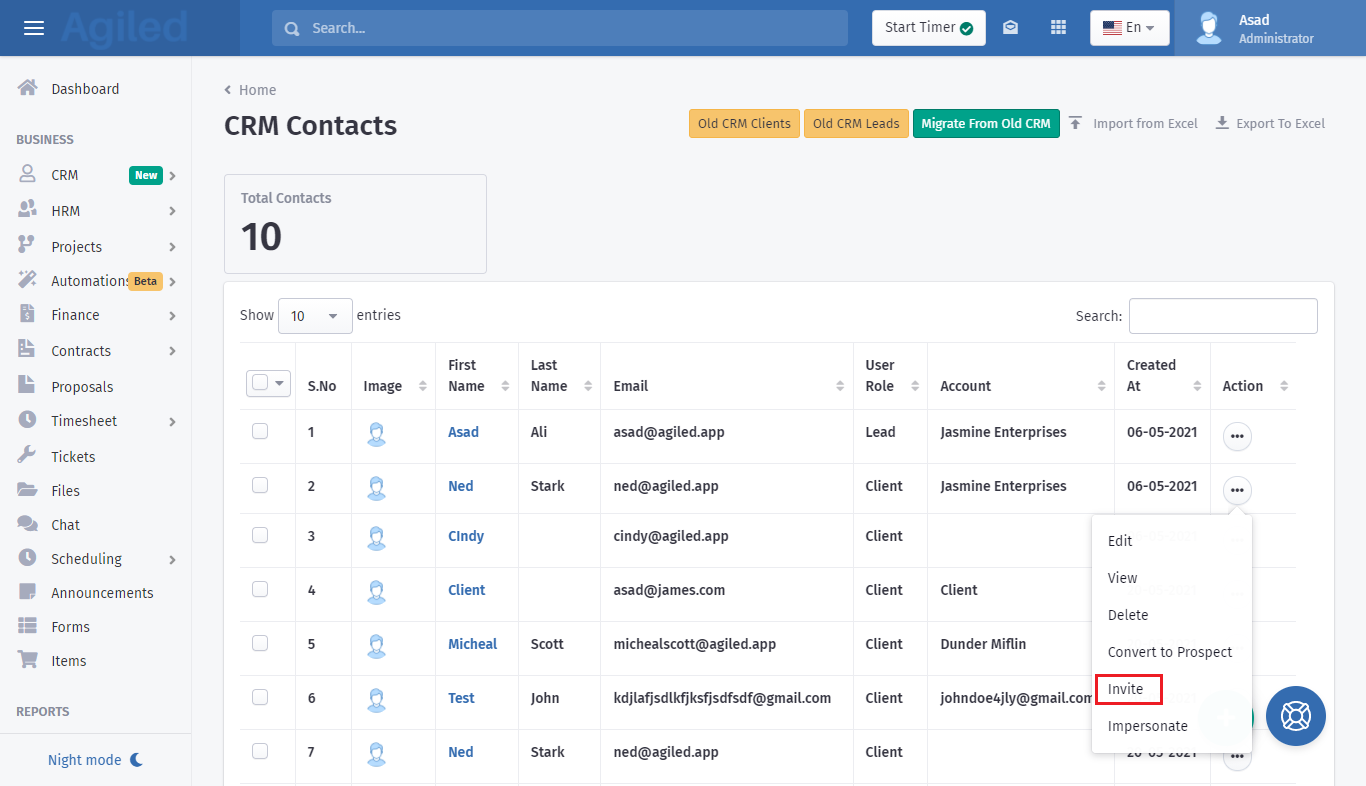
7. An invitation email will be sent to your client with the instructions to join the client portal.
Was this article helpful?
More in CRM
- How to add a new Client.You can add clients in Agiled to send them invoices, estimates, proposals, contracts, and to collaborate with them on projects. You can also invite them to the
- How to whitelist Agiled.app in G suite Admin panel?Owing to some API policy changes from Google you need whitelist Agiled by signing into your Google Admin console using an administrator account. If you don’t kn
- How to delete an account in CRMIt is very simple to delete an account in CRM. Follow the steps given below: 1. Click on 'CRM' and go to 'Accounts' on the toolbar. 2. You will find a list of a
- How to add notes for Account?Video tutorial on how to add notes for an Account. In Agiled you can add notes for Accounts to keep track of important things about Account in the CRM. You can
Questions about this? Agiled Assist answers from these articles.