How to Export Form Submissions in Agiled
Introduction Agiled offers a straightforward way to export form submissions, facilitating data usage across various platforms. You can export data in CSV or XLS
Updated 1 min read
Introduction
Agiled offers a straightforward way to export form submissions, facilitating data usage across various platforms. You can export data in CSV or XLS formats according to your needs. This guide will walk you through the process of exporting form submissions in Agiled.
Exporting Form Submissions
1. Navigate to the 'Forms' page in Agiled.
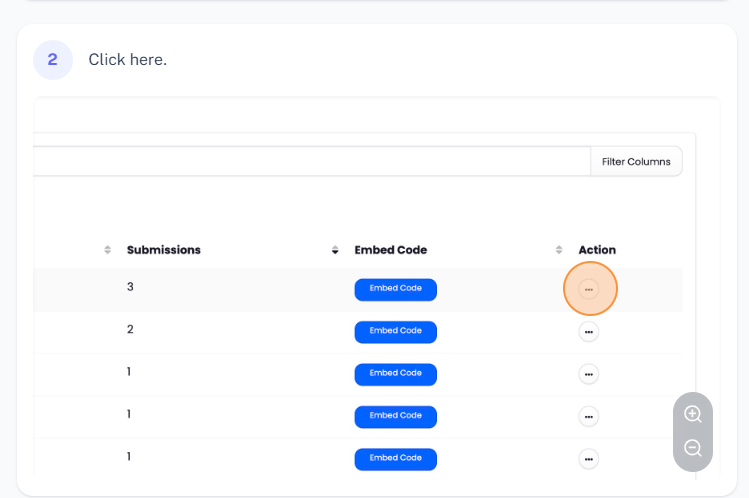
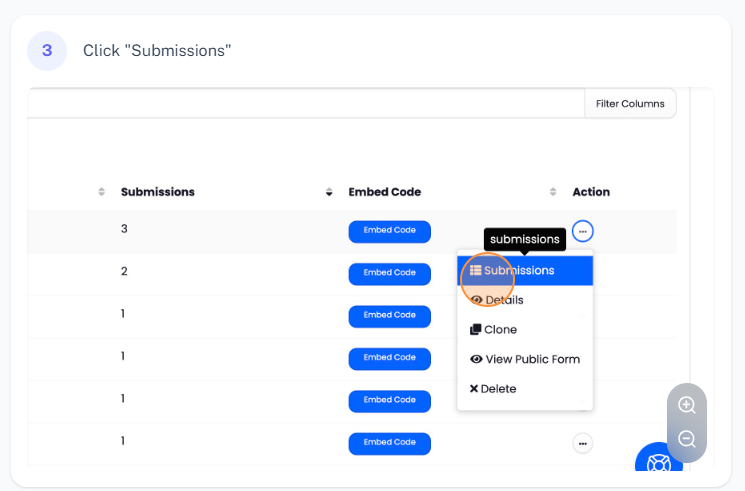
2. From the list of forms, choose the form whose submissions you wish to export and click on 'Submissions'.
3. Once you are on the 'Submissions' page, click on the 'Export' button.
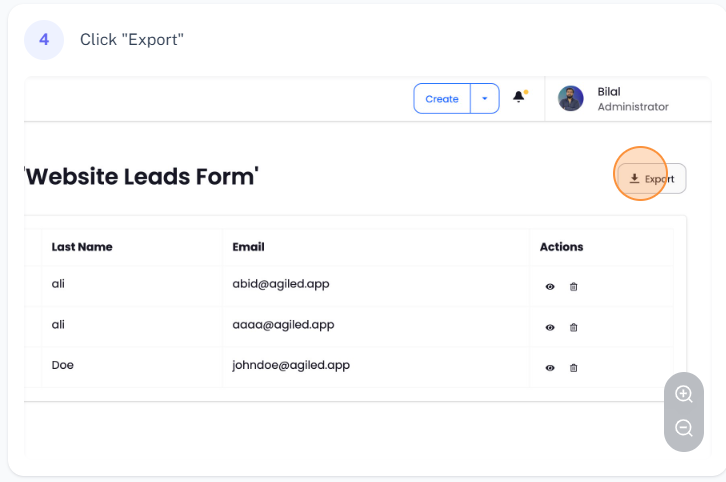
4. This action will export all your form submissions in either an Excel (XLS) or CSV format, which can be utilized in any other platform.
FAQs
In which formats can I export the form submissions in Agiled?
In Agiled, you can export form submissions in either CSV or XLS format.
Can I use the exported data in other platforms?
Yes, once the form submissions are exported in CSV or XLS format, the data can be used in any other platform that supports these formats.
Where can I find the 'Export' button for form submissions?
The 'Export' button is located on the 'Submissions' page for each form. Navigate to the specific form whose submissions you want to export, click on 'Submissions', and you'll find the 'Export' button on the page.
Was this article helpful?
More in CRM
- How to add a new Client.You can add clients in Agiled to send them invoices, estimates, proposals, contracts, and to collaborate with them on projects. You can also invite them to the
- How to whitelist Agiled.app in G suite Admin panel?Owing to some API policy changes from Google you need whitelist Agiled by signing into your Google Admin console using an administrator account. If you don’t kn
- How to delete an account in CRMIt is very simple to delete an account in CRM. Follow the steps given below: 1. Click on 'CRM' and go to 'Accounts' on the toolbar. 2. You will find a list of a
- How to add notes for Account?Video tutorial on how to add notes for an Account. In Agiled you can add notes for Accounts to keep track of important things about Account in the CRM. You can
Questions about this? Agiled Assist answers from these articles.