How to add files for a Contact/Account?
Video tutorial on how to add files for a contact/account? In Agiled you can add files to account details so you can keep all the files related to an account in
Updated 1 min read
Video tutorial on how to add files for a contact/account?
In Agiled you can add files to account details so you can keep all the files related to an account in one place. By adding files to the Account details, you can quickly access all the files you need related to an account in one place instead of going through emails and folders. Adding files to the account details is pretty, and simple too.
1. To add files to an Account, go to CRM from the side navigation and click on Accounts.
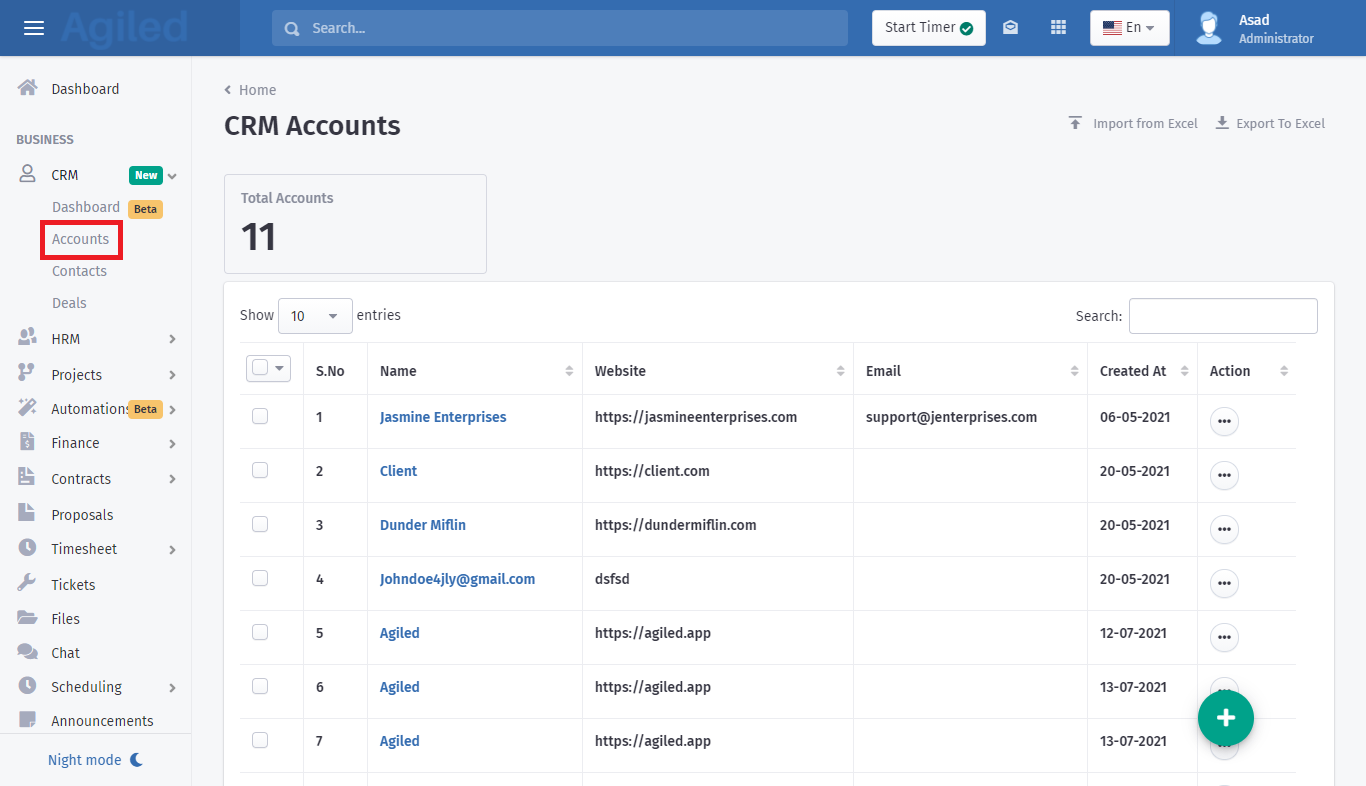
2. Choose an account to which you want to add files.
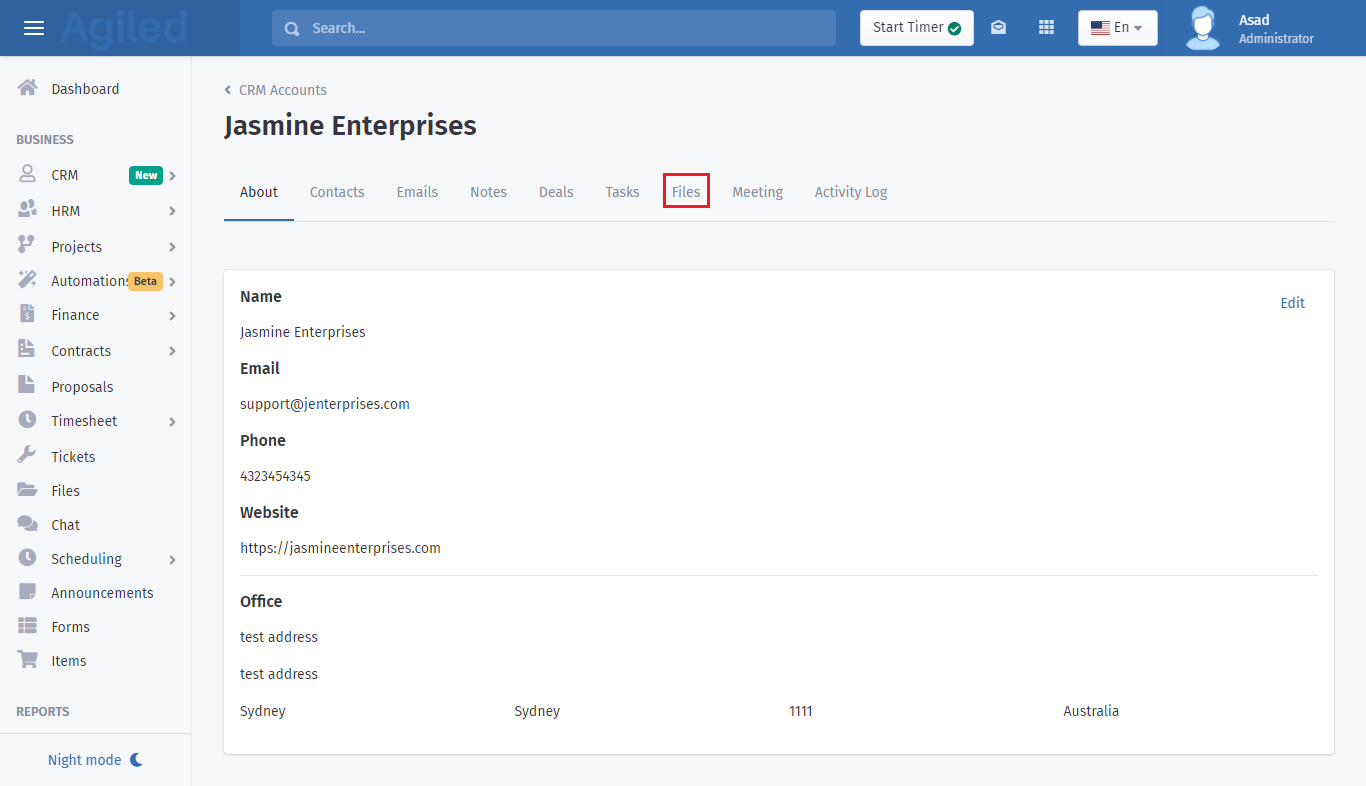
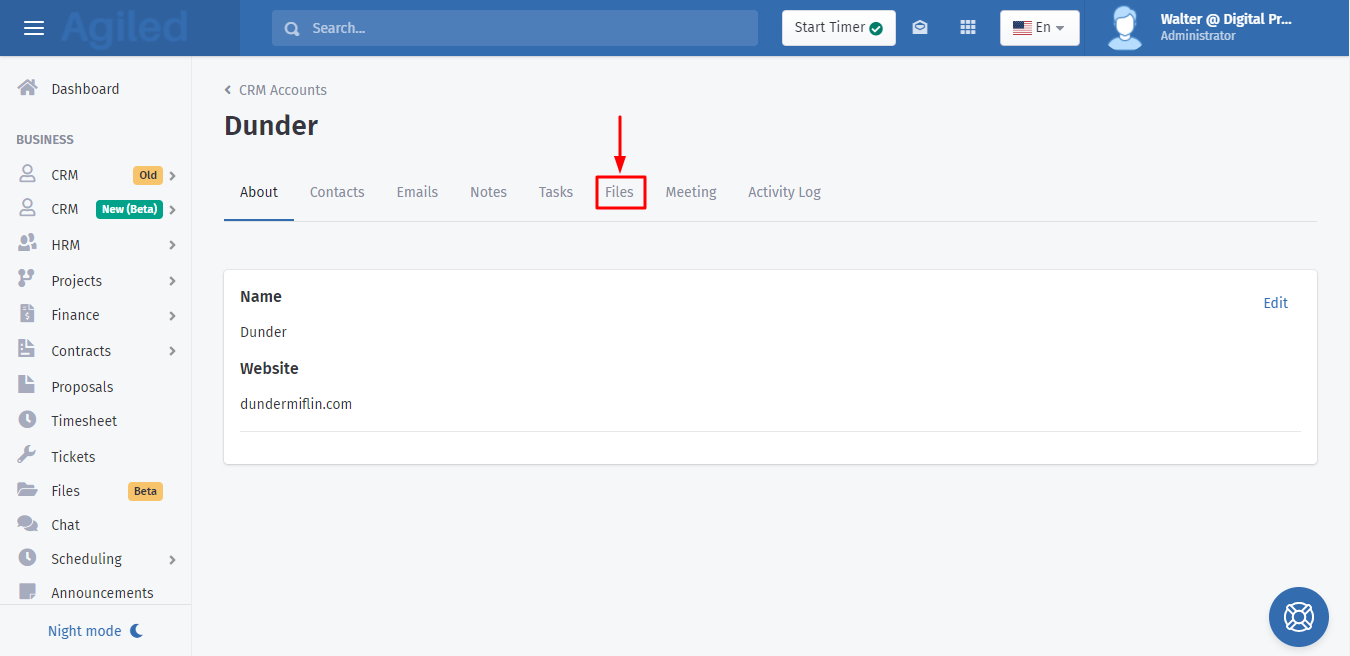
3. From the Account details screen go to the files tab and click on Add files button to add new files.
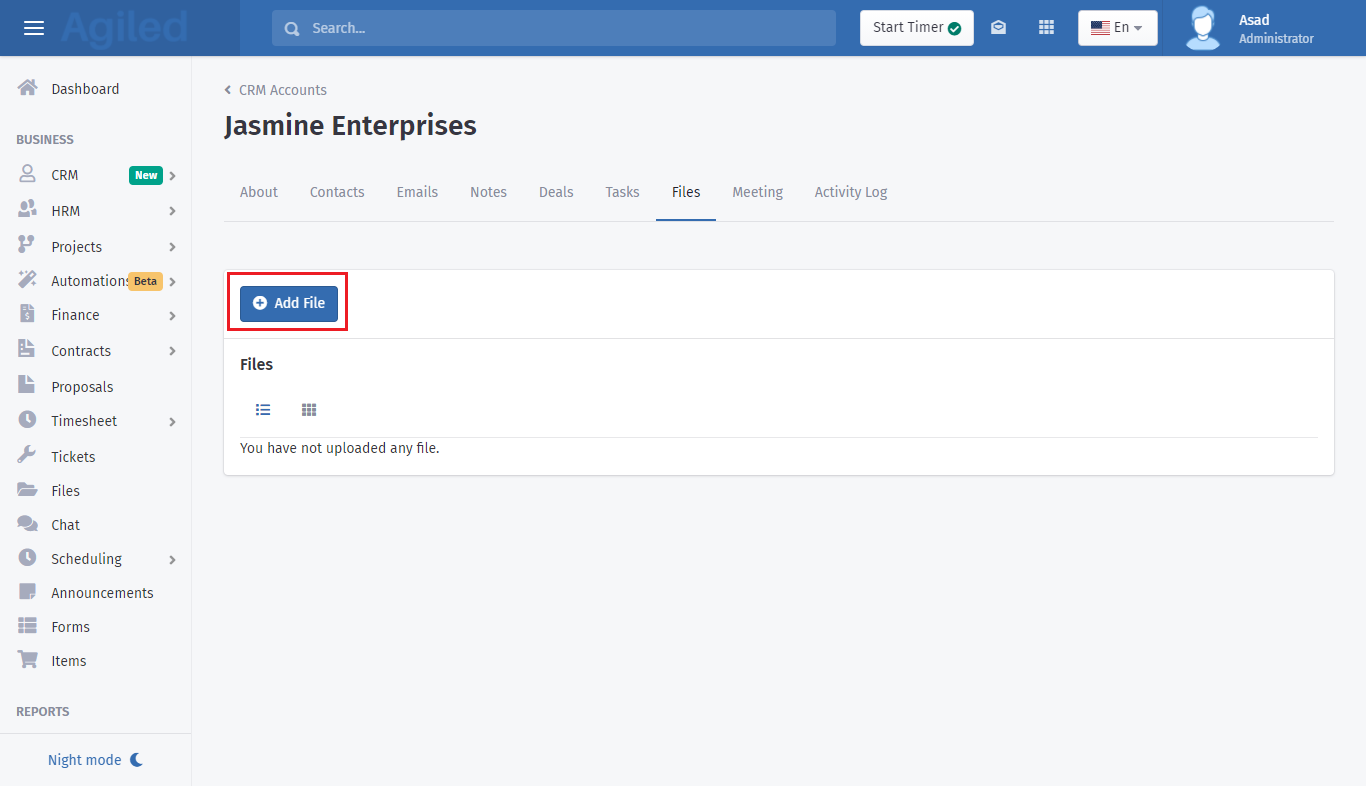
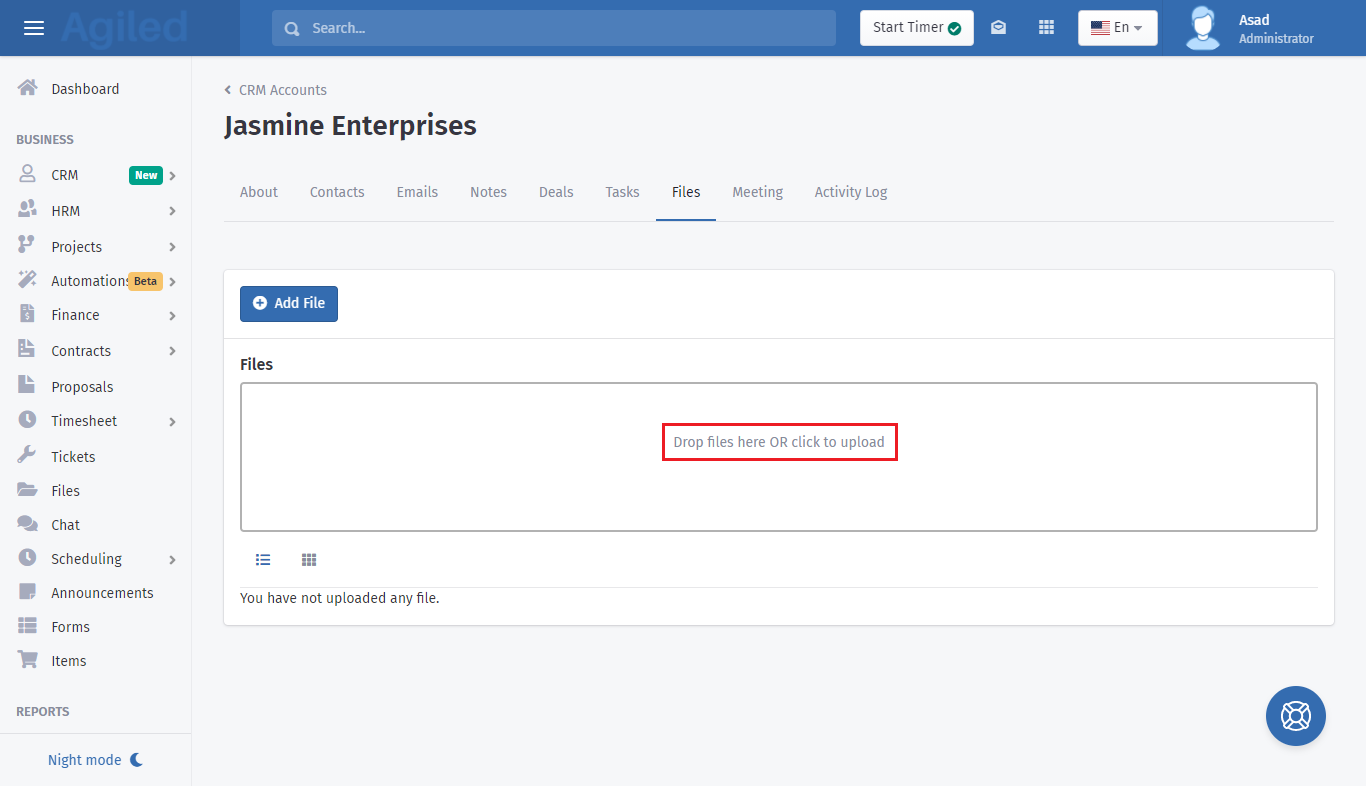
4. 4. Browse or drop all the files you need to add to an account and your files will be uploaded.
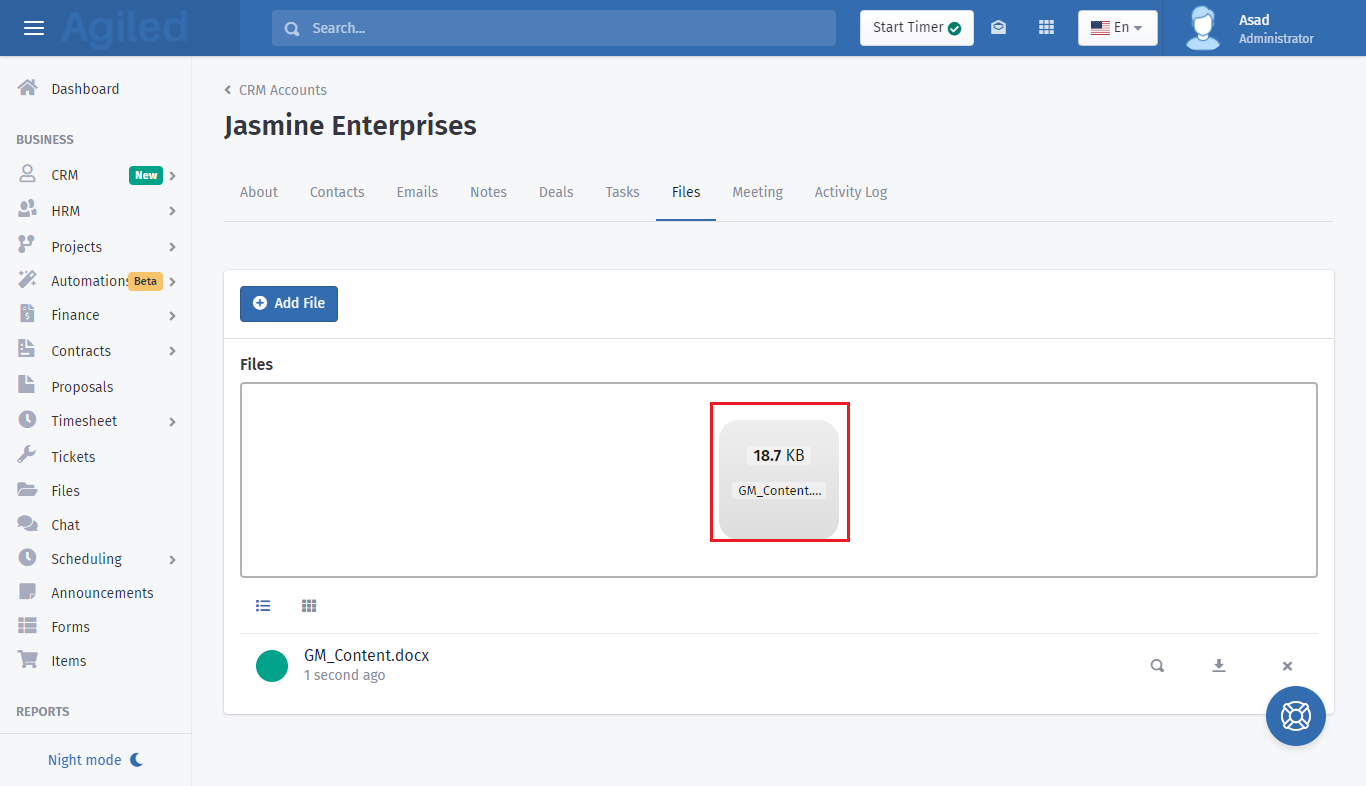
5. You can see all the files you have uploaded for an account in the files tab.
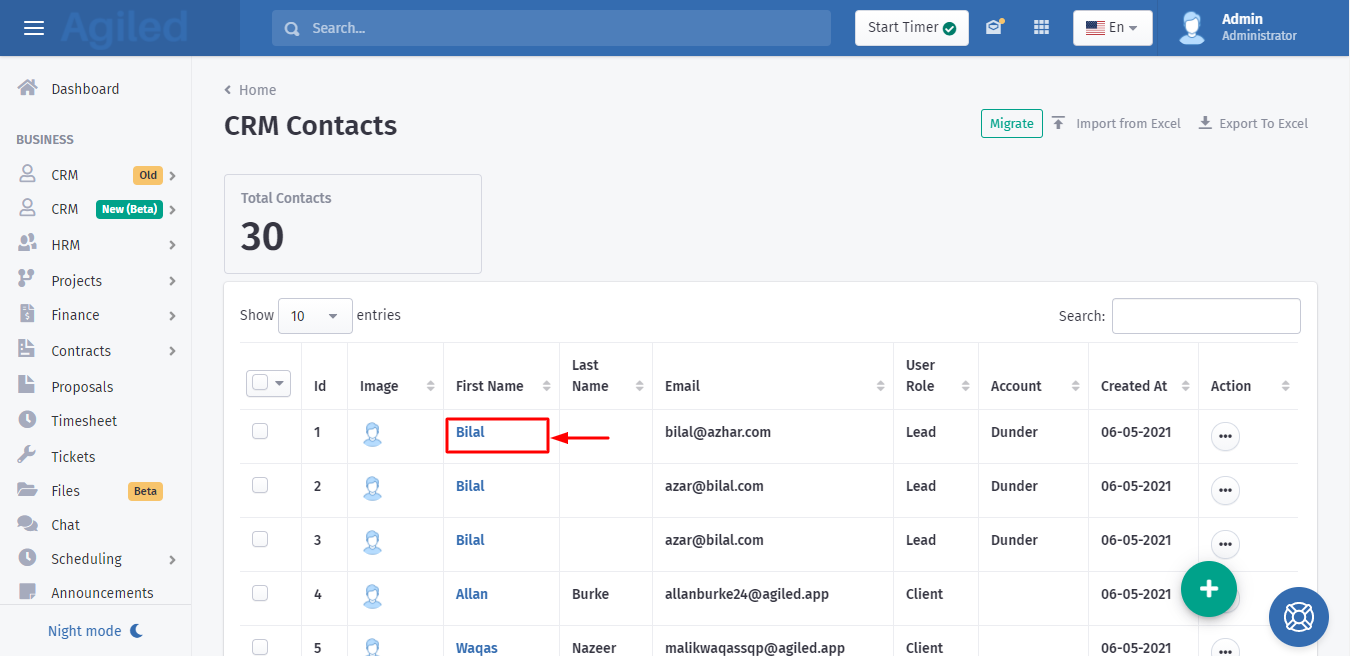
6. The same steps apply to adding files for a contact.
Adding files to the Account makes sure that you never lose an important document or file related to an Account. Now that you know how to add a file, start adding files to your CRM Accounts to keep all the things in one place.
Was this article helpful?
More in CRM
- How to add a new Client.You can add clients in Agiled to send them invoices, estimates, proposals, contracts, and to collaborate with them on projects. You can also invite them to the
- How to whitelist Agiled.app in G suite Admin panel?Owing to some API policy changes from Google you need whitelist Agiled by signing into your Google Admin console using an administrator account. If you don’t kn
- How to delete an account in CRMIt is very simple to delete an account in CRM. Follow the steps given below: 1. Click on 'CRM' and go to 'Accounts' on the toolbar. 2. You will find a list of a
- How to add notes for Account?Video tutorial on how to add notes for an Account. In Agiled you can add notes for Accounts to keep track of important things about Account in the CRM. You can
Questions about this? Agiled Assist answers from these articles.