How to create and use Project Templates
Introduction In Agiled, you can leverage project templates for increased efficiency, especially when dealing with similar types of projects, such as web develop
Updated 2 min read
Introduction
In Agiled, you can leverage project templates for increased efficiency, especially when dealing with similar types of projects, such as web development. With project templates, you can predefine tasks, milestones, team members, and even necessary files. This guide will walk you through creating and using project templates in Agiled.
Creating a Project Template
1. Navigate to the **Project's page** from the productivity Projects.

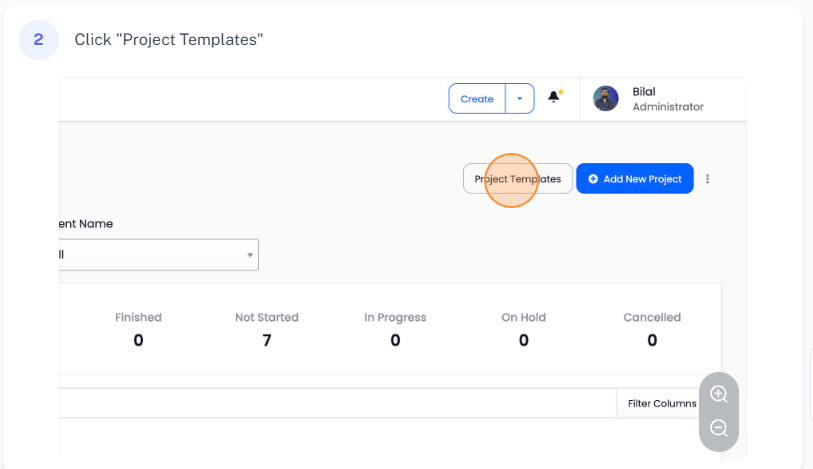
2. Click on the **Project templates button**. This will display all the project templates in your account.
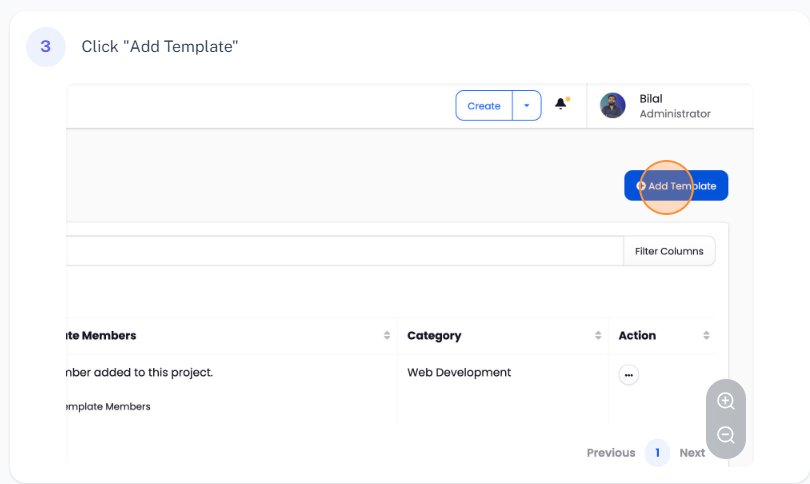
3. To create a new template, click on the **Add Template button**.
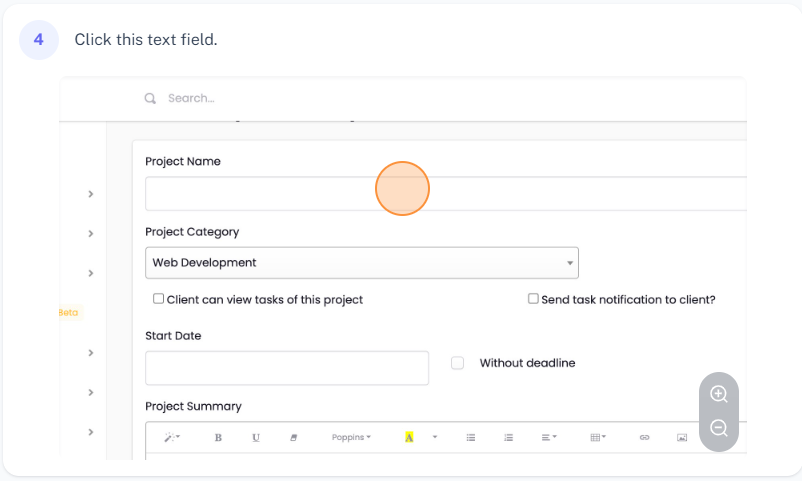
4. In the **Add Project template page**, enter a name for your template (e.g., Web Design Project).
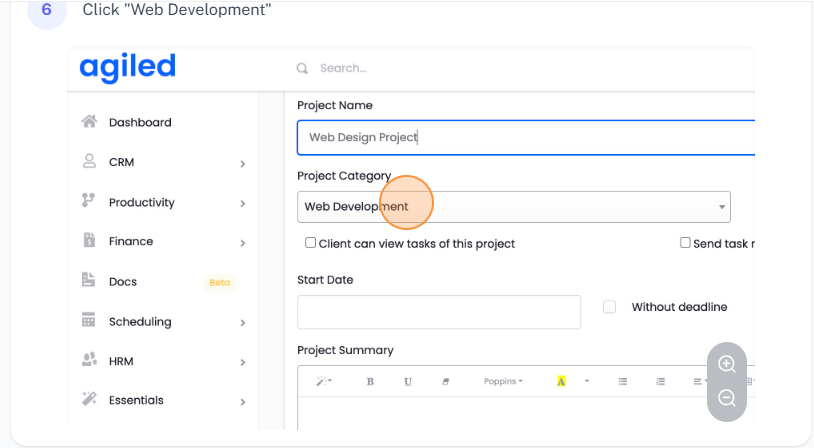
5. Select a **Project category** (e.g., Web Development).
6. Configure **settings** according to your preferences, such as client visibility, notifications, and manual time logs.
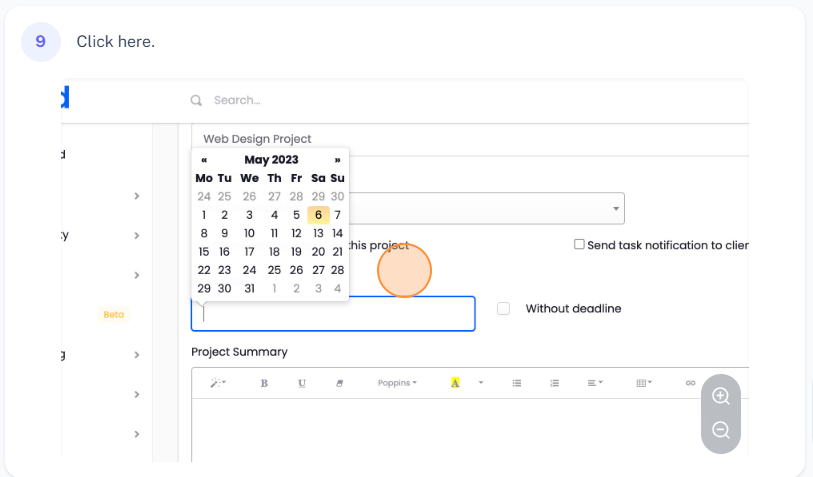
7. You can also add a **start date** and a **Project summary**.
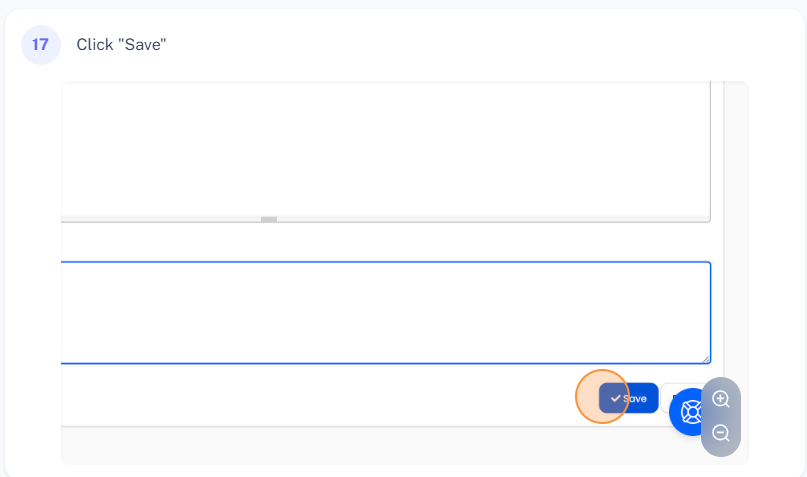
8. Once completed, click on the **Save button**.
Adding Members to a Project Template
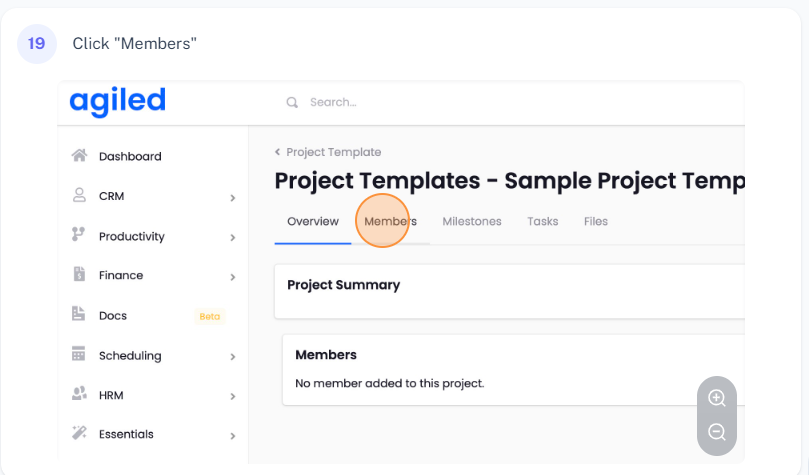
1. Navigate to the **Members** tab.
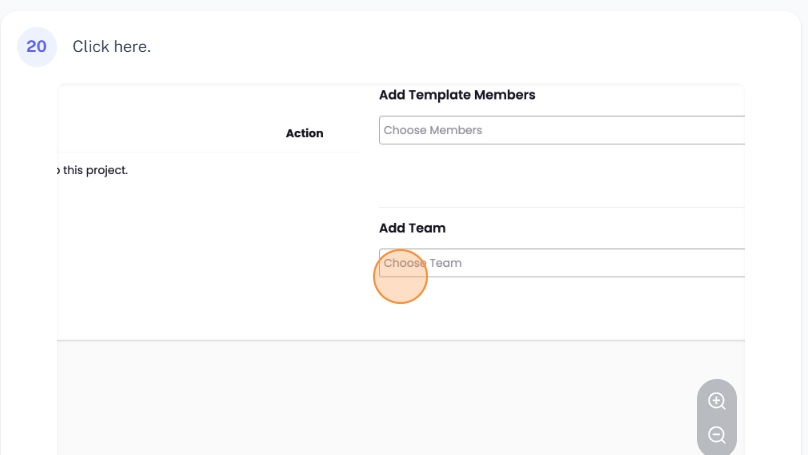
2. Add team members individually or add an entire team.
Creating a Milestone
1. Navigate to the **Milestones** tab.
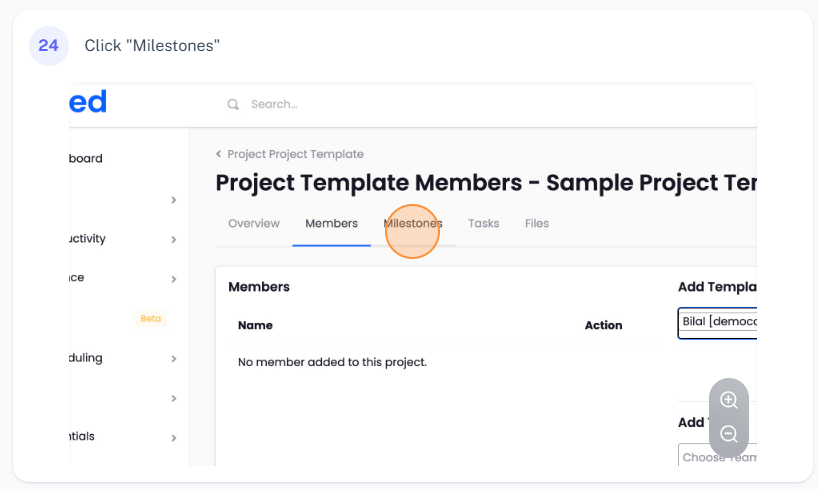
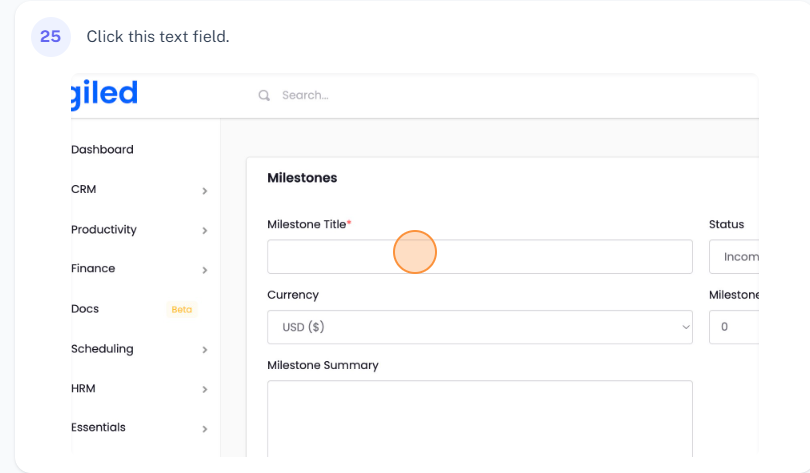
2. Click on the **Add Milestone button**, enter the details for the milestone, and click **Save**.
Adding a Task to a Project Template
1. Navigate to the **Tasks** tab.
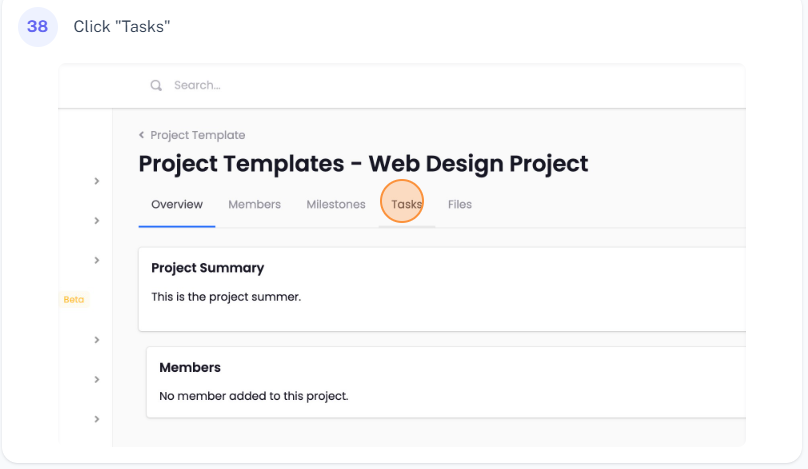
2. Click on the **Add Task button**, fill in the task details, assign it to a teammate, link it to a milestone if needed, set the priority, and click **Save**.
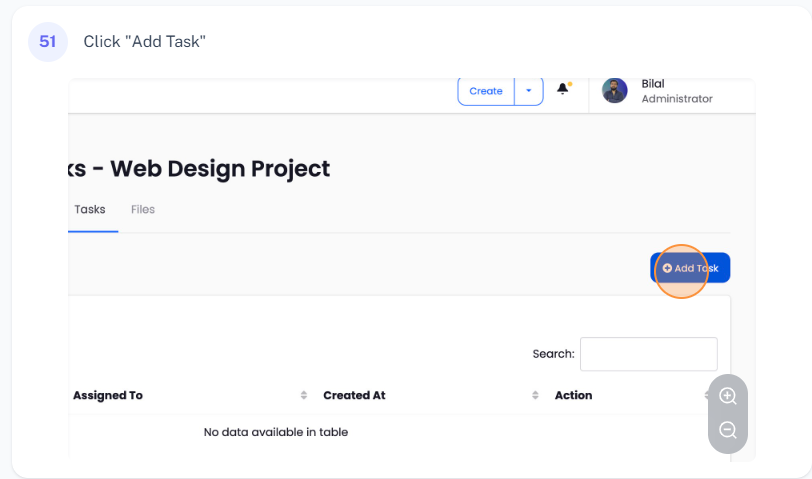
3. Repeat this process to add as many tasks as necessary.
Adding Files to a Project Template
1. Navigate to the **Files** tab.
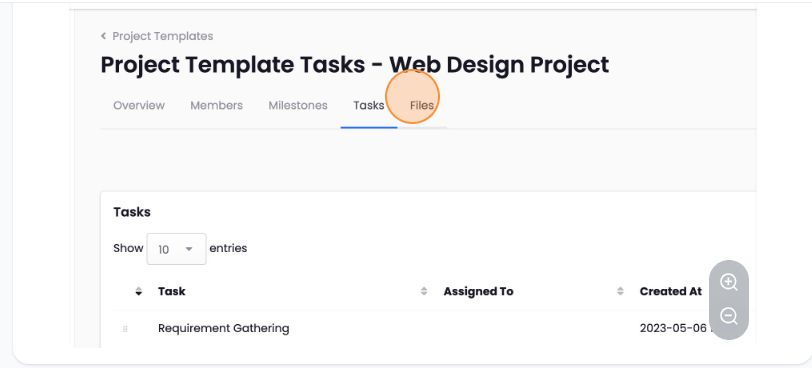
2. Click on the **Add Files button** and upload the necessary files.
Using a Project Template
1. Click on the **Add New Project button**.
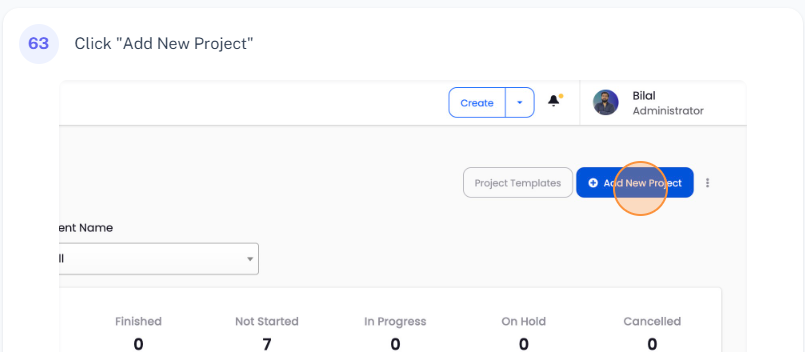
2. Click on the **Three Dots icon** and select **Use Template**.
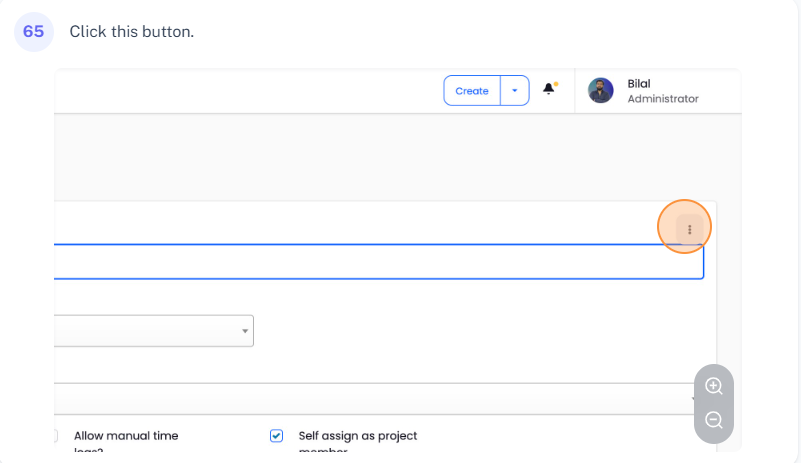
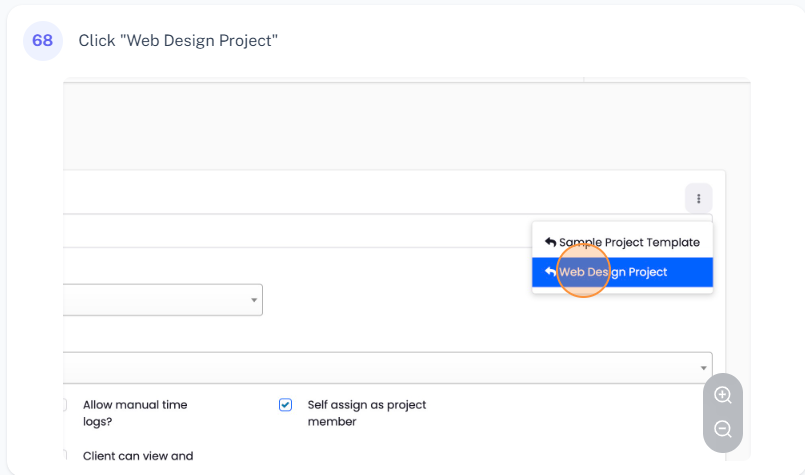
3. Select the template you created.
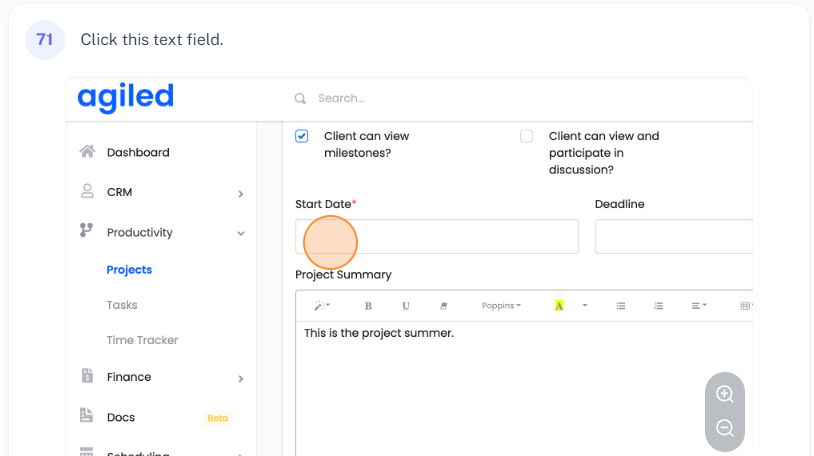
4. Fill in the details for the new project, such as the start date and budget.
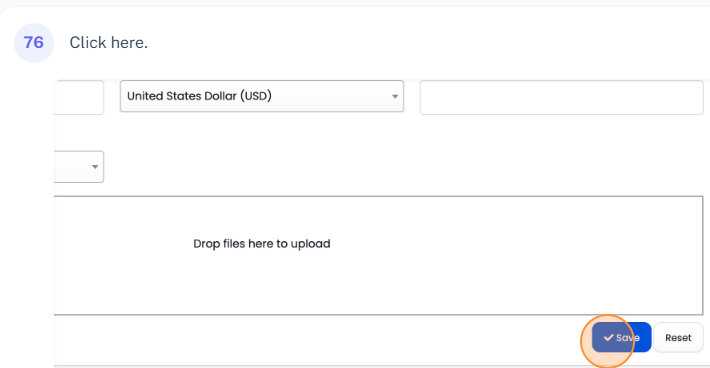
5. Click on the **Save button**.
Your new project is now created with predefined settings, milestones, tasks, and files.
Frequently Asked Questions (FAQs)
**Q. Can I add an entire team to a project template?**
**A.** Yes, you can add an entire team to a project template. This can be done from the Members tab within the project template.
**Q. Can I add files to a project template?**
**A.** Yes, you can add files to a project template. These files will be automatically added to any new project created using this template.
**Q. How can I use a project template when creating a new project?**
**A.** When creating a new project, click on the Three Dots icon and select Use Template. Choose the template you want to use, and the new project will be created with the predefined settings, milestones, tasks, and files.
Was this article helpful?
More in Project Management
- Creating TasksYou can manage tasks with ease in Agiled. To manage tasks go to Tasks -> All Tasks and click on Add task button. It will take you to Add New Task screen. Ente
- Project: TasksHow to manage Project Tasks? Project tasks are organized in the Tasks tab of the project dashboard. To see all tasks of the project go to any project and click
- Creating ProjectsHow to add a new project? Managing projects in Agiled is very easy and Project management in Agiled is very comprehensive. To create a new project go to Product
- Time TrackingStay productive by tracking your and your team's time in Agiled. Agiled comes with a built in time tracking and you can track and bill for your time very easil
Questions about this? Agiled Assist answers from these articles.