Adding Custom Field In Employee
How do I Add Custom Field in Employees? We understand every company has different needs, so we have given the functionality to add custom fields to employee's i
Updated 1 min read
How do I Add Custom Field in Employees?
We understand every company has different needs, so we have given the functionality to add custom fields to employee's info. You can add as many custom fields as you want for the employees.
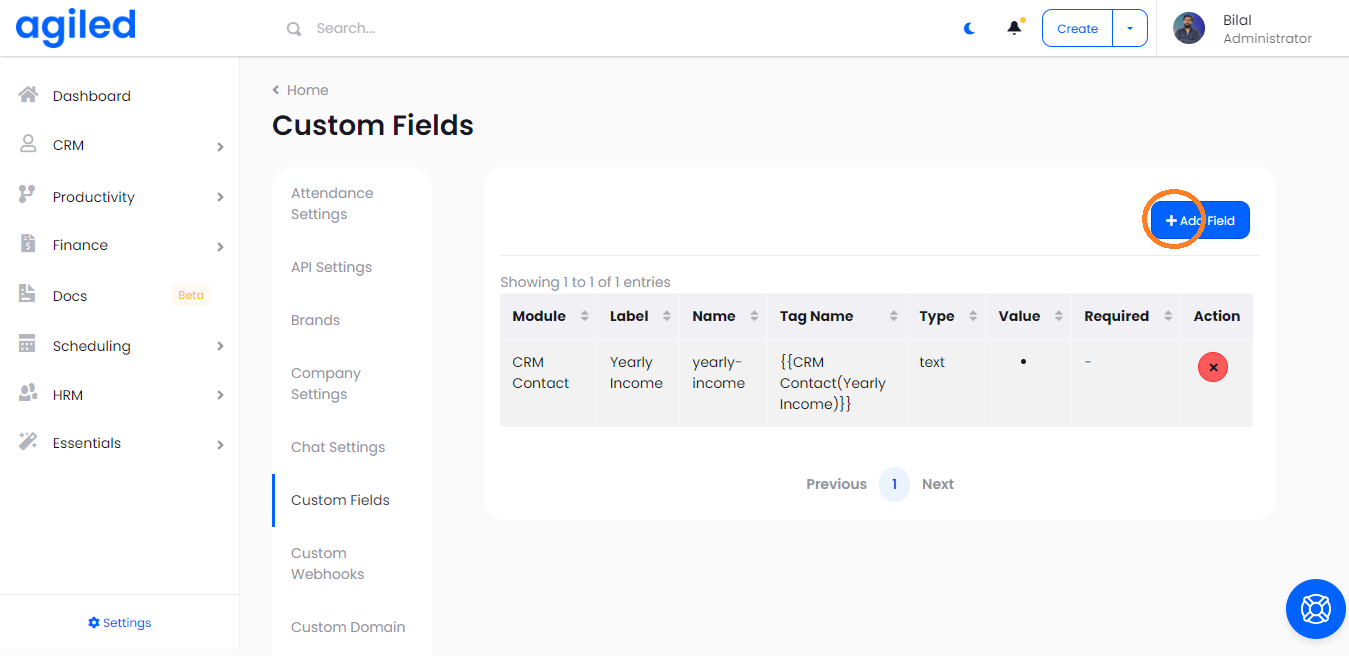
To add custom fields in employees go to Settings -> Custom Fields and click the “Add Field” button.
A Popup will appear as shown in the picture below.
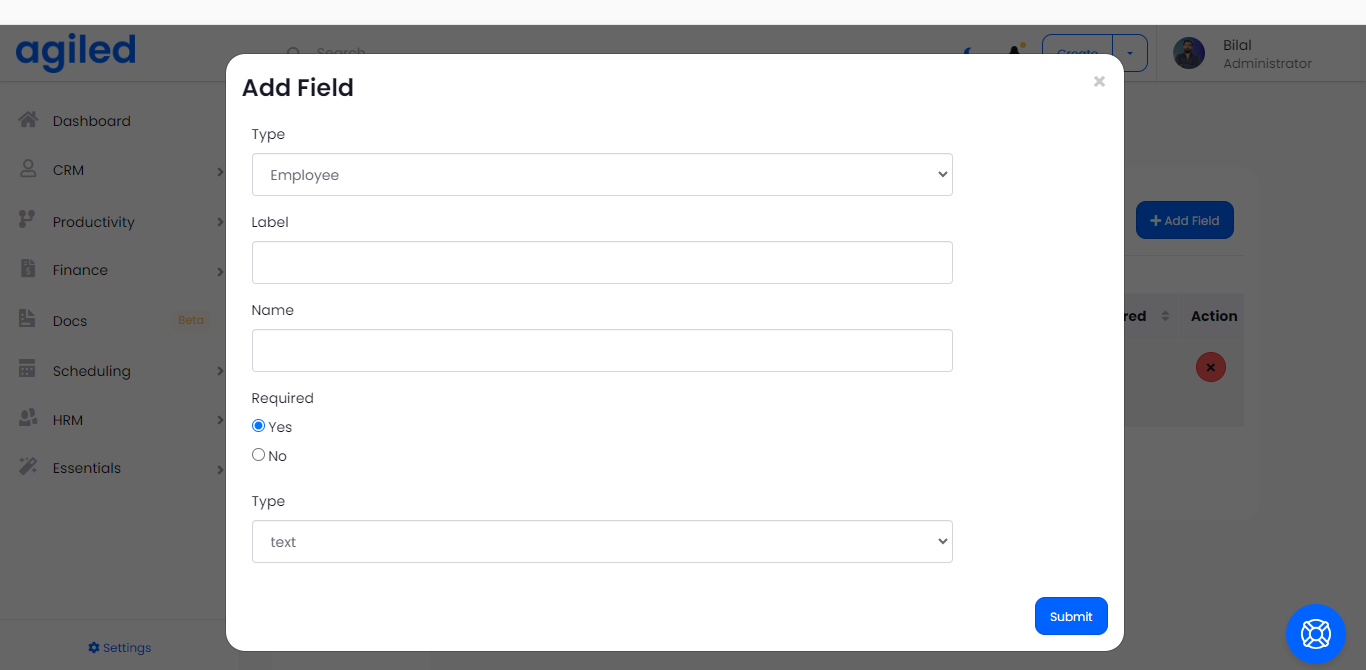
Now follow the steps given below to add custom field for an employee.
1. From Type select “Employee”.
2. In the Label Enter the name for the field like Secondary Email, Middle Name etc.
3. Name of the field is automatically generated as it is for internal use but you can change it if you like.
4. Choose if the field is required or not.
5. Select the type of the field. You can choose from text, text area, password, number and select.
After you have added all the details click Submit and the custom field will be added for the employees.
Was this article helpful?
More in HRM
- Adding an Employee or Team MemberHow do I add an Employee/Staff/Team Member? To add an employee or a team member go to HRM-> Employees and click on Add Employee. Add all the required informatio
- Managing HolidaysYou can create holidays for your team in Agiled. These holidays are visible on the calendar. To change the holiday settings go to HRM -> Holidays. Add a new Hol
- How to run a payrollFollow the steps below to run payroll: 1. Go to the 'HRM' and click on 'Payroll.' 2. After that select the month and year of pay and mark the boxes which you wa
- How to add a new designationIf you want to add more designations, follow these steps to create a new one successfully: 1. Go to the 'HRM' on the toolbar and click on 'Designation.' 2. Clic
Questions about this? Agiled Assist answers from these articles.