Adding an Employee or Team Member
How do I add an Employee/Staff/Team Member? To add an employee or a team member go to HRM-> Employees and click on Add Employee. Add all the required informatio
Updated 1 min read
How do I add an Employee/Staff/Team Member?
To add an employee or a team member go to HRM-> Employees and click on Add Employee.
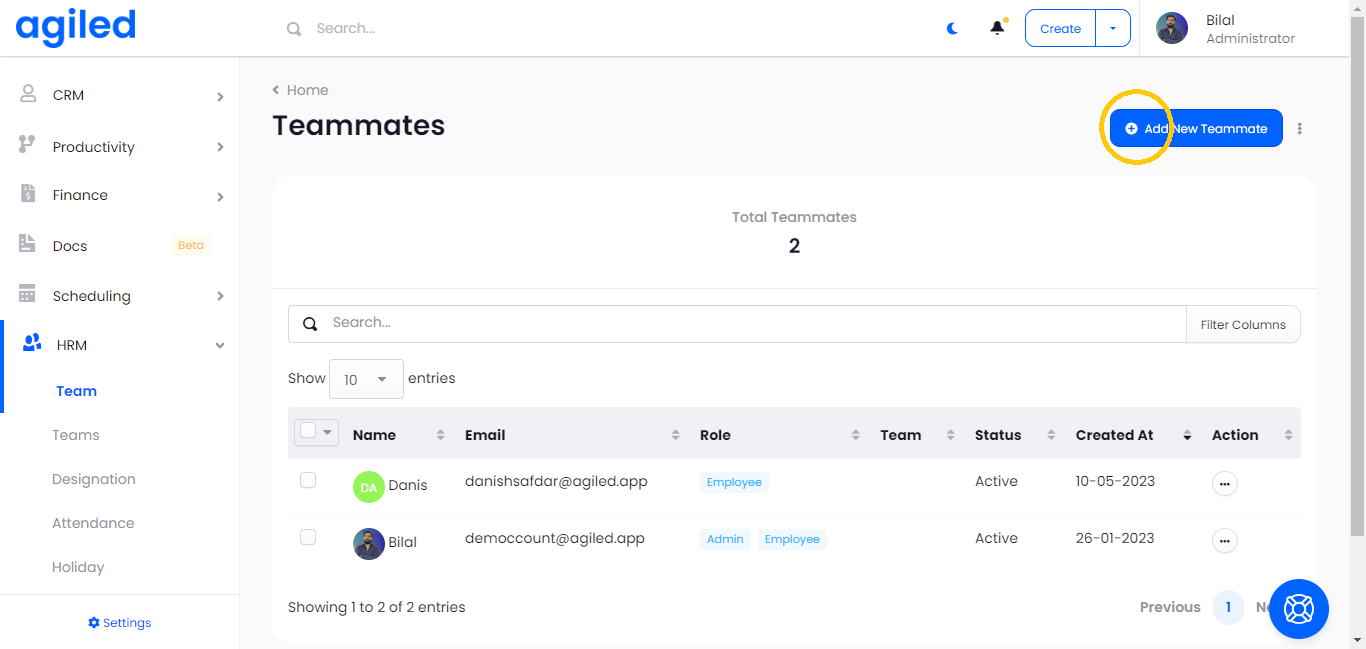
Add all the required information for the Employee as shown in the picture below.
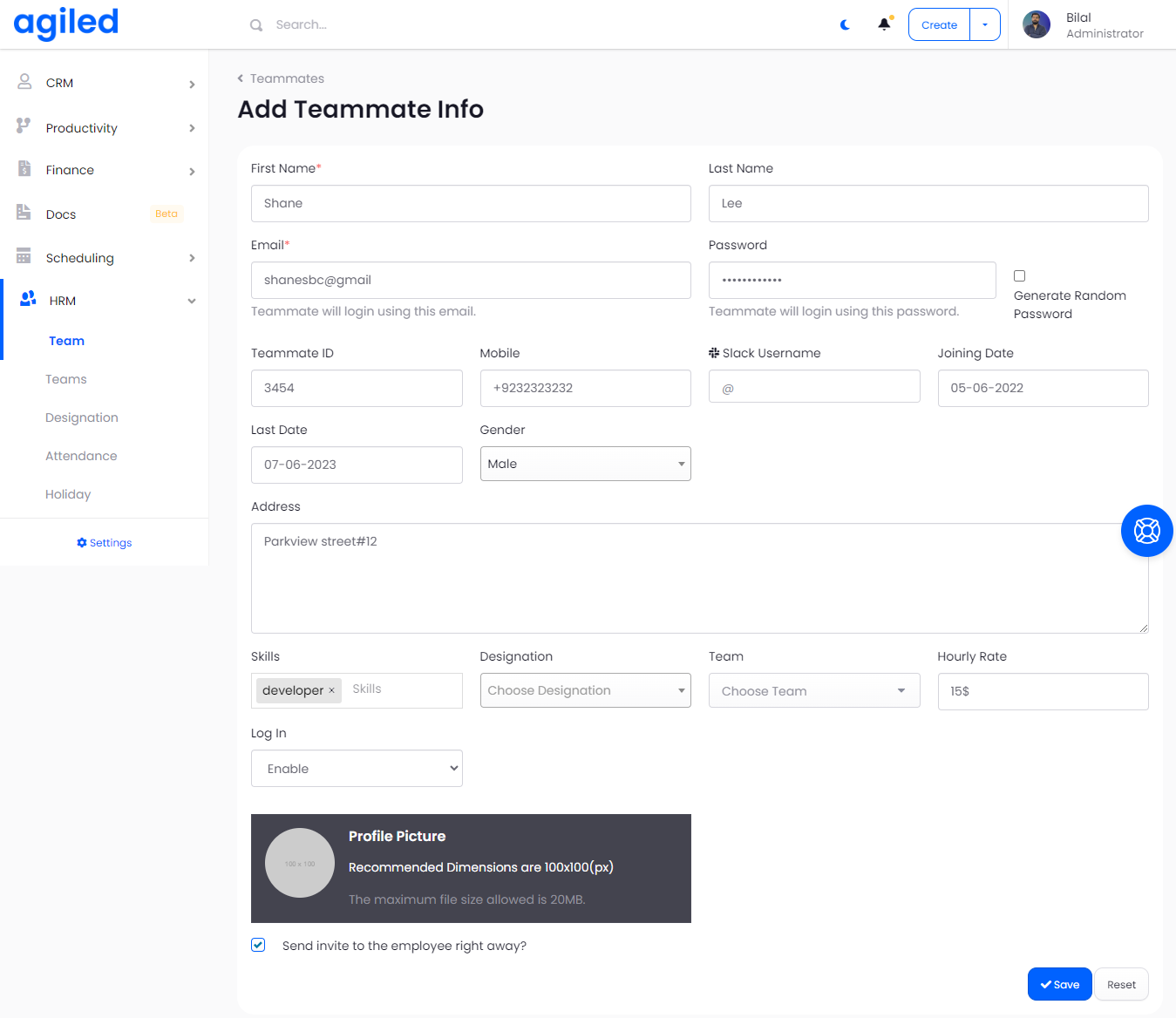
Here is the information you can add for an Employee
- Employee Id: This can be internal employee ID assigned to your team member.
- Employee Name: Name of the team member/Employee
- Email: Email of the team member (this is the email your employee will use to login to their portal)
- Enter the password for the employee or choose to generate random password for the employee (Login details will be sent to your employee by email)
- Phone (Optional): Enter phone number for the employee
- Slack Username: Slack username of the employee
- Joining Date: Joining date of the employee.
- Gender (Optional)
- Address: Address of your employee.
- Skills: Add skills of your employee.
- Designation: Add designation of the team member (To instantly create a new designation click the “+” icon and enter the designation name in popup).
- Department: You can create departments for your company and assign different employees to different employees. From here you can assign employee to a department. (If you want to create a new department instantly you can do that from here by clicking on the “+” icon).
- Hourly Rate: Hourly Rate of the employee. This is used when employees track time and mark their time as billable.
- Login: Enable or Disable login
- Profile Picture (Optional): Add profile picture of your employee.
- Click Save
After you click save an email will be send to your employee with the login details if you enable the login for the employee.
Was this article helpful?
More in HRM
- Managing HolidaysYou can create holidays for your team in Agiled. These holidays are visible on the calendar. To change the holiday settings go to HRM -> Holidays. Add a new Hol
- How to run a payrollFollow the steps below to run payroll: 1. Go to the 'HRM' and click on 'Payroll.' 2. After that select the month and year of pay and mark the boxes which you wa
- How to add a new designationIf you want to add more designations, follow these steps to create a new one successfully: 1. Go to the 'HRM' on the toolbar and click on 'Designation.' 2. Clic
- Managing LeavesTo manage leaves of your employees, go to HRM -> Leaves. How to assign Leaves to Employees? To assign a leave to employee click “Assign Leave” from the top righ
Questions about this? Agiled Assist answers from these articles.