How to add a new holiday
For adding a new holiday, follow the steps below: 1. Go to 'HRM' on the toolbar and open 'Holiday.' 2. Click on 'Add Holiday' in the top right corner. 3. Enter
Updated 1 min read
For adding a new holiday, follow the steps below:
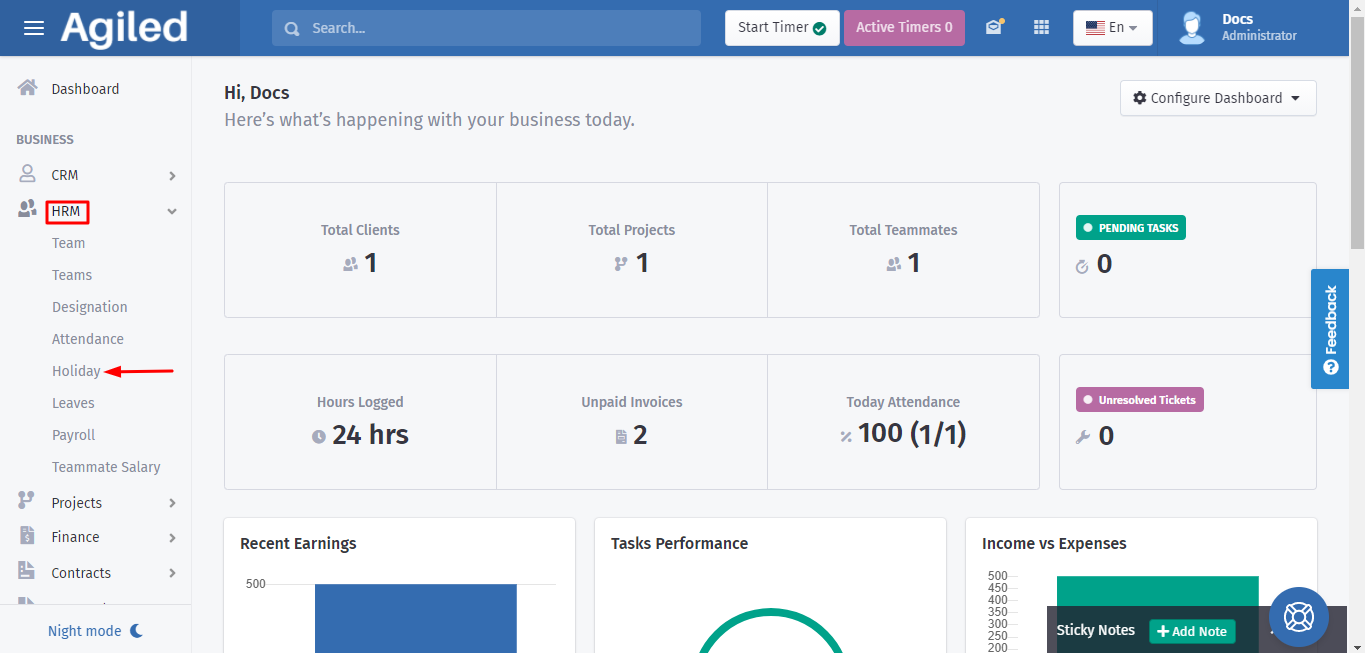
1. Go to 'HRM' on the toolbar and open 'Holiday.'
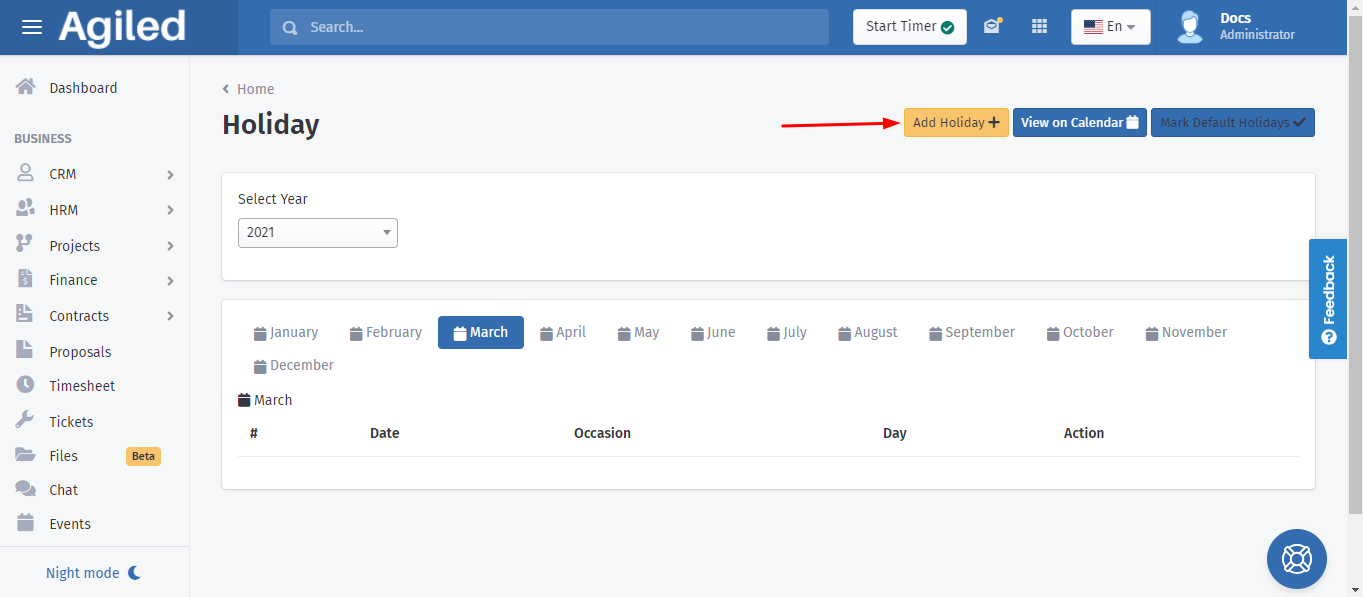
2. Click on 'Add Holiday' in the top right corner.
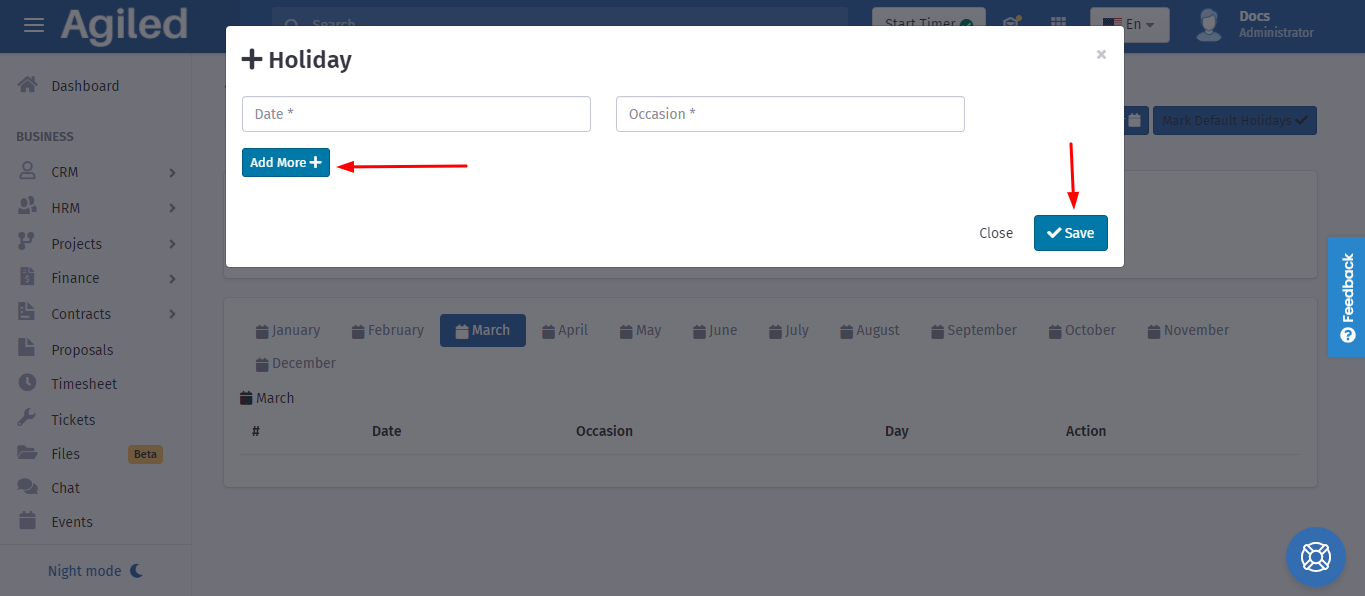
3. Enter the date and occasion, then click on save to add a holiday. You can also add more holidays by clicking on 'Add more.'
Was this article helpful?
More in HRM
- Adding an Employee or Team MemberHow do I add an Employee/Staff/Team Member? To add an employee or a team member go to HRM-> Employees and click on Add Employee. Add all the required informatio
- Managing HolidaysYou can create holidays for your team in Agiled. These holidays are visible on the calendar. To change the holiday settings go to HRM -> Holidays. Add a new Hol
- How to run a payrollFollow the steps below to run payroll: 1. Go to the 'HRM' and click on 'Payroll.' 2. After that select the month and year of pay and mark the boxes which you wa
- How to add a new designationIf you want to add more designations, follow these steps to create a new one successfully: 1. Go to the 'HRM' on the toolbar and click on 'Designation.' 2. Clic
Questions about this? Agiled Assist answers from these articles.