How to create recurring invoice
Recurring Invoices are the automated invoices. You set their frequency, interval, and cycle and the system automatically sends those invoices to the recipients
Updated 1 min read
Recurring Invoices are the automated invoices. You set their frequency, interval, and cycle and the system automatically sends those invoices to the recipients according to the prior settings.
For creating a recurring invoice, follow these steps:
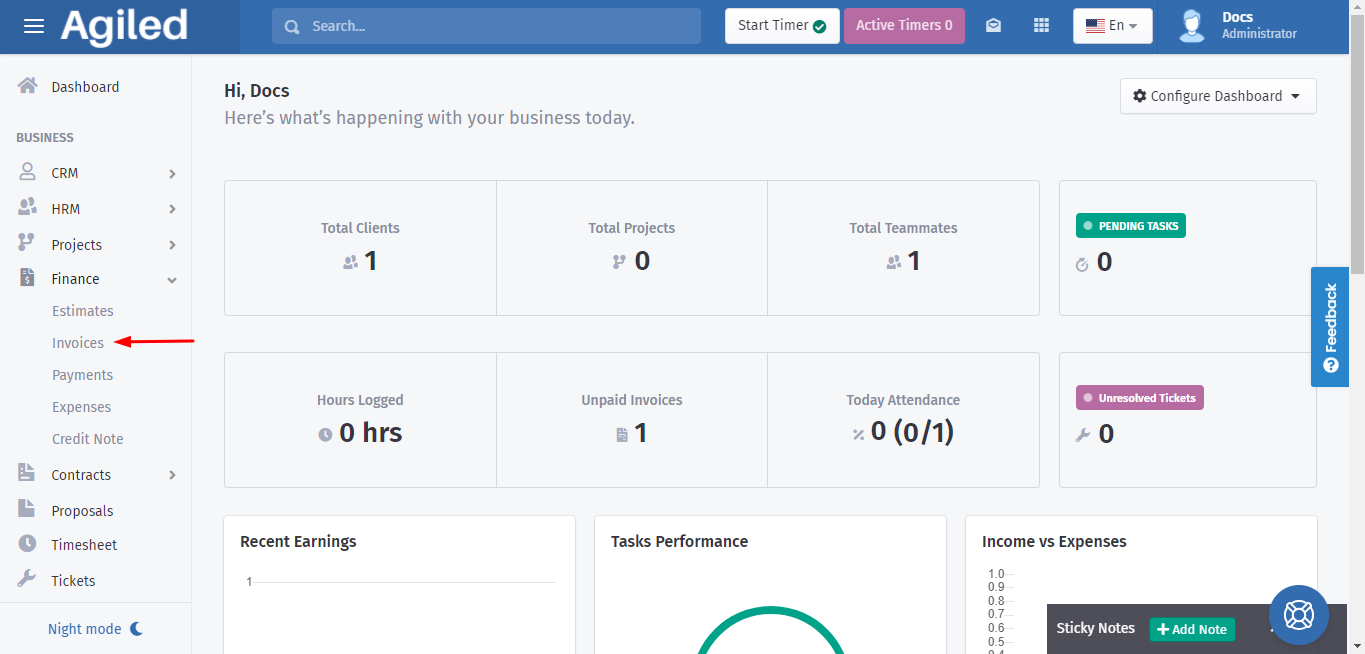
1. Go to the 'Finance' in the toolbar and click on 'Invoices.'
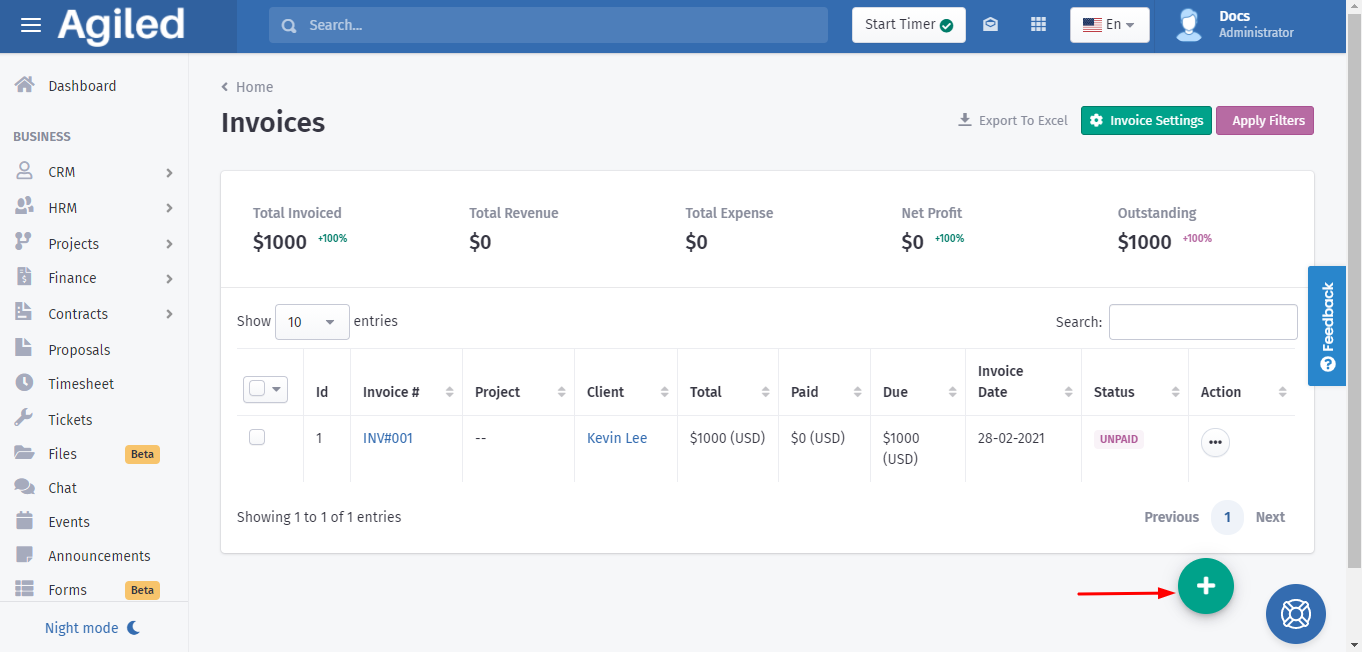
2. It will take you to the list of invoices with the ' + ' sign at the bottom to create a new invoice. Click on ' + ' to create a recurring invoice.
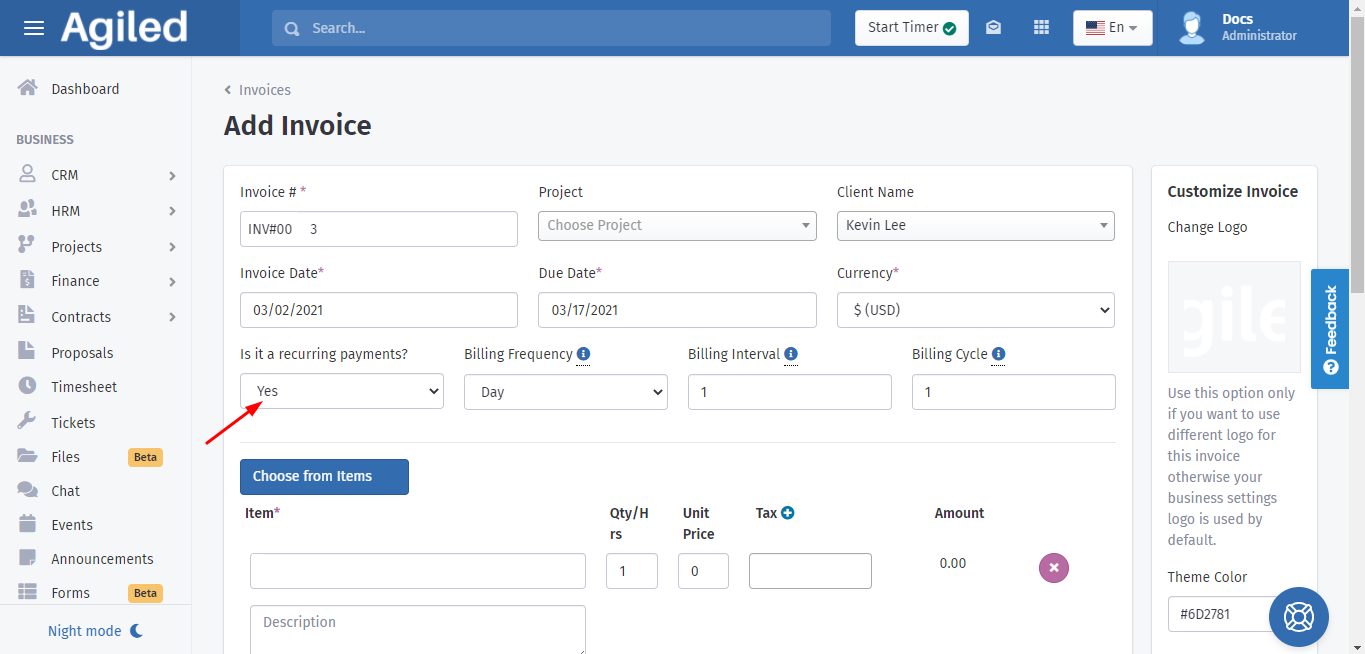
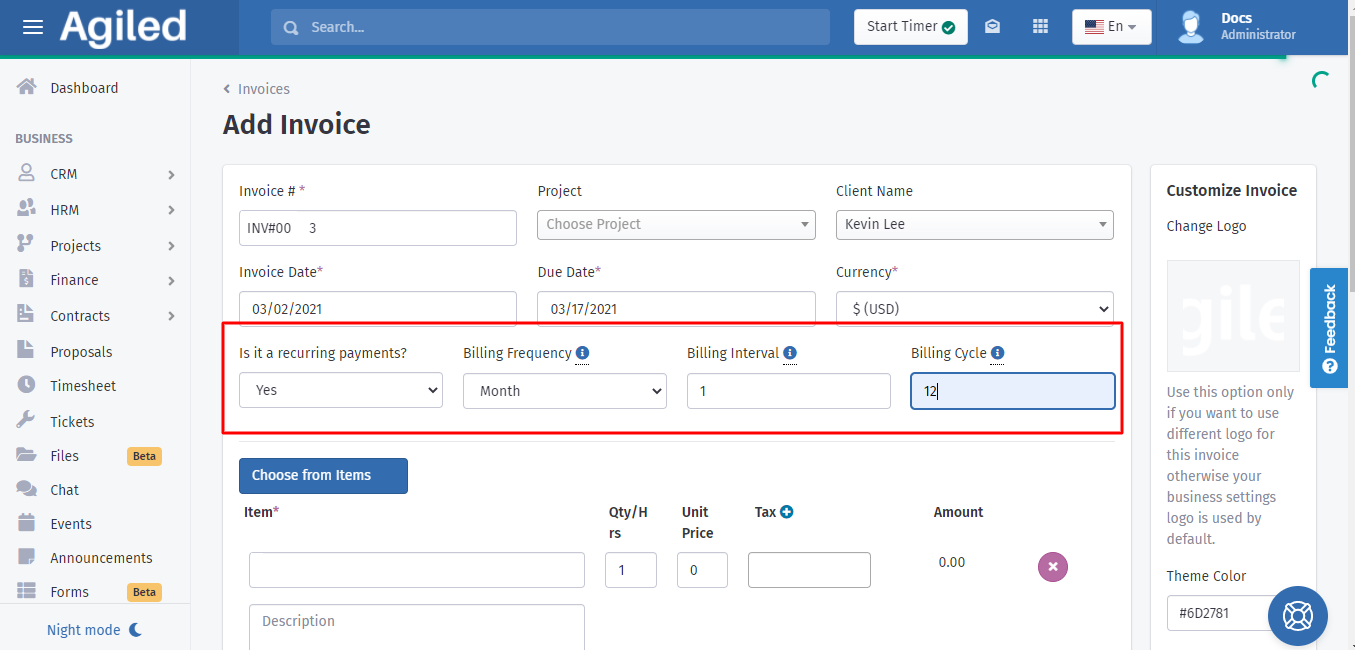
4. After that you can opt for creating a recurring invoice by clicking on 'yes' as shown below.
5. Once you opt for 'yes' it will take you to three more options. These are:
- Billing Frequency
- Billing Interval
- Billing Cycle
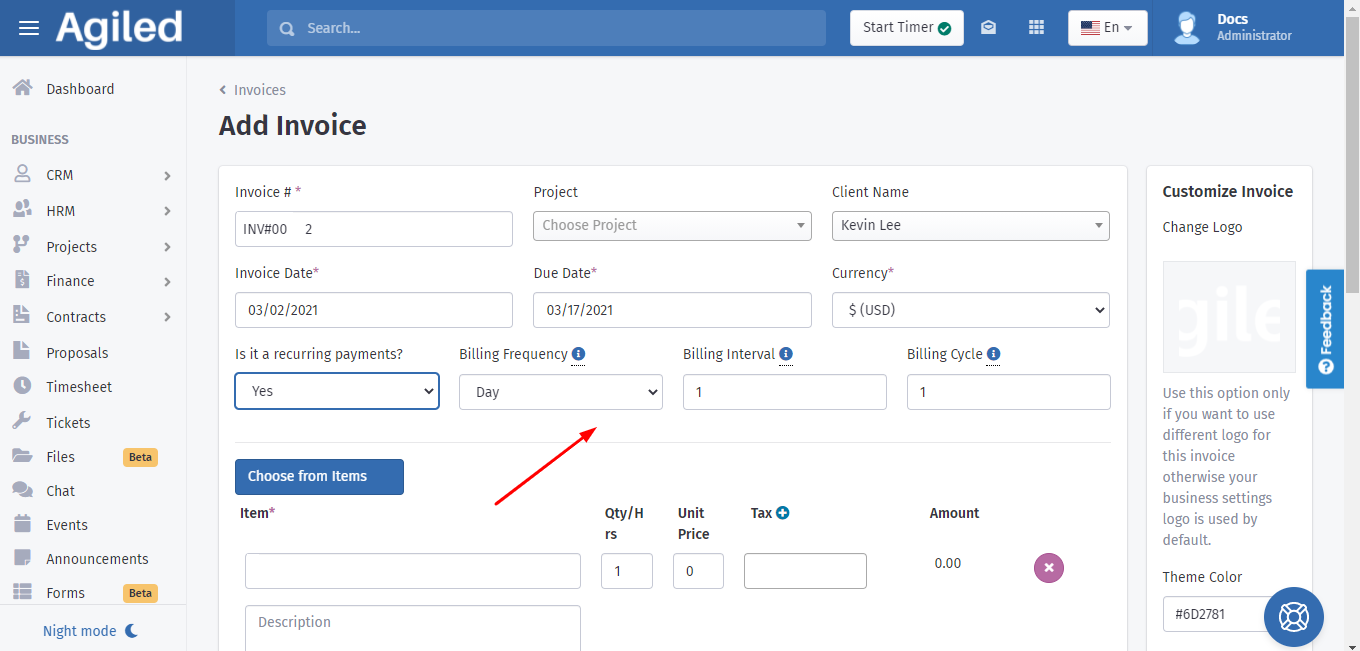
You can set the Billing Frequency day-wise, week-wise, month-wise, or year-wise. Set the Billing Interval as per your need, if you want to send the invoices every month then go for '1', or if you want to send them after 2 or 3 months, then go for '2' or '3' respectively. Billing Cycle depends on how frequently you want to send invoices, if you set your billing frequency 'month-wise, an interval '1' then your billing cycle will be '12'. It means that you want to send invoices every month for a year, so it makes '12' billing cycles.
Was this article helpful?
More in Finance
- Creating InvoicesHow to create an Invoice in Agiled? To create an invoice, go to Finance -> Invoiceand click on Plus button. This will take you to create invoice screen. Follow
- How to send payment linkYou can follow these steps to send the payment link: 1. Go to the 'Finance', click 'Invoices.' 2. You can send the link of invoices by using the 3 dots menu und
- What currencies do Agiled support?Here are the currencies Agiled supports right now. currency_name currency_symbol currency_code United States Dollar $ USD Pounds £ GBP Euros € EUR Rupee ₹ INR A
- How to change invoice template?To change the invoice template follow these steps: 1. Go to the Finance option on the right side of the toolbar. 2 . Then click on ' Invoices' from the list. 3.
Questions about this? Agiled Assist answers from these articles.