How to Sync events and avoid double booking.
Introduction In this tutorial, we will guide you on how to avoid double booking in Agiled, how to sync events with your calendars in real time, and how to add e
Updated 1 min read
Introduction
In this tutorial, we will guide you on how to avoid double booking in Agiled, how to sync events with your calendars in real time, and how to add events to your calendars from Agiled.
Steps to Avoid Double Booking and Manage Calendar Events in Agiled
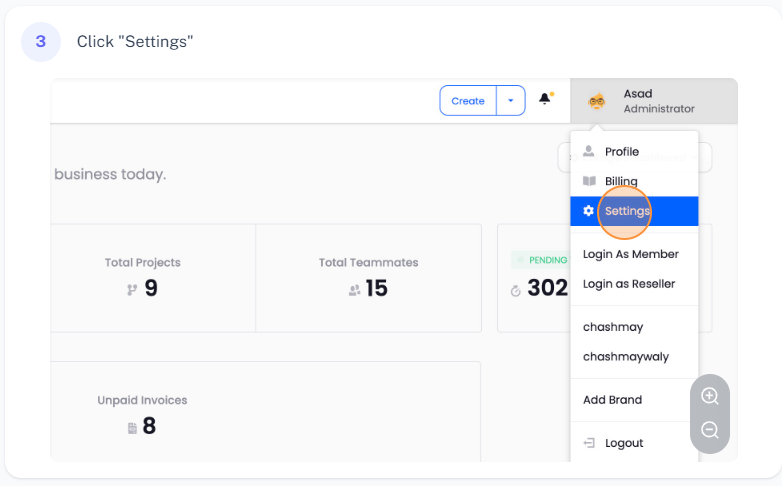
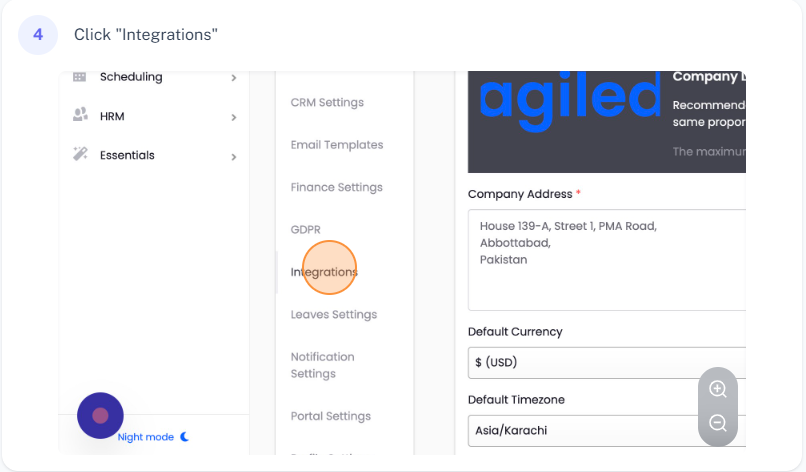
1. **Navigate to Settings**: Start by going to 'Settings' and then to 'Integrations'.
2. **Go to Calendar Settings**: Within the integrations, navigate to 'Connect your Calendar' settings.
3. **View Connected Calendars**: You will see the list of all the Google Calendar accounts you have connected with Agiled. You have the option to disconnect any of these calendars or add another calendar account.
4. **Manage Calendar Settings**: For each connected calendar, you can manage settings by clicking 'Edit' under the 'Configuration' section.
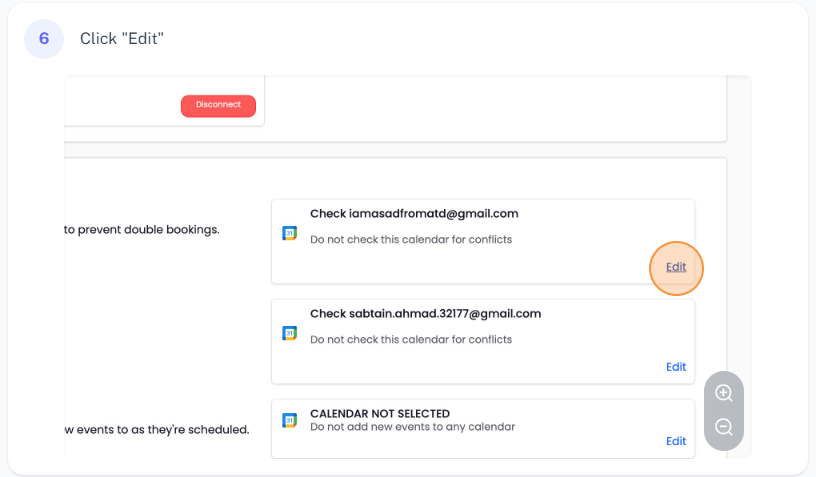
5. **Avoid Double Bookings**: To avoid double bookings, select the 'Check for Conflicts' option. You can also select to check for 'Holidays' or 'Birthdays' to avoid scheduling conflicts on those days. After selecting the desired options, click 'Save'.
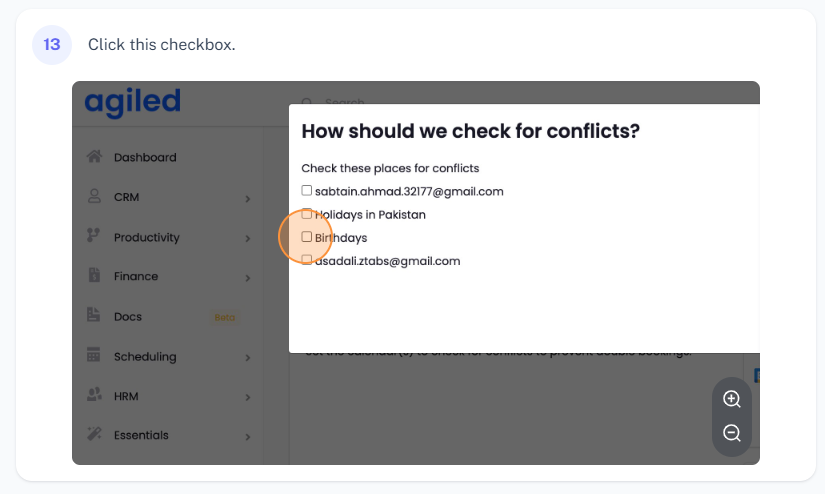
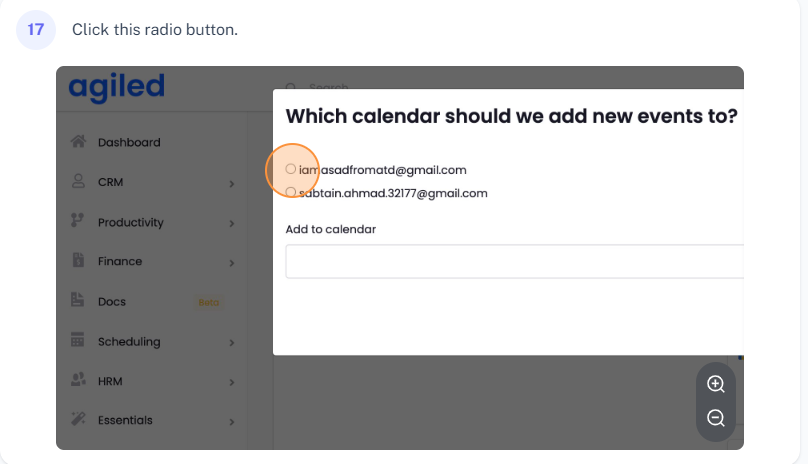
6. **Add Events to Calendar**: To add Agiled events to your calendar, go to the 'Settings' and select the desired calendar from the connected accounts. Remember, you can only send events to one calendar. After selecting the desired calendar, click 'Save'.
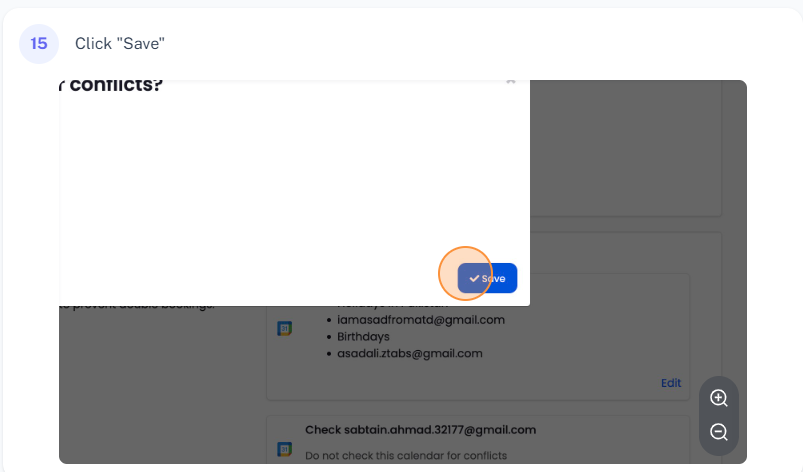
7. **Sync Events**: Once saved, Agiled will now send all scheduled events from Agiled to this selected calendar whenever a booking or an event is created.
Conclusion
By following these steps, you can efficiently manage calendar conflicts, avoid double bookings, and sync your Agiled events with your selected calendar in real time. This will ensure a seamless and efficient scheduling experience. Thank you for watching this tutorial.
Was this article helpful?
More in Scheduling
- How to edit an Event Type in AgiledIntroduction In this tutorial, we'll guide you through the process of editing an event type in Agiled. Whether you need to adjust the meeting platform, the dura
- How to delete an Event Type in AgiledIntroduction Hello everyone! In this video tutorial, I'm going to walk you through the steps to delete an event type in Agiled. There might be instances when yo
- How to create an EventFor creating an event, follow the steps below: 1. Go to the 'Scheduling' on the toolbar and click on the "Events". 2. Click on 'Create Event' present at the top
- Cancelling a Scheduled Event or Meeting in AgiledIntroduction Welcome, in this video tutorial, I'll be walking you through the process of cancelling a scheduled event or meeting in Agiled, an all-in-one busine
Questions about this? Agiled Assist answers from these articles.