Integrate Agiled with Zoom
Installation Please login to your Agiled account by going to https://my.agiled.app/login Once logged in, visit settings page from left menu. (https://my.agiled.
Updated 1 min read
Installation
- Please login to your Agiled account by going to https://my.agiled.app/login
- Once logged in, visit settings page from left menu. (https://my.agiled.app/admin/settings)
- Scroll down and visit Integration Settings page. ( https://my.agiled.app/admin/settings/integration-settings)
- Find Zoom Integration Box and click on Integrate Now button. (You can directly visit this link too https://my.agiled.app/admin/settings/connect-zoom)
- This will take you to the Auth Consent Screen. Please allow Agiled to read your account info and read and create meetings in your account.
- Once you allow Agiled to access your account, your Agiled account will get connected to Zoom and you will be taken to Zoom Integration Page.
Usage
- Once Zoom App is successfully installed in your Agiled account, you will be taken to Zoom Integration page that will look like below
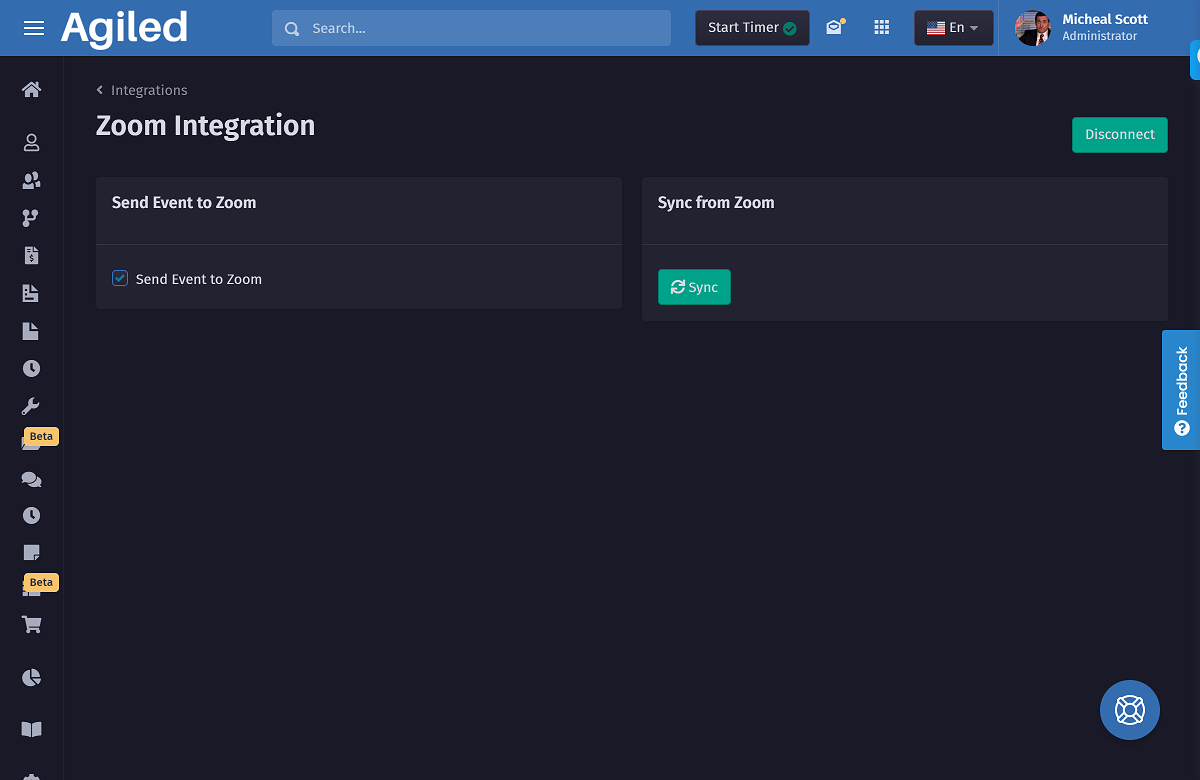
2. If you want to send Event to Zoom every time an event/meeting is created in Agiled, you can check the checkbox stating "Sent Event To Zoom".
3. To create an event in Agiled and sent it automatically to Zoom, go to Scheduling> Events from left menu.
4. Create a new event, enter all the details. Once saved successfully, you event should be available in zoom meetings list too.
5. To Sync all of your meetings from Zoom to Agiled, you can click on the Sync button under heading "Sync from Zoom"
6. To access all the synced events/data from zoom, go to Scheduling > Events and Calendar will show all the data.
Uninstallation
1. To uninstall Zoom App from your Agiled account, login to your Zoom account and navigate to Zoom App Marketplace.
2. Click Manage > Installed Apps or search for Agiled app.
3. Click Uninstall.
Notes: Recurring events in Zoom will not be synced to Agiled because Agiled currently does not support Recurring Events.
Was this article helpful?
More in Integrations
- Connecting Your Email With CRMYou can connect your email account with Agiled to send one-to-one emails from the CRM to the Contacts and log replies. By connecting your personal email with A
- Integrating with LemlistYou can integrate Lemlist with Agiled to sync leads from & to Lemlist, and it is really easy to setup. Setting up Lemlist Integration To setup Lemlist integrat
- Integrating Agiled with PlutioHow to Integrate Agiled with Plutio? Agiled integrates with Plutio to import Projects,Task,Teammates and Invoices from Plutio. To integrate with Plutio go to S
- How to get Agiled API KeyAgiled has a public API which is available to our paid account users. API docs are available at https://my.agiled.app/developers. To use Agiled's API you will n
Questions about this? Agiled Assist answers from these articles.