How to set up Google Drive Storage.
Agiled stores all of your files on Agiled Storage that comes with your subscription plan but if you want to set up Google Drive storage, you can easily set that
Updated 2 min read
Agiled stores all of your files on Agiled Storage that comes with your subscription plan but if you want to set up Google Drive storage, you can easily set that up.
To setup Google Drive storage go to Settings -> Storage settings in Agiled.
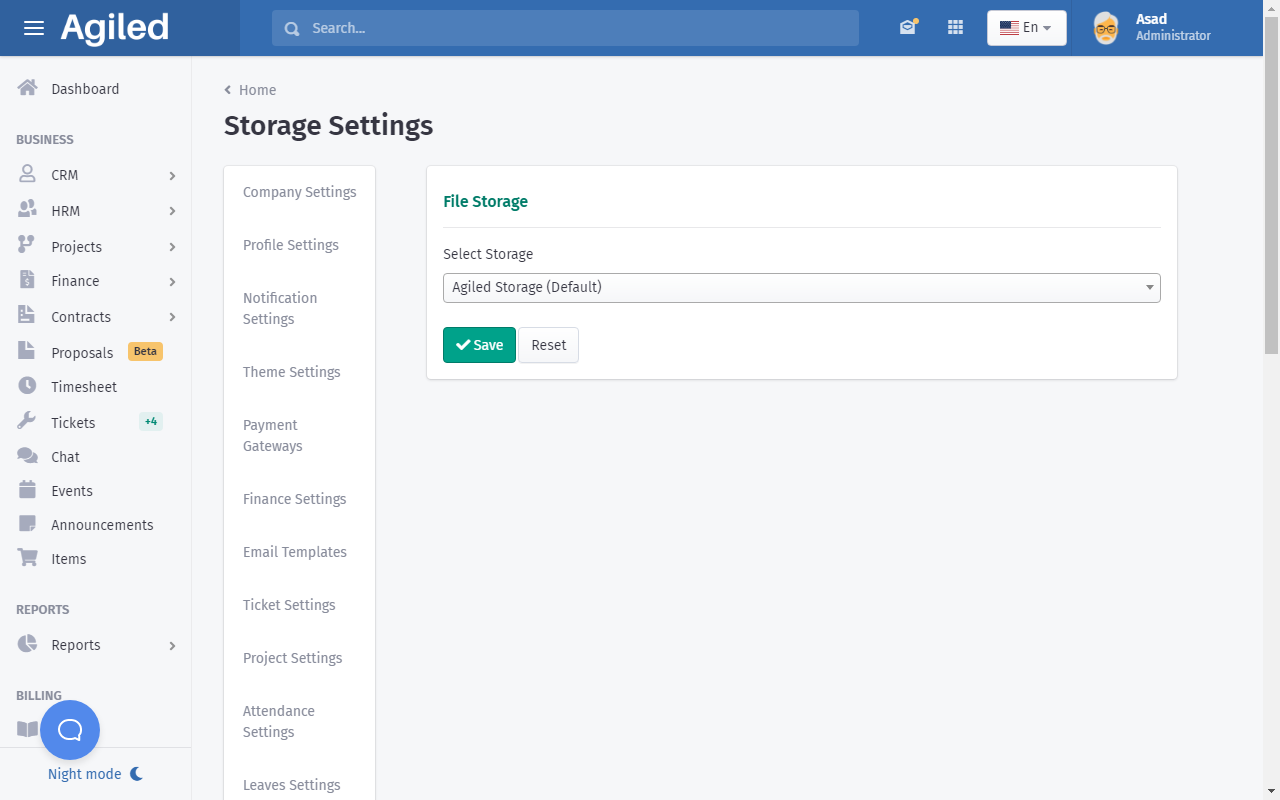
and select Google Drive from the drop down menu.
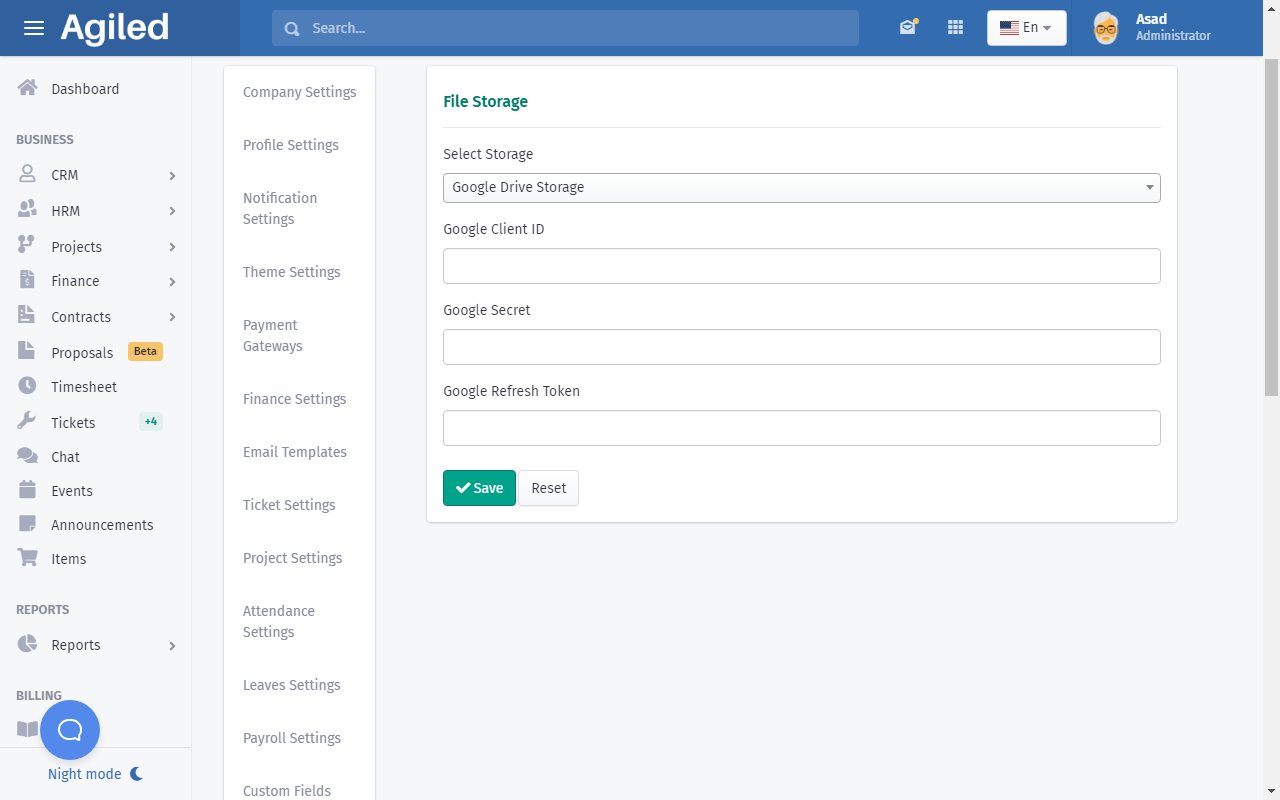
You need Google Drive API keys to setup Google Drive storage.
Getting your Client ID and Secret
Log in to your Google Account and go to this website:
https://console.developers.google.com/
Create a Project
Create a new project using the dropdown at the top.
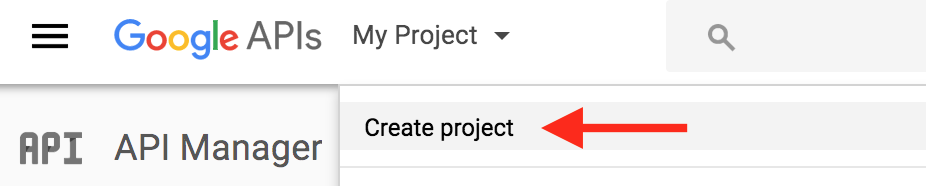
After you enter a name, it takes a few seconds before the project is successfully created on the server.
Enable Drive API
Make sure you have the project selected at the top.
Then go to Library and click on "Drive API" under "G Suite APIs".
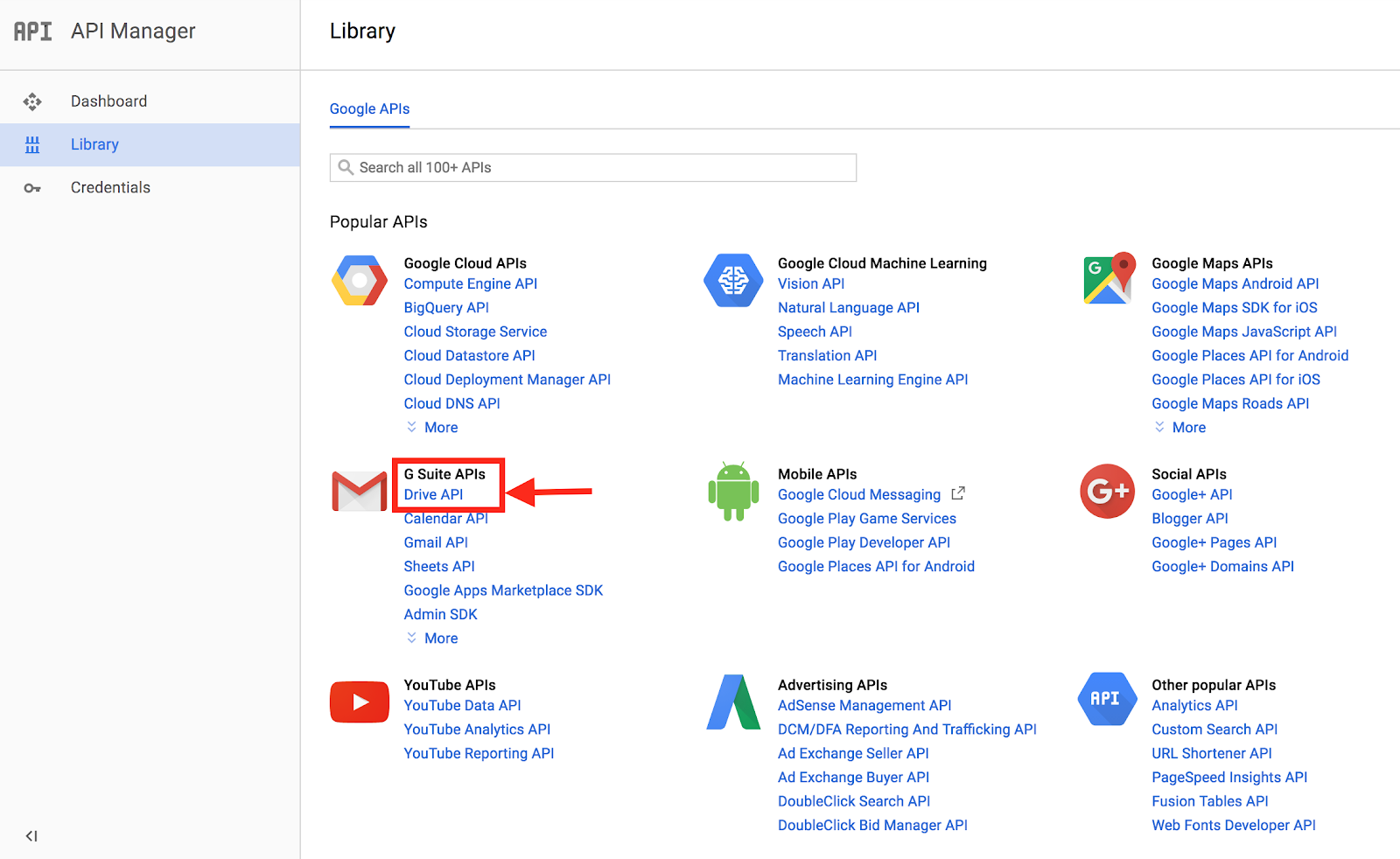
And then Enable it.

Create Credentials
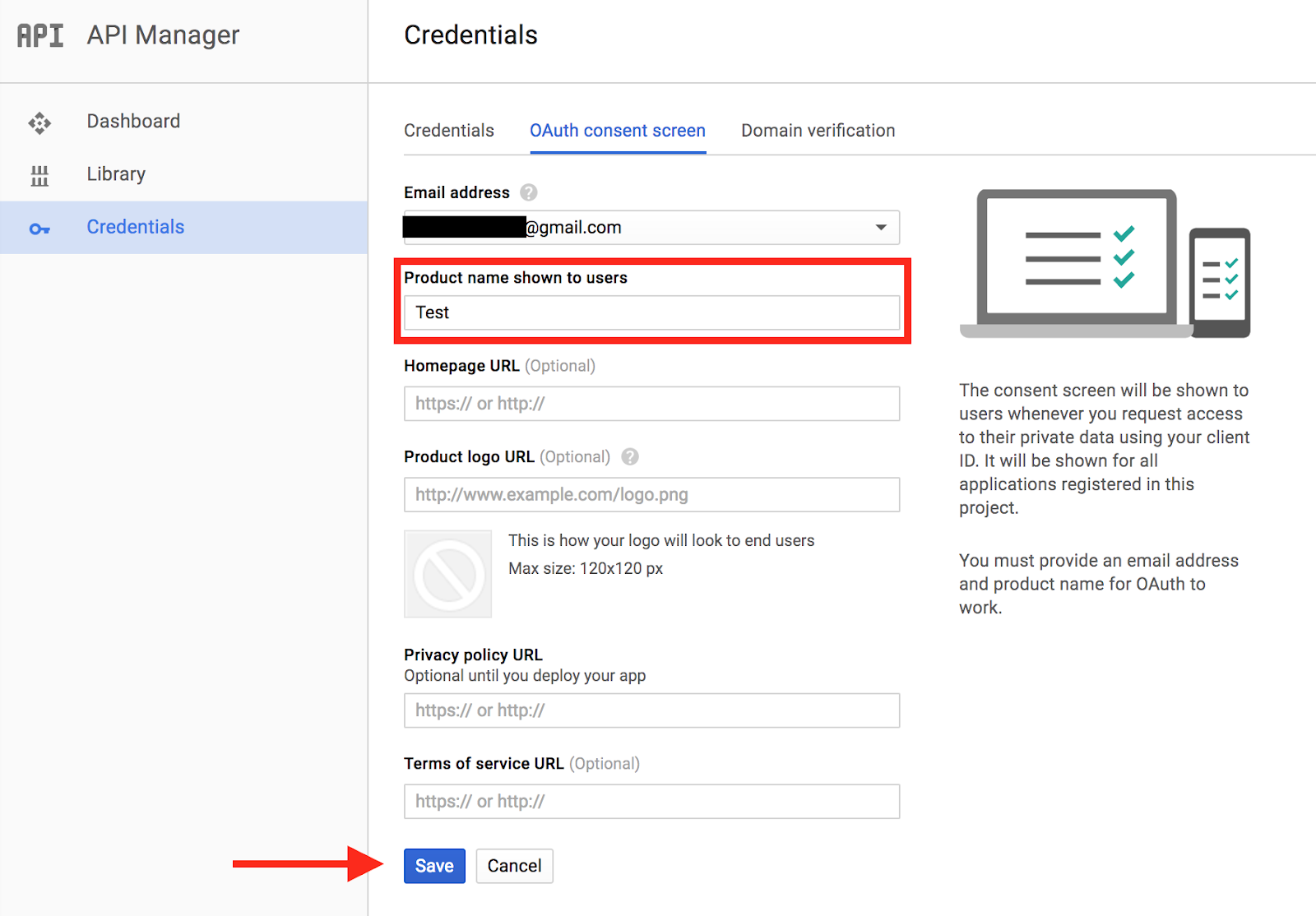
Go to "Credentials" and click on the tab "OAuth Consent Screen". Fill in a "Product name shown to users" and Save it. Don't worry about the other fields.
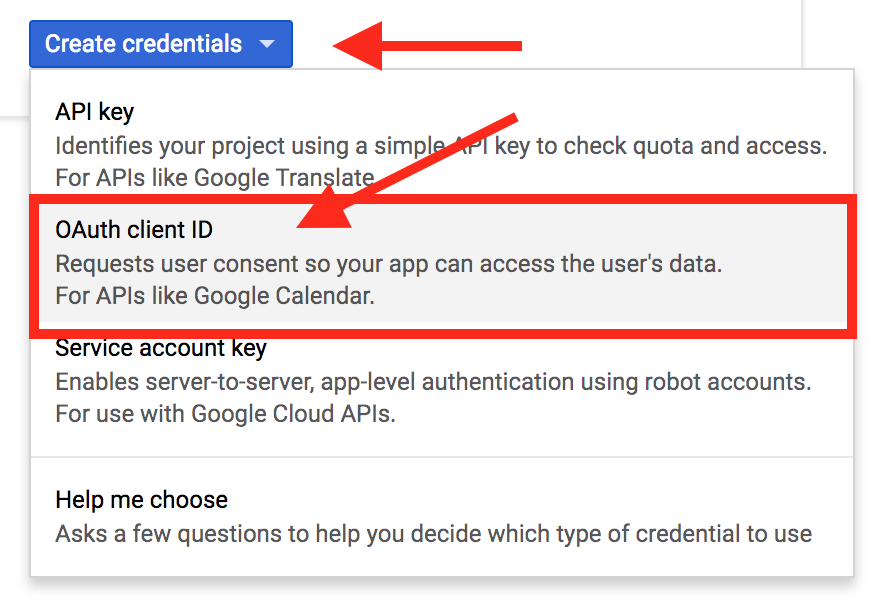
Then go back to Credentials, click the button that says "Create Credentials" and select "OAuth Client ID".
Choose "Web Application" and give it a name.
Add https://developers.google.com/oauthplayground in "Authorized redirect URIs". You will need to use this in the next step to get your refresh token. Once you have the token, you can remove the URI.
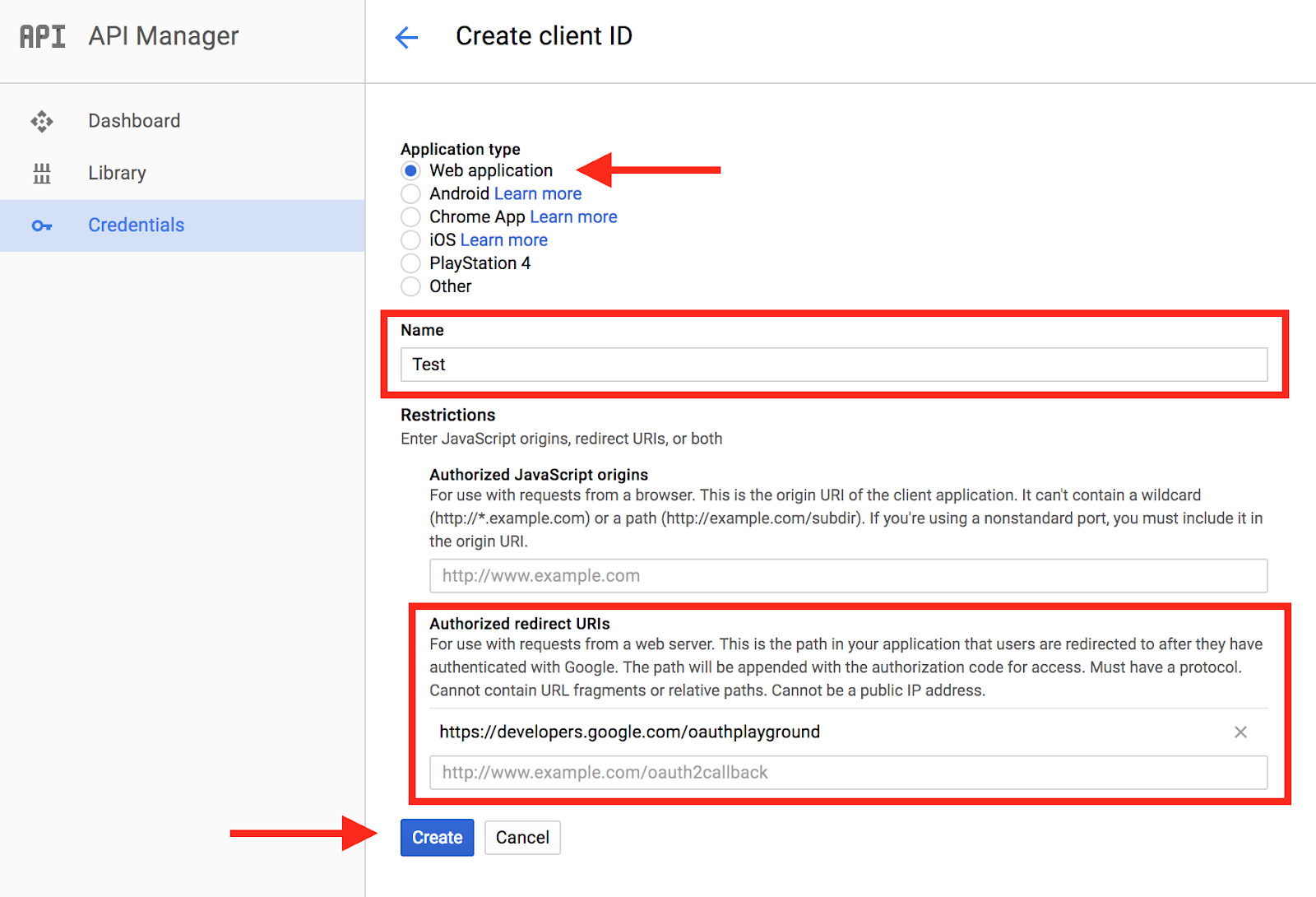
Click Create and take note of your Client ID and Client Secret.
Getting your Refresh Token
Go to https://developers.google.com/oauthplayground.
Make sure you added this URL to your Authorized redirect URIs in the previous step.
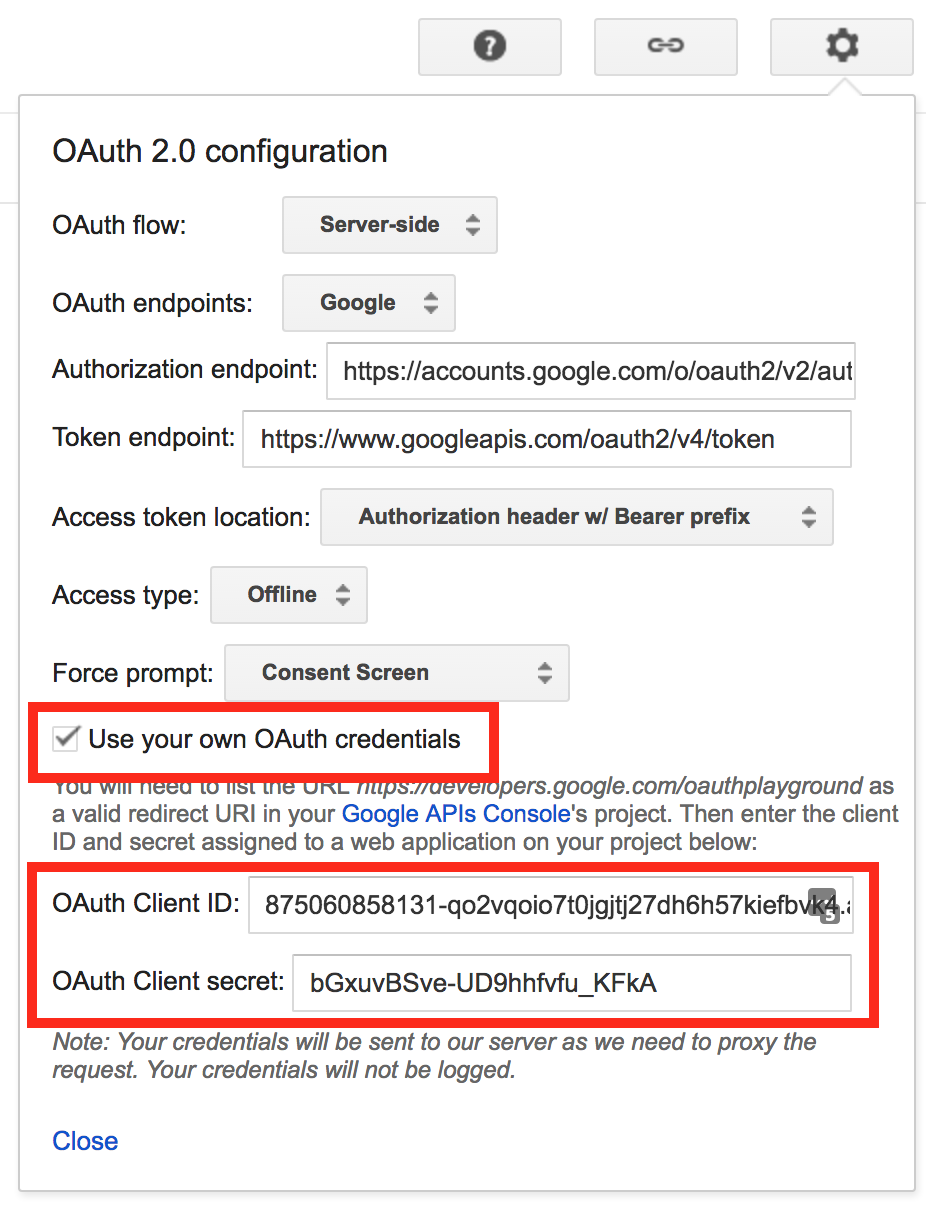
In the top right corner, click the settings icon, check "Use your own OAuth credentials" and paste your Client ID and Client Secret.
In step 1 on the left, scroll to "Drive API v3", expand it and check the first drive scope.
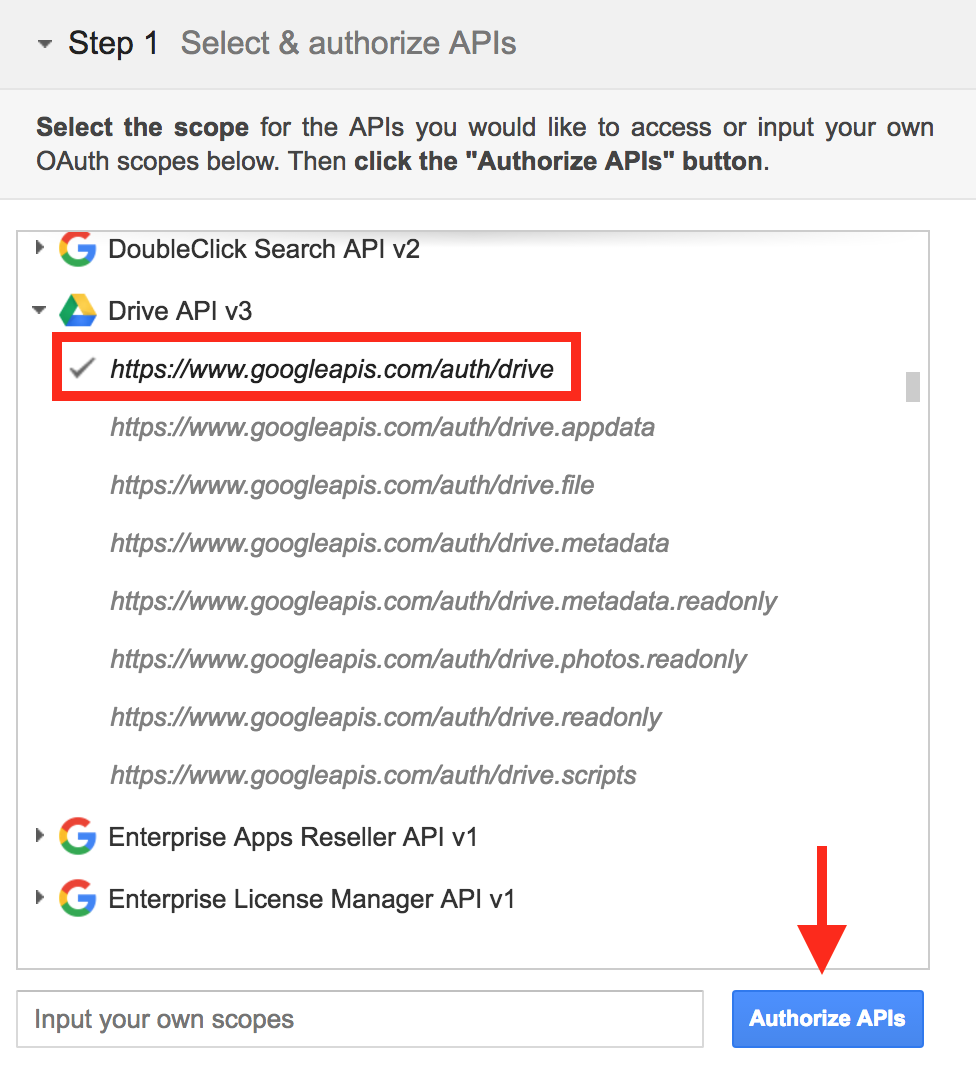
Click "Authorize APIs" and allow access to your account when prompted. There will be a few warning prompts, just proceed.
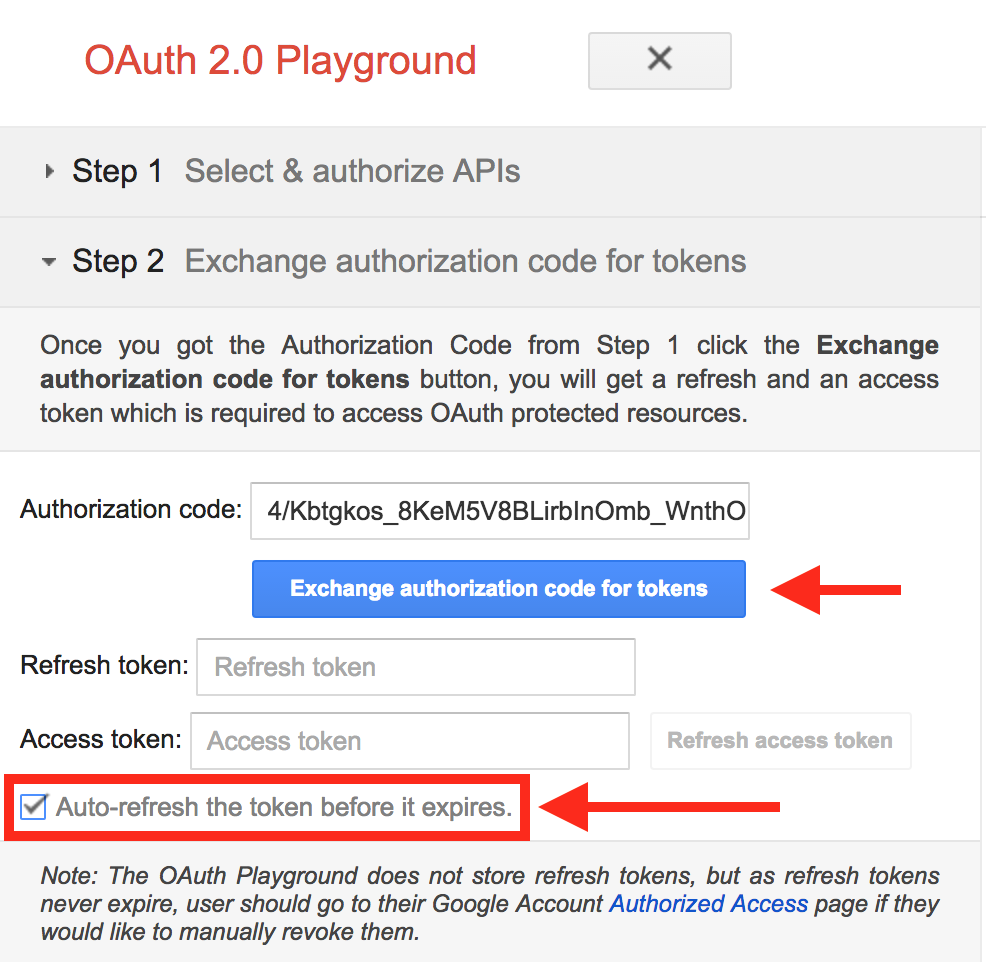
When you get to step 2, check "Auto-refresh the token before it expires" and click "Exchange authorization code for tokens".
When you get to step 3, click on step 2 again and you should see your refresh token.
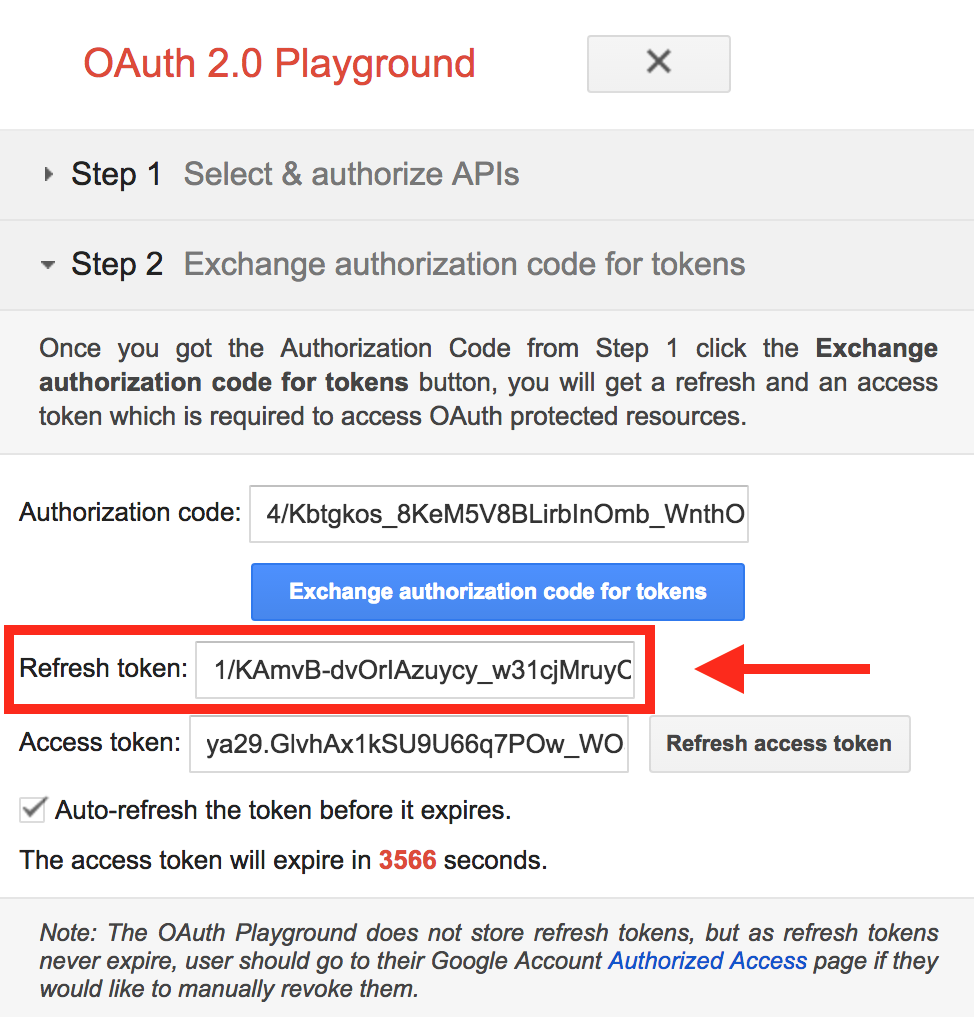
Copy and paste your Google Drive credentials and click Save.
All of your files will be saved to your Google Drive from this point.
Was this article helpful?
More in Storage
- How to set up Dropbox StorageAgiled stores all of your files in secure Agiled storage that comes with your subscription plan but you can also choose to save your files in Dropbox. To set u
- How to set up AWS storageAgiled stores your file in default Agiled storage that comes with your plan. However, you can also set up AWS to use your own storage. To setup AWS storage go
Questions about this? Agiled Assist answers from these articles.