
Accepting Payments with Mollie
To start accepting payments with Mollie you need to copy Mollie API key in Agiled.
Go to Settings - Payment Gateways from your agiled account ,click the tab Mollie and paste your API keys from Mollie.

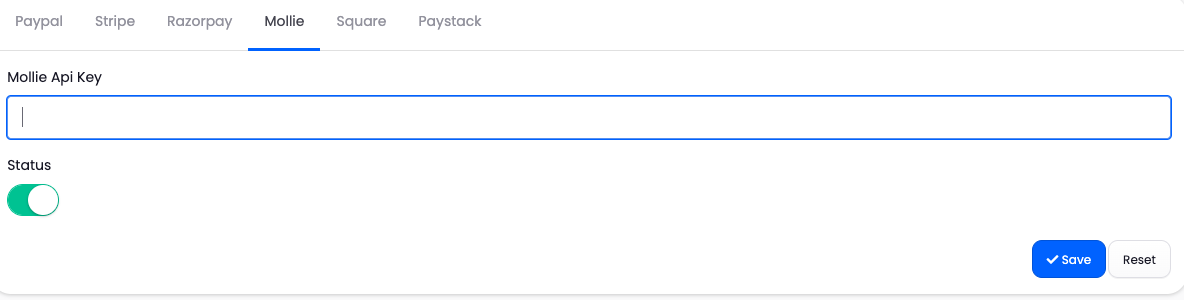
Click save and start accepting payments with Mollie.
How to Obtain API Keys from Mollie
Mollie is a popular payment service provider in Europe, offering a simple and flexible way to accept online payments. To start integrating Mollie’s payment system into your website or application, you first need to obtain an API key. This key will authenticate your requests to Mollie's API.
Step 1: Create a Mollie Account
- Visit the Mollie website.
- Click on Sign Up and follow the instructions to create a new account. If you already have a Mollie account, click on Log In and sign in with your credentials.
- During the sign-up process, you will be required to provide some basic business and personal information to verify your account.
Step 2: Access the Mollie Dashboard
- Once you have successfully logged in, you will be directed to the Mollie Dashboard.
- This dashboard is the central hub for managing your payments, viewing transactions, and accessing your API keys.
Step 3: Navigate to API Keys Section
- In the Mollie Dashboard, locate the sidebar on the left-hand side.
- Click on Developers. This section is dedicated to tools and settings for developers integrating Mollie into their websites or applications.
Step 4: Get Your API Key
-
Under the Developers section, click on API Keys.
You will see two types of keys:
- Live API Key: This is used for real transactions in a production environment.
-
Test API Key: This is used for testing purposes in a development environment. It allows you to simulate payments without processing actual transactions.
To view and copy your keys:
- Click on the Show key button next to the key you want to use.
- Copy the API key and store it securely. This key is essential for making authenticated requests to Mollie’s API.
Step 5: Configure Your API Key in Your Application
- Use the Test API Key in your development environment to test the integration without processing real payments.
- When ready to go live, replace the Test API Key with the Live API Key in your application’s configuration.